
Overview
Over 35 years of state-of-the-art research
Jacobs Levy Equity Management has conducted over 35 years of state-of-the-art research in security pricing, portfolio construction, and sophisticated trading techniques. Our groundbreaking work on disentangling return regularities, engineering portfolios to performance benchmarks, and long-short investing, including integrated long-short optimization and portfolio optimization with leverage aversion, has been featured at professional forums such as the CFA Institute and Q-Group, Wall Street conferences such as Morgan Stanley and Goldman Sachs, academic conferences such as University of California, Berkeley and the Wharton School, University of Pennsylvania, and in the pages of Institutional Investor and the Wall Street Journal. Our research helped to change the course of modern investment management by demonstrating that the supposedly efficient equity market offered potential profit opportunities that could be identified and exploited.
In the 1980s, Jacobs and Levy began to publish a series of articles articulating the investment philosophy that had emerged from their research. These articles appeared in the peer-reviewed Financial Analysts Journal, Journal of Portfolio Management, Journal of Investing, Operations Research, Journal of Financial Perspectives, and Journal of Impact and ESG Investing.
Our seminal insight is that equity market returns are driven by complex combinations of company fundamentals, macroeconomic conditions, and behavioral factors, and that these effects can be detected with the use of extensive modeling grounded in intuitive and theoretically plausible relationships. Exploiting these relationships requires simultaneous analysis of numerous variables across a broad and diverse range of stocks; portfolio optimization and performance attribution systems that are customized to the security selection process; sophisticated trading techniques; and creative research.
Articles
| Security Selection |
The articles abstracted here address Jacobs Levy Equity Management’s view of the market as a complex system and some of the methods that can best be used to “disentangle” this complexity.
U.S. equity market returns are driven by complex combinations of company fundamentals, such as earnings and growth rates; macroeconomic conditions, such as interest rates and inflation; and behavioral factors, such as investors’ tendency to overreact to news and events. As a result, the market is permeated by a complex web of interrelated return regularities. Disentangling this web allows potentially profitable investment opportunities to emerge.
“The Complexity of the Stock Market” first appeared in the 15th anniversary issue of the Journal of Portfolio Management and was selected for inclusion in Streetwise: The Best of the Journal of Portfolio Management. This article demonstrates that active quantitative investing (despite the assertions of the efficient market theorists and random walk advocates) is not a futile task; at the same time, it explains why simple investment techniques, such as buying low-P/E stocks, cannot provide consistent outperformance. Identifying the complex web of interrelationships that underlie stock price movements, and exploiting them for profitable investing, requires extensive computer-based statistical modeling.
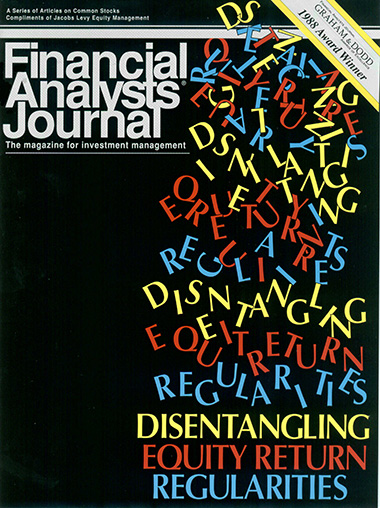
Copyright 1988, Association for Investment Management and Research. Reproduced and republished from Financial Analysts Journal with permission. All rights reserved.
Disentangling Equity Return Regularities: New Insights and Investment Opportunities
by Bruce I. Jacobs and Kenneth N. Levy, Financial Analysts Journal, May/June 1988
Robust insights into stock price behavior emerge only from an analysis that carefully considers numerous factors simultaneously. Naïve attempts to relate returns and potential return predictors do not take correlation into account. Quintiling or univariate analysis, for instance, naively assumes that prices are responding only to the variable under consideration. By contrast, simultaneous analysis of all relevant variables takes into account and adjusts for any correlations; the results of such analysis provide a truer picture of real return-predictor relationships.
“Disentangling Equity Return Regularities: New Insights and Investment Opportunities” describes Jacobs Levy’s pioneering methodology for “disentangling” and “purifying” return effects via multivariate analysis. Disentangling distinguishes real effects from mere proxies (and real investment opportunities from spurious ones). Disentangling is of the utmost importance because it results in the “pure” returns to a given predictor, uncontaminated by the possible effects of other related variables. These pure returns are less volatile, and more predictable, than the naïve return estimates produced by less rigorous methodologies. “Disentangling” won a Graham & Dodd Award from the Financial Analysts Journal and was subsequently translated into Japanese for the Security Analysts Journal of Japan.
In disentangling the relationships between firm characteristics and stock returns, Jacobs and Levy applied a cross-sectional approach. Some years later, Fama and French examined returns using a time-series model based on portfolio sorts. In “Factor Modeling: The Benefits of Disentangling Cross-Sectionally for Explaining Stock Returns,” which appeared in the May 2021 issue of the Journal of Portfolio Management, Jacobs and Levy compare factor models using cross-sectional factors across firm characteristics with those using time-series factors based on portfolio sorts, and discuss the benefits of cross-sectional models. Although a time-series approach using portfolio sorts has dominated the asset pricing literature, cross-sectional analysis using firm characteristics has greater explanatory power for stock returns and helps practitioners address one of the most fundamental issues in investment management—understanding and predicting the returns of individual stocks.
Jacobs and Levy have found that standard academic asset pricing research, with its neoclassical assumptions and preference for parsimony, has limited usefulness when applied directly to complex, dynamic, and behavioral real-world markets. In “Building on Finance Theory to Forge the Future of Investment Practice,” published in the 50th Anniversary Issue of the Journal of Portfolio Management in November 2024, they highlight examples of their research in which they bridge this gap between theory and application: An active, dynamic, multifactor approach called smart alpha will help overcome the limitations of smart beta by accounting for a wider range of factors and changing market conditions. Mean-variance analysis will not yield optimal portfolios for leverage-averse investors, but mean-variance-leverage analysis will by accounting for investor aversion to leverage risk. Enhanced active equity long-short strategies provide improved efficient frontiers and portfolio efficiency by relaxing the long-only constraint while maintaining full benchmark index exposure. Asynchronous, discrete-time, dynamic simulations are more useful than continuous-time finance models for explaining the behavior of financial markets.
Building on Finance Theory to Forge the Future of Investment Practice
Academic asset pricing research has served as a foundational element in quantitative investing over the past several decades. However, its neoclassical assumptions and preference for parsimony have made academic research less useful when applied... directly to complex, dynamic, and behavioral real-world markets. This article presents several examples of the authors’ research that highlight efforts to bridge the gap between theory and application. An active, dynamic, multifactor approach called smart alpha will help overcome the limitations of smart beta imposed by the standard factor models by accounting for a wider range of factors and changing market conditions. Mean-variance analysis will not yield optimal portfolios for leverage-averse investors but mean-variance-leverage analysis will by accounting for investor aversion to leverage risk. Enhanced active equity long-short strategies provide improved efficient frontiers by relaxing the long-only constraint while maintaining full benchmark index exposure. Hence, these strategies improve portfolio efficiency compared to long-only portfolios. Continuous-time finance models are not useful for explaining the behavior of financial markets; asynchronous, discrete-time, dynamic simulations are. 1Presented at The Journal of Portfolio Management (JPM) 50th Anniversary Symposium, November 2024.
https://www.youtube.com/embed/jvNFjepSgb4
view video
download PDF
Factor Modeling: The Benefits of Disentangling Cross-Sectionally for Explaining Stock Returns
Over thirty years ago, Jacobs and Levy introduced the idea of disentangling stock returns across numerous factors. They identified the relationships between individual stock returns and firm characteristics using a cross-sectional analysis, and examined the benefits of using the time-series of returns to disentangled factors for return forecasting... Some years later, an alternative factor model proposed by Fama and French made use of time-series factors based on portfolio sorts. “Factor Modeling” compares models that use cross-sectional factors across firm characteristics with models that use time-series factors based on portfolio sorts and discusses the benefits of the cross-sectional approach for investment management. Although a time-series approach using portfolio sorts has dominated the asset pricing literature, cross-sectional analysis using firm characteristics has greater explanatory power for stock returns and helps practitioners address one of the most fundamental issues in investment management—understanding and predicting the returns of individual stocks.
read more +download PDFTen Investment Insights that Matter
This article discusses the key insights that inform our investment process, developed over 30 years of research and portfolio management. These insights and the resulting rewards to active management stem from the realization that the market is a complex system. Paradoxically, if the market were simpler, and investing... easier, the rewards would be smaller, because many would have the skills to succeed. It is the market’s very complexity that offers the opportunity to outperform—to those investors willing and able to grapple with that complexity.
read more +download PDFInvesting in a Multidimensional Market
Many years ago, Bruce Jacobs and Ken Levy demonstrated that there is much greater dimensionality to the stock market than is suggested by the one-factor capital asset pricing model. Investors today continue to underestimate the market’s dimensionality through their recent embrace of “smart beta” strategies... Such strategies assume a market in which a few chosen factors produce persistent returns. In reality, there are numerous factors that produce returns, which vary over time. Those returns can best be captured by a multidimensional approach that emphasizes diversification across many proprietary factors and continuous adjustment of exposures to those factors.
read more +download PDFThe Complexity of the Stock Market
The stock market is a complex system, somewhere between the domains of order and randomness. Ordered systems are simple and predictable, and random systems are inherently unpredictable. Simple theories do not adequately describe security pricing, nor is pricing random. Rather, the market is permeated by a web of... interrelated return effects. Substantial computational power is needed to disentangle, model, and exploit these return regularities.
2The Journal of Portfolio Management 15th Anniversary Issue.
Disentangling Equity Return Regularities: New Insights and Investment Opportunities
Stock market phenomena such as the January and low-P/E effects entice investors with prospects of extraordinary returns. Most previous stock market anomaly research has focused on one or two return regularities at a time. This seminal article demonstrates that multivariate regression can provide a unified... framework for “disentangling” and analyzing numerous return effects simultaneously. Disentangling purifies the effect of each anomaly, affording a clearer picture of which anomalies are “real” and which are merely proxies for other effects. 31988 Financial Analysts Journal Graham & Dodd Award winner.
While pure payoffs may be smaller than the naïve payoffs of univariate analyses (given the independent nature of the pure effects and the proxying behavior of the naïve effects), their statistical significance is often greater. The residual reversal effect is an exception, emerging stronger in magnitude in its pure form than its naïve form, primarily because the pure measure separates out related effects such as earnings surprise. Some effects, including cash flow/price, disappear completely in their pure form. And both naïve and pure returns to beta prove inconsequential in explaining cumulative returns.
The strength and persistence of returns to such anomaly measures as trends in analysts’ earnings estimates represent evidence against semi-strong market efficiency. The significant payoffs to measures such as residual reversal suggest that past prices alone do matter—that is, the market is not even weak—form efficient.
Controlling for tax-loss selling and other attributes in a multivariate framework mitigates the January seasonals exhibited by many of the naïve anomaly measures. For instance, the small size effect’s January seasonal vanishes. The yield effect’s January seasonal remains strong, however. Also, because long-term tax-loss selling is more powerful than short-term, investor behavior appears suboptimal. A negative January seasonal in pure returns to the relative-strength measure appears to arise from profit-taking associated with tax-gain deferral.
Returns to many attributes appear to have market-related components. For example, naïve returns to low P/E behave defensively, while pure returns to low P/E are not market-related at all. Apparently naïve returns to low P/E are proxies for related defensive effects such as the yield effect. Returns to beta, however, are strongly procyclical in both their naïve and pure forms.
Earnings Estimates, Predictor Specification, and Measurement Error
Increased use of expectational data for modeling stock returns places a spotlight on the specification of predictor variables. Choices between alternative specifications of a given predictor such as E/P or earnings trend, or between different treatments of missing variables, can have wide-ranging effects on portfolio... selection and quantitative modeling. The importance of predictor specification may vary depending upon the predictor, the investment strategy, and the estimation procedure used. The relationship between predictors and returns may also vary across types of stocks; for instance, the relationship may be distributed differentially across stocks by the degree of analyst coverage.
3Presented at Corporate Earnings Analysis Seminar, April 1996.
High-Definition Style Rotation
Price behavior varies across different types of stock. This suggests a strategy of rotating a portfolio's allocations across styles—growth, value, large-cap, and small—to take advantage of differential performance across different economic environments. The issue then is how to define style. A “high-definition” approach looks at... many stock attributes and disentangles the effects of each. This results in a detailed map of returns to stock attributes, with the potential to provide better returns than rotation strategies based on more naïve definitions of style.
4Presented at Rutgers University Colloquium, April 1995.
Forecasting the Size Effect
Small-capitalization stocks have provided higher average returns than large-capitalization stocks, and the outperformance has been strongest in the month of January. A multifactor analysis “disentangles” the effect of firm size from related factors that may influence return, including analyst neglect, low P/E, and tax-loss... selling. Disentangling reveals the January small-firm seasonal to be a mere surrogate for the rebound that follows the abatement of tax-loss selling. An analysis of the pure returns to size shows that small stocks outperform the market at some times and lag at others. The payoffs to the size effect are predictable in a broader empirical framework that incorporates macroeconomic drivers such as interest rates and industrial production.
read more +download PDFCalendar Anomalies: Abnormal Returns at Calendar Turning Points
Abnormal equity returns are associated with the turn of the year, the week and the month, as well as with holidays and the time of day. Tax-loss selling at year-end, cash flows at month-end, and negative news releases over the weekend may explain some of these return abnormalities, but human psychology offers a more... promising explanation. Calendar anomalies are difficult to exploit on a stand-alone basis, because of the transactions costs that would be involved. However, an investor can schedule planned trades to take advantage of calendar-based return patterns.
read more +download PDFOn the Value of ‘Value’
Psychological factors, “noise” trading, and fads in investment styles can cause stock prices to deviate from “fair” value, and such departures can be significant and long-lasting. In a market that is not strictly price-efficient, value as measured by a dividend discount model (DDM) is but a small part of the security pricing... story. An examination of security returns over the 1982-87 period shows that a DDM strategy would have produced positive but insignificant returns. When pitted against low P/E, a DDM strategy provided a lower payoff and was significant in fewer quarters. And in a multivariate regression considering DDM simultaneously with 25 equity attributes, DDM was insignificant, while many equity attributes, including sales/price, neglect, relative strength, residual-return reversal, trends in analysts' estimates and earnings surprise, provided positive, statistically significant returns.
read more +download PDFEquity Analysis in a Complex Market
An investment approach that begins with a broad equity universe provides a coherent evaluation framework that benefits from all the insights to be garnered from a wide and diverse range of securities, including variations in price behavior across different types of stocks, and is poised to take advantage of more profit... opportunities than a more segmented approach can offer. Because the effects of different sources of stock return can overlap, it is also important to disentangle the connections by examining all variables of interest simultaneously. Disentangling reduces the noise in return estimates, reveals opportunities that might otherwise remain hidden, and improves predictability.
read more +Security Valuation in a Complex Market
The stock market is characterized by a complex web of interrelated return effects that form predictable patterns of mispricing across stocks and over time. Detecting these patterns requires breadth of analysis and depth of inquiry; disentangling the patterns, separating each from the effects of the others, results in more... robust and predictable return-predictor relationships.
read more +Stock Market Complexity and Investment Opportunity
The Efficient Market Hypothesis and the Capital Asset Pricing Model cannot represent the true complexity of security pricing. The market is not totally efficient; it is permeated by numerous price patterns that can be exploited to offer excess returns to active managers. However, these patterns are not detectable or... exploitable by the CAPM, low P/E, high B/P or other simple tools. Rather, a complex market calls for the judicious application of computer power to disentangle the market's cross-currents of returns.
5Presented at the Institute for Quantitative Research in Finance (Q Group) Seminar on “New Perspectives on Equity Valuation,” Spring 1990.
Trading Tactics in an Inefficient Market
Multivariate analyses of stock price behavior detect numerous patterns that may be exploitable by investment portfolios. Among these are so-called “calendar effects”—the tendency of stock prices in general to vary in systematic ways according to the time of day, day of week, month of year, etc. These calendar anomalies are... difficult to exploit because of the transaction costs involved. However, investors may be able to benefit by using calendar effects to time preconceived trades.
read more +How Dividend Discount Models Can Be Used to Add Value
The dividend discount model (DDM) appeals to investors because it is a forward-looking model grounded in fundamental analysis. The DDM, however, tends to pick up effects from related factors, such as low P/E, yield, beta, and risk. Multivariate regression including all these factors reveals that DDM’s predictive power is often... dwarfed by other value attributes.
read more +Disentangling Equity Return Regularities
Research reveals a web of cross-sectional and time-dependent return regularities. Some are related to value attributes, some to earnings, some to stock price, and some to time. These regularities tend to be interrelated; it is important to unravel them to determine the real effect of each, independent of the “noise” created by... the other effects. The resulting “pure” effects can be exploited by active management. For example, a multidimensional approach places “bets” on several anomalies simultaneously, with the strength of each bet a function of the historical strength and consistency of the anomaly. This approach can be refined by considering variations over time and/or macroeconomic drivers.
6Required CFA reading.
The Case for Quantitative Equity Management
download PDFWeb of ‘Regularities’ Leads to Opportunity
Some return regularities are linked to macroeconomic drivers such as inflation or exchange rates, others to the institutional structure of the market, including the tax code. Still others have psychological underpinnings. For example, the return reversal effect may be attributable to the human tendency to overreact to unexpected... events. Even the dividend discount model is hostage to market psychology, with the model's effectiveness differing between up and down markets. Understanding the sources of these regularities can open the door to opportunities for investors.
read more +download PDFInvestment Management: Opportunities in Anomalies?
The small-stock effect, the low-P/E effect, the day-of-the-week effect and other systematic patterns of stock price behavior seem anomalous in the context of the Efficient Market Hypothesis. Many seem to offer opportunities for profitable active investment. It is important to realize, however, that many of these effects... are interrelated; almost all of the excess return to small firms, for example, comes in the month of January. It is necessary to control for these interrelationships in order to understand and exploit the true sources of excess expected return.
7Presented at the Berkeley Program in Finance Seminar on “The Behavior of Security Prices: Market Efficiency, Anomalies and Trading Strategies,” September 1986.
| Portfolio Engineering |
The articles listed here focus on Jacobs Levy Equity Management’s philosophy of portfolio management, including the scope of the security selection/portfolio engineering problem, the goal of portfolio management, and the place of an individual portfolio within the investor's overall investment scheme.
Our process considers a wide range of return predictors designed to capture economic and behavioral effects, as well as company-specific information and events. But the power of these predictors can differ across different types of stock. The selection process must thus include breadth in terms of coverage of stocks, as well as return predictors. This does not mean that one should ignore the very real differences in price behavior that distinguish particular market subsets, or that one cannot choose to focus on a particular subset, such as value, growth, or small-capitalization stocks. It simply means that the model used for analyzing individual stocks should incorporate all information available from a broad universe of stocks.
Smart beta strategies do not rise to this standard. As discussed in “How Misunderstanding Factor Models Set Unreasonable Expectations for Smart Beta,” which appeared in the January 2025 issue of the Journal of Portfolio Management, smart beta strategies are subject to the limitations of the standard factor pricing models from which they are drawn. These include a relatively narrow focus on a handful of generic factors, a failure to take into account correlations between factors, and the inevitability that some factors may fall out of favor, possibly for extended periods. Overcoming these limitations requires further steps toward a fully active, dynamic, multifactor approach, aka “smart alpha.”
When considering smart beta or smart alpha strategies, investors should have a clear understanding of the sources of expected returns, the stability and sustainability of those returns, the risk exposures and risk controls, and the liquidity demands of the strategy. As we say in “Smart Beta versus Smart Alpha,” which appeared in the Journal of Portfolio Management, only then can investors determine which strategies are deserving of the “smart” label.
“Engineering Portfolios: A Unified Approach,” which appeared as the lead article in a Special Technology Issue of the Journal of Investing, discusses the many benefits of taking a broad, unified approach to the investment problem. Such an approach offers a coherent framework for analysis, one in which each stock in the universe has one and only one alpha, and in which each can be related to every other stock in the universe. A unified approach can also take advantage of more information than a narrower view of the market can provide. Of practical importance is the fact that a broad, unified approach allows the investment manager to “engineer” portfolios designed to outperform various client-specified mandates.
A broad, unified approach, combined with the power of a security selection system based on an appropriate multivariate analysis of a large number of return predictors, allows for numerous insights into profit opportunities and improves the goodness of those insights; this in turn can lead to more consistent portfolio performance. The process of translating the insights into the performance is the process of portfolio engineering. A portfolio optimization process that is customized to include exactly the same dimensions found relevant by the stock selection process helps to ensure that all the opportunities detected by the modeling process are exploited, while all the risks detected are accounted for and controlled. The aim of portfolio engineering should be to provide the maximum possible expected return for the desired level of risk. “Residual Risk: How Much Is Too Much?” considers the portfolio engineering problem within the broader context of the investor's risk policy. In particular, it demonstrates that the investor must factor into the portfolio selection decision the level of manager skill—the manager's ability to deliver incremental return for each unit of incremental risk taken. Taking too little risk may end up costing as much as taking too much!
How Misunderstanding Factor Models Set Unreasonable Expectations for Smart Beta
The poor performance of some smart beta strategies in recent years should not be surprising. After all, the standard factor pricing models from which the strategies draw their well-known factors inevitably include factors that may fall out of favor, sometimes for extended periods, as market conditions change. Smart beta strategies also remain subject... to limitations imposed by the standard factor models underpinning them, including a relatively narrow focus on a handful of generic factors and a failure to take into account correlations between factors. Overcoming these limitations requires further steps toward a fully active, dynamic, multifactor approach (aka “smart alpha”).
1Winner of a Bernstein Fabozzi/Jacobs Levy Award for Outstanding Article from Journal of Portfolio Management.
Smart Beta: Too Good to be True?
Smart beta strategies promise to deliver market-beating returns with simplicity and low cost, but the reality is more complicated. Contrary to popular perception, smart beta strategies are neither passive nor well diversified. Nor can they be expected to perform consistently in all market environments. And because they... focus only on a limited number of factors, they fail to exploit numerous potential profit opportunities.
read more +download PDFSmart Beta versus Smart Alpha
Smart beta strategies aim to outperform the capitalization-weighted market through relatively simple alternative weighting methods that emphasize a handful of factors such as size, value, momentum, or low volatility. Though similar in some respects to passive index investing, smart beta strategies are the product of... active choices and should be compared with proprietary active multifactor investment strategies (“smart alpha”). Smart beta strategies exploit fewer return opportunities, tend to be more static, and have less control of risk exposures. Furthermore, because of their reliance on a small number of factors, smart beta strategies can run into liquidity and overcrowding problems that can adversely impact their performance. Smart alpha may be the smarter choice.
read more +download PDFResidual Risk: How Much is Too Much?
The optimal level of residual risk for a portfolio is the level that allows the portfolio to provide the highest expected return the manager can generate within the limits of the investor's risk tolerance parameters. As it is not always easy to determine investor risk tolerance or manager ability to add value, portfolios are often... "pigeonholed" according to residual risk levels alone. “Enhanced passive” or “index-plus” portfolios, for example, are expected to offer excess returns of up to 1% at residual risk levels not to exceed 2%. But such artificial constraints as a 2% bound on residual risk can lead to selection of suboptimal portfolios. In particular, they can lead investors to assume too little risk, hence allow too little expected return, for their actual risk tolerances, or to accept less skillful managers when more highly skilled managers are available. They may also encourage suboptimal manager behavior.
read more +download PDFEngineering Portfolios: A Unified Approach
Many traditional equity managers focus on particular subsets of the investment universe—value or growth stocks, for example—and structure their portfolios from preselected groups. By contrast, a “unified” approach starts with a blank slate, having no built-in biases regarding any particular type of stock, and searches the... widest possible stock universe and the largest number of investment variables. At the same time, it recognizes differences in stock price behavior across different types of stocks and over time, as well as possible nonlinearities in stock price response to gradations in exposure to a given variable. A unified approach to stock valuation is poised to take advantage of more information and to discover a greater number of potentially profitable investment opportunities. These opportunities are maximized by a portfolio optimization process that is customized along the same dimensions as the valuation process. This ensures a portfolio whose risks and return opportunities are balanced in accordance with the insights garnered from the unified valuation approach. Given its range and depth of coverage, a unified approach provides a firm with substantial flexibility to engineer portfolios to meet a variety of client risk/return requirements.
2The Journal of Portfolio Management Special 25th Anniversary Issue.
Is Smart Beta State of the Art?
In this editorial, based on his remarks at the Jacobs Levy Center’s 2015 spring forum, Bruce notes “It’s obvious we live in a factor world. Ken Levy and I established that in 1988. The question is this: How should we use factors to benefit... portfolios? ... Smart beta is not a good alternative to active, dynamic, multifactor portfolio management.”
read more +download PDFAlpha Transport With Derivatives
Investors can use derivatives to transport the excess returns available from the selection of securities within a given asset class or subclass to virtually any other asset class. For example, an investor can pursue the return possibilities in small-cap stocks, while using futures or a swap to neutralize exposure to the small-cap asset... subclass and establish exposure to the large-cap segment. The investor can thus benefit from both the security selection opportunities in small-cap stocks and the asset class performance of large-cap stocks. Using derivatives in conjunction with market-neutral long-short portfolios can offer further performance enhancement.
2The Journal of Investing Special Technology Issue, lead article.
The Law of One Alpha
Firms that use one valuation model for their core portfolio and different models for subsets of that core may end up with multiple estimates of alpha. But as every asset has only one price, doesn't it follow that the asset should have only one mispricing? It is argued here that it hardly makes sense for a single firm to begin the... investment selection process with an approach that allows for the possibility of multiple mispricings for a given stock over a given horizon.
read more +download PDFAn Architecture for Equity Portfolio Management
A blueprint of the U.S. equity market reveals three basic building blocks—a comprehensive core representing all U.S. equity issues; static style subsets, comprising large-cap growth stocks, large-cap value stocks, and small-cap stocks; and a dynamic entity reflecting differing relative performance in different market... environments. Investment approaches, too, can be categorized into three groups—passive, traditional active, and engineered active. Engineered active management has the potential to provide the best match between client risk/return goals and investment returns, because it can offer consistent performance relative to the equity market core or its various subsets.
read more +How to Build a Better Equity Portfolio
Investors in U.S. equity can choose among a variety of selection universes, from the broad core including all stocks to various style subsets. They can also choose from a variety of investment approaches, from passive to traditional active to engineered active. Investors may be able to make more informed decisions if they... understand the “architecture” of investing that links selection universes and investment approaches to their potential risks and returns.
read more +Broader Indexes Widen Horizons
Bruce Jacobs – Smart Beta Panel – 2015 Jacobs Levy Center Spring Forum
Bruce Jacobs Panelist – Is Smart Beta State of the Art?, May 1, 2015... Bruce Jacobs Panelist – Is Smart Beta State of the Art?
Bruce Jacobs, Jacobs Levy Equity Management
Vitali Kalesnik, Research Affiliates
Jeremy Schwartz, WisdomTree Investments
Moderator: Thomas Mitchell, Marco Consulting
Jacobs Levy Equity Management Center for Quantitative Financial Research
Spring Forum
New York, NY
May 1, 2015
https://www.youtube.com/embed/EwQyNRuLEnU
Bruce Jacobs Panelist – Is Smart Beta State of the Art?
Bruce Jacobs, Jacobs Levy Equity Management
Vitali Kalesnik, Research Affiliates
Jeremy Schwartz, WisdomTree Investments
Moderator: Thomas Mitchell, Marco Consulting
Jacobs Levy Equity Management Center for Quantitative Financial Research
Spring Forum
New York, NY
May 1, 2015
view video
Bruce Jacobs, Jacobs Levy Equity Management
Vitali Kalesnik, Research Affiliates
Jeremy Schwartz, WisdomTree Investments
Moderator: Thomas Mitchell, Marco Consulting
Jacobs Levy Equity Management Center for Quantitative Financial Research
Spring Forum
New York, NY
May 1, 2015
| ESG |
Investors are increasingly considering non-financial factors in their analysis of investment risks and growth opportunities. Prominent among these factors are those labeled ESG—environment, social, and governance. Investors may wish to add ESG principles to traditional investing metrics for a variety of reasons: to seek sustainable investing, produce new insights into value creation, and broaden the consideration of business risks.
The movement to incorporate social responsibility considerations into investing principles dates back decades. It gained new traction with the 2005 creation of the United Nations-backed Principles for Responsible Investment, which established a global network of signatories committed to sustainable investing, and the 2011 founding of the Sustainable Accountability Standards Board to guide the disclosure of financially material sustainability information by companies to investors.
“The Challenge of Disparities in ESG Ratings,” which appeared in the Journal of Impact and ESG Investing, noted that while ESG principles are easy to describe in words, they are harder to measure than traditional metrics such as market capitalization and price-to-earnings ratios. In fact, there is no common framework for determining ESG ratings among data vendors, resulting in substantial disparities in their ratings for the same company. These disparities make it difficult to assess whether ESG ratings are aligned with companies’ ESG performance and how ESG investing affects investment performance.
These disparities have real consequences for asset owners, policymakers, academics, and asset managers. This article highlights the nature and sources of the ESG rating disparities and advises investors to understand these aspects of noisy ESG ratings and to exercise caution when implementing ESG integration. It also notes that quantitative managers can disentangle firms’ ESG ratings or their individual ESG components from other firm characteristics included in their investment process using the disentangling methodology introduced by Jacobs and Levy in “Disentangling Equity Return Regularities: New Insights and Investment Opportunities” (Financial Analysts Journal, May/June 1988) and expanded upon in “Factor Modeling: The Benefits of Disentangling Cross-Sectionally for Explaining Stock Returns” (Journal of Portfolio Management, May 2021).| Long-Short Investing |
Hedge funds and a limited number of other investors have long recognized the potential benefits of shorting selected issues in certain market environments. Jacobs Levy Equity Management was among the first money managers to explore the potential of short selling within the framework of quantitative equity management. Such long-short portfolios offer the benefits of shorting within the risk-controlled environment of quantitative portfolio construction.
The articles in this section discuss the construction of portfolios that take advantage of short selling to expand investment opportunities and enhance performance. Short selling can be used to enhance the implementation of insights from the stock selection process. It expands the list of implementable ideas from “winning” securities to “winning” and “losing” securities.
Short selling can also expand the profile of risk-return tradeoffs available from the portfolio construction process. Through the use of short sales, for example, one can construct portfolios that balance equal dollar amounts and equal market-relative risks long and short. The balanced long and short positions neutralize the portfolio’s exposure to the underlying market. The long-short portfolio earns the returns on the individual securities held long and sold short. “20 Myths About Long-Short” discusses some of the misperceptions that arise when one views long-short investing through a long-only lens.
“Enhanced Active Equity Strategies: Relaxing the Long-Only Constraint in the Pursuit of Active Return” discusses long-short strategies that use the full cash proceeds from short sales to purchase equal amounts of securities to hold long. The article describes these strategies, including 120-20 portfolios, and gives concrete examples of their benefits over long-only strategies. Enhanced active equity strategies permit meaningful security underweight positions while retaining full market exposure.
These types of strategies are explored further in “20 Myths About Enhanced Active 120-20 Strategies.” Compared with long-only portfolios, both enhanced active long-short portfolios and market-neutral long-short portfolios offer investors greater flexibility to underweight stocks and to diversify risk. Compared with market-neutral long-short portfolios, however, enhanced active portfolios maintain full exposure to the underlying market and allow for the expansion of long positions.
Key ArticlesOther ArticlesBook ChaptersConference Proceedings and Other MediaIndustry Press Publications
20 Myths About Enhanced Active 120-20 Strategies
Enhanced active equity strategies, including 120-20 and 130-30 portfolios, have become increasingly popular as managers and investors search for new ways to expand the alpha opportunities available from active management. But these strategies are not always well understood by the financial community... How do such strategies increase investors’ flexibility both to underweight and overweight securities? How do they compare with market neutral long-short strategies? Are they significantly riskier than traditional, long-only strategies because they utilize short positions and leverage? This article sheds some light on many of the common “myths” regarding enhanced active equity strategies.
1Presented in a CFA Institute webcast, September 2007, http://video.cfainstitute.org/services/player/bcpid3577743869001?bckey=AQ~~,AAABE5oc3_E~,Leu10fA0D1sc9Dh9wz3oyrstQJ-PkzpJ&bctid=1774059340001. 2007 Financial Analysts Journal Graham & Dodd Award and Graham & Dodd Readers’ Choice Award winner. Included on the investment reading list of the Institute of Actuaries, UK, June 2008. Reprinted in Modern Portfolio Management: Active Long/Short 130/30 Equity Strategies, by Martin L. Leibowitz, Simon Emrich, and Anthony Bova, John Wiley & Sons, Hoboken, NJ, 2009.
Enhanced Active Equity Strategies: Relaxing the Long-Only Constraint in the Pursuit of Active Return
Enhanced active equity investing relaxes the long-only constraint by permitting short sales, while maintaining full exposure to equity market return and risk. The enhanced active equity approach is facilitated by modern prime brokerage structures that allow investors to use the proceeds from short sales to purchase long... positions. Freeing equity portfolios from the long-only constraint can enhance performance by permitting meaningful underweight positions that are simply not achievable in long-only portfolios. The investor can thus more fully exploit security valuation insights.
2Presented at Goldman Sachs Equity Conference on “Remodeling the Investment Process – A Progress Report and Challenges Ahead,” September 2006. Featured in “New Approach Gets Hedge Fund Returns with Traditional Risk,” by Barry B. Burr, Pensions & Investments, June 12, 2006.
Enhanced Active Equity Portfolios Are Trim Equitized Long-Short Portfolios
How does an enhanced active equity strategy such as a 120-20 or 130-30 portfolio differ from an equitized long-short strategy—that is, a market neutral long-short portfolio with an equity market overlay? This article looks at the relationship between enhanced active equity and equitized long-short portfolios and... demonstrates that an enhanced active equity portfolio can be shown to have an equivalent equitized long-short portfolio, but the enhanced portfolio has the advantage of being more compact and requiring less leverage.
read more +download PDFThe Long and Short on Long-Short
By balancing long positions in equities with short positions of roughly equal dollar amount and market sensitivity, it is possible to construct a portfolio whose return is neutralized against overall market moves. Properly constructed, using an integrated optimization process, a long-short portfolio offers advantages over... long-only portfolios in enhanced flexibility to pursue return, control risk, and allocate assets. Any additional costs should not outweigh the benefits of such a strategy.
3Presented at the Institute for Quantitative Research in Finance (Q Group) Seminar on “Long/Short Strategies in Equities and Fixed Income,” Fall 1995.
20 Myths About Long-Short
Popular conceptions of long-short investing are distorted by a number of myths, many of which appear to result from viewing long-short from a conventional investment perspective. Long-short portfolios differ fundamentally from long-only portfolios in construction, in the measurement of their risk and return,... and in their implementation costs. Furthermore, long-short portfolios allow greater flexibility in security selection, asset allocation, and overall plan structure.
read more +download PDFMore on Long-Short Strategies
Some argue that a long-short portfolio can improve upon the risk-return tradeoff of a long-only portfolio only if it reduces risk via the diversification benefits of a less-than-one correlation between the alphas of the long and short components. But this conclusion rests on the assumption that the long component of the... long-short portfolio, the short component, and the comparable long-only portfolio are essentially identical, index-constrained portfolios. When long and short positions are chosen simultaneously, however, in an integrated optimization, the result is a single portfolio that is not constrained by index weights. With freedom from index constraints, the manager enjoys added flexibility, vis-à-vis a long-only manager, in implementing investment insights. This should translate into improved performance.
read more +download PDFLong/Short Equity Investing
Investors who have the flexibility to invest both long and short can benefit from both “winners” and “losers.” This will be especially advantageous if the latter—the short-sale candidates—are less efficiently priced than the winners—the purchase candidates. This is likely to be the case in markets in which investors hold diverse... opinions and short selling is restricted. Short positions can be combined with long positions to create market-neutral, hedge, or equitized strategies. Practical issues include restrictions on shorting, trading requirements, custody issues, and tax treatment.
4Highlighted by Nobel laureate Bill Sharpe in Sharpe, Alexander and Bailey, Investments, 5th Edition, 1995.
Long-Short Equity Portfolios
Combining long and short positions in a single portfolio increases flexibility in pursuit of return and control of risk. This increased flexibility reflects the greater freedom to act on negative insights afforded by the ability to sell short as well as the freedom from traditional index constraints afforded by the ability to offset long and... short positions. Long-short portfolios also offer increased flexibility in asset management.
read more +Using a Long-Short Portfolio to Neutralise Market Risk and Enhance Active Returns
A market-neutral long-short portfolio is constructed so that the dollar amount of securities held long equals the dollar amount of securities sold short and the short positions’ price sensitivity to market movements equals and offsets the long positions’ sensitivity. Because the portfolio’s value does not rise or fall just because... the broad market rises or falls, the portfolio is said to have a beta of zero. This does not mean the portfolio is riskless; it will retain the risks associated with the selection of the individual securities held long and sold short. But, with insightful security selection, the portfolio can reap commensurate rewards.
read more +20 Myths About Enhanced Active 120-20 Strategies
Enhanced active equity strategies, including 120-20 and 130-30 portfolios, have become increasingly popular as managers and investors search for new ways to expand the alpha opportunities available from active management. But these strategies are not always well understood by the financial community... How do such strategies increase investors’ flexibility both to underweight and overweight securities? How do they compare with market neutral long-short strategies? Are they significantly riskier than traditional, long-only strategies because they utilize short positions and leverage? This article sheds some light on many of the common “myths” regarding enhanced active equity strategies.
read more +view webcastControlled Risk Strategies
Long-short investing is a controlled risk strategy that allows the manager to act on all of his or her investment insights without regard to benchmark constraints. Long-short is not an asset class, but a portfolio construction method in which the manager neutralizes market risk by balancing the average betas of short and long... positions in the portfolio. Long-short increases the manager's flexibility to pursue return and control risk. The manager can overweight or underweight stocks by as much as his or her insights (and client risk tolerances) allow. Furthermore, the manager can use offsetting long and short positions to fine-tune overall portfolio risk. This added flexibility should be reflected in portfolio performance. Long-short portfolio performance can be “transported” to virtually any asset class. For example, a long-short portfolio can be “equitized” using stock index futures; the equitized long-short portfolio will reflect the risk and return of the broad equity market and the flexibility advantages of its long-short component. Operational considerations that need to be considered before implementing a long-short strategy include margin requirements, the size of the liquidity buffer, trading requirements, management fees, and taxes.
5Required CFA reading.
A Long-plus-Short Market-Neutral Strategy
Investors who can invest both long and short can benefit from both “winners” and “losers,” gaining alpha from both sides. Furthermore, there are reasons to believe that selling short losers may have more profit potential than buying winners; this will be the case in a market characterized by diverse investor opinions and... restrictions on short selling. Long and short positions can be combined in market-neutral or “equitized” portfolios; a market-neutral portfolio's performance is independent of underlying market moves, while an equitized portfolio retains exposure to the market. Any active equity management style can be implemented in long-short mode, but quantitative approaches have some advantages. Long-short strategies do not constitute a separate asset class; they can be categorized by existing asset classes, so that their fit in an overall investment program becomes apparent.
read more +Market-Neutral Strategy Limits Risk
The Generality of Long-Short Equitized Strategies: A Correction
An erroneous assumption about margin requirements gives rise to the conclusion that the maximum achievable alpha from a fully invested long-short equitized strategy is 2.48 alpha. The current initial margin requirement for each equity position in a margin account, either long or short, is 50%. The theoretical maximum alpha... achievable in a long-short strategy is thus 2. Given realistic constraints on futures margins and cash requirements, the practical maximum is 1.8.
read more +download PDF| Portfolio Optimization, Short Sales, and Leverage Aversion |
As we researched the idea of using short positions in conjunction with long positions in a portfolio framework, we soon realized the real benefits of this approach emerge only if one employs a single “integrated optimization” that considers long positions and short positions simultaneously.
In this framework, long-short is not a two-portfolio strategy, in which a portfolio of longs is somehow combined with a separately optimized portfolio of shorts. Rather, it is a one-portfolio strategy in which the long and short positions are determined jointly within an optimization that takes into account the expected returns of the individual securities, the standard deviation of those returns, and the correlations between them, as well as the investor's tolerance for risk.
Only with an integrated optimization is a long-short portfolio not constrained by benchmark weights. The ensuing benefits are described in “Long-Short Management: An Integrated Approach.” This article, along with “On the Optimality of Long-Short Strategies,” describes the conditions under which a dollar- or beta-neutral portfolio is optimal.
Portfolios with both long and short positions, however, present a problem when it comes to optimization. We examined this problem closely, most recently in “Trimability and Fast Optimization of Long-Short Portfolios.” Our research indicates that the same algorithms used for optimizing long-only portfolios can be used, unchanged, for portfolios that contain short positions—provided a certain condition holds. This condition, which we term “trimability,” usually holds in practice.
Another issue that arises with regard to portfolios with short positions is the leverage involved. Leverage, whether in long-short portfolios or in portfolios with leveraged long positions, introduces risks that are distinct from the risk captured by a volatility measure. These include the possibility of losses beyond the capital invested and the potential for margin calls, which may necessitate forced selling, perhaps at adverse prices. These risks are not reflected in traditional mean-variance analysis, which considers only volatility risk and can lead to portfolios with very high leverage levels.
In “Traditional Optimization Is Not Optimal for Leverage-Averse Investors,” we propose that leverage aversion be included as an explicit term, along with volatility aversion, in the optimization of leveraged portfolios; this results in a mean-variance-leverage optimization model. Using enhanced active long-short equity portfolios as an example, we demonstrate that the mean-variance-leverage model shows that optimal portfolios will have modest levels of leverage (130-30 for instance) for realistic levels of leverage aversion. Mean-variance-leverage optimization selects the portfolio offering the greatest utility for a leverage-averse investor, and allows the investor to trade off expected return, volatility risk, and leverage risk.
In “Portfolio Insurance, Portfolio Theory, Market Simulation, and Risks of Portfolio Leverage,” we recount our long and productive relationship with Harry Markowitz. Bruce individually, and then with Harry, distinguished between portfolio insurance and portfolio theory. Harry adopted our methodology for estimating security expected returns using cross-sectional analysis, and we used his methods for portfolio construction. We collaborated on numerous projects, including exploring the value of using constraints in portfolio optimization, addressing the optimality and optimization of long-short portfolios, and developing JLMSim, an asynchronous, discrete-time, dynamic market simulator. Later, we extended portfolio theory to account for the unique risks of leverage and applied investor volatility aversion and leverage aversion to portfolio selection. Harry concurred that the mean-variance model is a special case of the more general mean-variance-leverage model.
In “Collaborating with Harry Markowitz: A Remembrance,” Bruce recounts his long professional and personal relationship with Harry Markowitz, which began in 1990 when Bruce sent Harry a manuscript he wrote about the rise of portfolio insurance and the crash of 1987. Harry’s encouraging response grew into a collaboration spanning more than 30 years, which produced a body of work covering topics such as portfolio insurance, portfolio theory, market simulation, and risks of portfolio leverage.
Collaborating with Harry Markowitz: A Remembrance
Bruce Jacobs recounts his long professional and personal relationship with Harry Markowitz spanning more than 30 years in remarks delivered at the Spring 2024 JOIM Conference at the University of California, San Diego. Bruce and Harry shared similar interests and did complementary work. This led to collaboration, debate, and building upon each other’s ideas and research... Their work covered topics on portfolio insurance, portfolio theory, market simulation, and risks of portfolio leverage, and helped to bridge the gap between theory and practice.
read more +download PDFPortfolio Insurance, Portfolio Theory, Market Simulation, and Risks of Portfolio Leverage
Bruce Jacobs, Ken Levy, and Harry Markowitz shared similar interests and did complementary work. This led to collaboration, debate, and building upon each other’s ideas and research. They had a prodigious relationship of over 30 years, bridging the gap between theory and practice. Jacobs individually,... and then with Markowitz, distinguished between portfolio insurance and portfolio theory. Jacobs and Levy estimated security expected returns using cross-sectional analysis, and Markowitz used that methodology for portfolio management. Jacobs and Levy used Markowitz’s methods for portfolio construction, and they jointly explored the value of using constraints in portfolio optimization and addressed the optimality and optimization of long-short portfolios. Jacobs, Levy, and Markowitz jointly developed an asynchronous, discrete-time, dynamic market simulator, JLMSim, to explain the behavior of security prices and to find equilibrium expected returns. Jacobs and Levy extended portfolio theory to account for the unique risks of leverage and applied investor volatility aversion and leverage aversion to portfolio choice. The optimal portfolio lies within an efficient region and on a three-dimensional efficient surface. Markowitz concurred that the mean-variance model is a special case of the mean-variance-leverage model. Jacobs and Levy used the mean-variance-leverage model to address the optimal amount of leverage in 130-30-type portfolio strategies. Jacobs and Levy would challenge Markowitz, and Markowitz would challenge Jacobs and Levy, and out of that would often come something interesting and useful.
read more +download PDFTraditional Optimization Is Not Optimal for Leverage-Averse Investors
For an investor who seeks to mitigate the unique risks of leverage, mean-variance optimization provides little guidance as to where to set a leverage constraint and cannot identify the leveraged portfolio offering the highest utility. An alternative approach—the mean-variance-leverage optimization model—allows the... leverage-averse investor to determine the optimal level of leverage, and thus the highest utility portfolio, by balancing the portfolio’s expected return against the portfolio’s volatility risk and its leverage risk.
read more +download PDFThe Unique Risks of Portfolio Leverage: Why Modern Portfolio Theory Fails and How to Fix It
Modern Portfolio Theory (MPT) provides investors with a method to select portfolios based on their preferences for expected return and portfolio volatility (mean-variance optimization). MPT, however, does not consider leverage risk, even though leverage is increasingly used in practice. Leverage causes greater... portfolio volatility, but, additionally, it brings with it a unique set of risks, such as margin calls. Investors often use portfolio optimization with a leverage constraint to mitigate the risks of leverage, but MPT provides no guidance as to where to set the leverage constraint. Mean-variance-leverage optimization is introduced as a solution. By explicitly incorporating a term for investor leverage aversion, as well as volatility aversion, mean-variance-leverage optimization allows each investor to determine the right amount of leverage, given that investor’s preferred tradeoffs between expected return, volatility risk, and leverage risk.
read more +download PDFA Comparison of the Mean-Variance-Leverage Optimization Model and the Markowitz General Mean-Variance Portfolio Selection Model
The mean-variance-leverage (MVL) optimization model tackles an issue not dealt with by the mean-variance optimization inherent in the general mean-variance portfolio selection model (GPSM) — that is, the impact on investor utility of the risks that are unique to using leverage. Relying on leverage constraints with a... conventional GPSM, as is commonly done today, is unlikely to lead to the portfolio offering a leverage-averse investor the highest utility. But investors can use the MVL model to find optimal portfolios that balance expected return, volatility risk, and leverage risk. The MVL model has intuitive appeal and offers straightforward implementation for portfolio selection. In contrast, practical use of a broader application of GPSM, as suggested by Markowitz in a 2013 Journal of Portfolio Management article, is dependent on successful future development of a stochastic margin-call model.
read more +download PDFLeverage Aversion, Efficient Frontiers, and the Efficient Region
We propose that portfolio theory and mean-variance optimization be augmented to incorporate investor aversion to leverage and suggest a specification for leverage aversion that captures the unique risks of leverage. We introduce mean-variance-leverage efficient frontiers, which show the tradeoffs between expected return,... volatility, and leverage. We also develop the mean-variance-leverage efficient region, which illustrates that leverage aversion can have a large impact on an investor’s portfolio choice.
1Featured in “Pair Sees MPT Flaw Over Risks of Leverage,” by Barry B. Burr, Pensions & Investments, February 4, 2013.
Introducing Leverage Aversion into Portfolio Theory and Practice
To the extent that leverage increases a portfolio’s volatility, conventional mean-variance optimization recognizes some of the risk associated with leverage. But it is silent on other risks that are unique to using leverage, including the possibility of margin calls, which can force borrowers to liquidate securities at adverse... prices; losses exceeding the capital invested; and bankruptcy. We suggest replacing the risk-aversion term in conventional mean-variance analysis with two terms—the traditional risk-aversion term, renamed as volatility-aversion, and a leverage-aversion term. Recognizing leverage aversion in portfolio selection produces optimal portfolios with less leverage than portfolios produced by conventional mean-variance analysis. Less leveraged portfolios may be beneficial not only for leverage-averse investors, but also for the global economy.
read more +download PDFLeverage Aversion and Portfolio Optimality
A leveraged portfolio may be subject to margin calls and forced liquidations at adverse prices; it can also sustain losses beyond the capital invested. These sources of risk are different and distinct from the risks captured by traditional mean-variance optimization. We thus propose that optimization of leveraged portfolios include an... explicit measure of leverage aversion in addition to the standard risk (volatility) aversion. Using enhanced active long-short portfolios as an example, we show that adding a leverage aversion term to the investor’s utility function generally results in portfolios with relatively modest levels of leverage. Explicit recognition of leverage aversion by investors might curtail some of the outsized levels of leverage and consequent market disruptions that have been experienced in recent years.
1Featured in “Pair Sees MPT Flaw Over Risks of Leverage,” by Barry B. Burr, Pensions & Investments, February 4, 2013.
2Featured in “Borrowing Against Yourself,” by Jason Zweig, The Wall Street Journal, September 22, 2012.
Trimability and Fast Optimization of Long-Short Portfolios
This paper discusses the optimization of long-short portfolios using fast algorithms that were originally designed with long-only portfolios in mind. Fast algorithms that take advantage of various models of covariance gain speed by greatly simplifying the equations. Fast algorithms currently exist for factor, scenario, or mixed... factor-and-scenario models of covariance, but they generally apply only to portfolios of long positions. It is desirable to be able to apply factor and scenario models to the long-short portfolio optimization problem. We introduce the concept of "trimability" for long-short portfolios, and show that the same fast algorithms that were designed for long-only portfolios can be used, virtually unchanged, for long-short portfolio optimization, provided the portfolio is "trimable." This trimability condition usually holds in practice.
read more +download PDFLong-Short Portfolio Management: An Integrated Approach
With the freedom to sell short, an investor can benefit from stocks with negative expected returns as well as from those with positive expected returns. The benefits of combining short positions with long positions in a portfolio context, however, depend critically on the way the portfolio is constructed. Only an integrated... optimization that considers the expected returns, risks, and correlations of all securities simultaneously can maximize the investor's ability to trade off risk and return for the best possible performance. This holds true whether or not the long-short portfolio is managed relative to an underlying asset class benchmark. Despite the incremental costs associated with shorting, a long-short portfolio, with its enhanced flexibility, can be expected to perform better than a long-only portfolio based on the same set of insights.
3Winner of a Bernstein Fabozzi/Jacobs Levy Award for Outstanding Article from The Journal of Portfolio Management.
On the Optimality of Long-Short Strategies
This article considers the optimality of portfolios not subject to short-selling constraints and derives conditions that a universe of securities must satisfy for an optimal active portfolio to be dollar neutral or beta neutral. Following the common practice of constraining long-short portfolios to have zero net holdings or zero betas... is generally suboptimal. Only under specific unlikely conditions will such constrained portfolios optimize an investor's utility function. The article derives precise formulas for optimally equitizing an active long-short portfolio using exposure to a benchmark security. The relative sizes of the active and benchmark exposures depend on the investor's desired residual risk relative to the residual risk of a typical portfolio and on the expected risk-adjusted excess return of a minimum-variance active portfolio. Optimal portfolios demand the use of integrated optimizations.
4Presented at the Society of Quantitative Analysts (SQA) Seminar on "Quantitative Approaches to Market Neutral Investing," November 1997. Reprinted in Modern Portfolio Management: Active Long/Short 130/30 Equity Strategies, by Martin L. Leibowitz, Simon Emrich, and Anthony Bova, John Wiley & Sons, Hoboken, NJ, 2009.
Portfolio Optimization with Factors, Scenarios, and Realistic Short Positions
This paper presents fast algorithms for calculating mean-variance efficient frontiers when the investor can sell securities short as well as buy long, and when a factor and/or scenario model of covariance is assumed. Currently, fast algorithms for factor, scenario, or mixed factor and scenario models exist, but... (except for a special case of the results reported here) apply only to portfolios of long positions. Factor and scenario models are used widely in applied portfolio analysis, and short sales have been used increasingly as part of large institutional portfolios. Generally, the critical line algorithm (CLA) traces out mean-variance efficient sets when the investor's choice is subject to any system of linear equality or inequality constraints. Versions of CLA that take advantage of factor and/or scenario models of covariance gain speed by greatly simplifying the equations for segments of the efficient set. These same algorithms can be used, unchanged, for the long-short portfolio selection problem provided a certain condition on the constraint set holds. This condition usually holds in practice.
read more +download PDFBruce Jacobs and Ken Levy Keynote – Leverage Aversion – 2013 Jacobs Levy Center Spring Forum
Bruce Jacobs and Ken Levy’s Keynote Presentation – Leverage Aversion – A Third Dimension in Portfolio Theory, October 23, 2013... Leverage Aversion – A Third Dimension in Portfolio Theory
Bruce Jacobs and Ken Levy’s Keynote Presentation
Jacobs Levy Equity Management Center for Quantitative Financial Research
Forum on Quantitative Finance
New York, NY
October 23, 2013
“We’ve seen that there have been many catastrophes caused by excessive leverage, and that excessive leverage can give rise to systemic risk, market disruptions and economic crises.” — Bruce
“Just as investors are willing to sacrifice some return in order to reduce volatility risk, investors are willing to sacrifice some return in order to reduce leverage risk.” — Ken
https://www.youtube.com/embed/Prs15tbCnMI
Leverage Aversion – A Third Dimension in Portfolio Theory
Bruce Jacobs and Ken Levy’s Keynote Presentation
Jacobs Levy Equity Management Center for Quantitative Financial Research
Forum on Quantitative Finance
New York, NY
October 23, 2013
“We’ve seen that there have been many catastrophes caused by excessive leverage, and that excessive leverage can give rise to systemic risk, market disruptions and economic crises.” — Bruce
“Just as investors are willing to sacrifice some return in order to reduce volatility risk, investors are willing to sacrifice some return in order to reduce leverage risk.” — Ken
view video
Bruce Jacobs and Ken Levy’s Keynote Presentation
Jacobs Levy Equity Management Center for Quantitative Financial Research
Forum on Quantitative Finance
New York, NY
October 23, 2013
“We’ve seen that there have been many catastrophes caused by excessive leverage, and that excessive leverage can give rise to systemic risk, market disruptions and economic crises.” — Bruce
“Just as investors are willing to sacrifice some return in order to reduce volatility risk, investors are willing to sacrifice some return in order to reduce leverage risk.” — Ken
| Market Simulation |
Most financial models today assume security prices follow a continuous-time, random process. This is true of most option pricing models, beginning with the original Black-Scholes-Merton model. For some purposes, it may be sufficient to assume that prices follow a continuous-time process. Often, however, it is necessary to look more closely to determine how prices actually evolve.
Investment actions themselves may change the price process. Certain investment strategies, for example, can have feedback effects. Consider momentum trading, which tends to exacerbate trends in prices. Momentum traders helped to fuel the stock market's rise in the late 1990s, changing the price process in ways that a continuous-time model would have had difficulty predicting. By contrast, a model that incorporated the actual trading rules of major market participants at that time might have been able to forecast the growing technology stock bubble. (For a description of momentum trading’s effects on markets, see Bruce Jacobs, “Momentum Trading: The New Alchemy.”)
The Jacobs Levy Markowitz Simulator (“JLMSim”), developed by Bruce Jacobs, Ken Levy, and Harry Markowitz, is an asynchronous, discrete-time model that allows its users to model financial markets, employing their own inputs about the numbers and types of investors, traders, and securities. It does not assume that a process changes continuously over time. Instead, it assumes that changes reflect events, which unfold in an irregular fashion. Prices may thus be discontinuous, gapping up or down. The JLMSim can be used to detect how prices might change as the result of changes in financial market regulations or even something more subtle, such as a change in the composition of market participants.
Asynchronous models may also be superior when the question to be analyzed is whether micro-theories about the behavior of investors add up to the observed macro-phenomena of the market. From time to time, the market manifests liquidity “black holes,” which seem to defy rational investor behavior. Consider the stock market crash on October 19, 1987. That day, prices fell precipitously and discontinuously. While one might have expected rational value investors to step in to pick up bargain stocks, few did. Similar black holes developed in connection with the collapse of the hedge fund Long-Term Capital Management in 1998 and, more recently, during the 2008-09 credit crisis. In these and other less extreme cases, the price process was not fixed. Continuous-time modeling that assumes a fixed price process would have provided misleading results, whereas asynchronous models may be able to explain both the abundance of sellers and the dearth of buyers. (For detailed descriptions of such events, see Bruce I. Jacobs, Capital Ideas and Market Realities: Option Replication, Investor Behavior, and Stock Market Crashes; “Risk Avoidance and Market Fragility;” and “Tumbling Tower of Babel: Subprime Securitization and the Credit Crisis.”)
It is important to recognize that large traders may not be mere price-takers; they can affect prices. We believe an asynchronous-time market simulator such as JLMSim, which is capable of modeling the agents and market mechanisms behind observed prices, is much better equipped than continuous-time models to capture this reality of markets. For this reason, we believe the JLMSim will stimulate much future research.
Simulating Security Markets in Dynamic and Equilibrium Modes
Asynchronous discrete-time models, whose clocks advance in irregular intervals from one event to the next, can provide information that the more commonly used continuous-time models cannot. They can be used, for example, to test the effects on security prices of real-world events such as changes in investors’ strategies,... modifications in overall leverage, or switches in regulatory regimes. The present paper uses an asynchronous discrete-time model to demonstrate the effects on market prices of different ways of estimating security returns and of different trading rules. In particular, it shows how variations in the ratio of momentum-type investors to value-type investors can have dramatic effects on security prices. When the ratio of momentum to value investors is large, security prices tend to “explode”; when the ratio is low, prices fluctuate rather realistically, but do not destabilize. Security prices can also become unstable when traders in a thin market do not use trading rules that “anchor” their bids and asks to recent market prices. Finally, this paper demonstrates that an asynchronous discrete-time model can be used to arrive at equilibrium expected returns for a variety of realistic financial markets; it does not require the kind of unrealistic assumptions that some analytical models require.
read more +download PDFFinancial Market Simulation
When they want to see how complex systems work, scientists often turn to asynchronous-time simulation, which allows processes to change sporadically over time, typically at irregular intervals. While rarely used in finance today, such models may turn out to be valuable tools for understanding how markets respond to... changes in the participation rates of different types of investors, for example, or to changes in regulatory or investment policies. The asynchronous, discrete-event stock market simulator described here allows users to create a model of the market, using their own inputs. Users can vary the numbers of investors, traders, portfolio analysts, and securities, as well as their investing and trading decision rules. Such a simulation may be able to provide a more realistic picture of complex markets.
1Presented at Carnegie Mellon University and Princeton University, September 2005.
Introduction
Scientists often turn to asynchronous-time simulation models when they want to see how complex systems work. Such simulation models allow the underlying dynamic process to reflect events that unfold in an irregular fashion. While rarely used in finance today, such models may turn out to be valuable tools for understanding markets.
The Jacobs Levy Markowitz Simulator (JLMSim) is an asynchronous, discrete-event, stock market simulator that allows users to create a model of the market, using their own inputs. Users can vary the numbers of investors, traders, portfolio analysts, and securities, as well as the investing and trading decision rules. Such a simulation may be able to provide a more realistic picture of complex markets.
The simulator can be run in two modes, a Dynamic Analysis (DA) mode and a Capital Market Equilibrium (CME) mode. In the DA mode, the simulator can be run to examine the effects on security prices of changes in investment strategies, leverage, and regulatory regimes. In the CME mode, the simulator can be run to arrive at equilibrium expected returns, given a variety of financial markets.
About
JLMSim is an asynchronous discrete-time simulator designed to model the stock market. It does so using five basic types of entities: securities, statisticians, portfolio analysts, investors, and traders. JLMSim determines prices and trading volumes of securities endogenously. Simulated statisticians provide return estimates, variances, and covariances. Ideal portfolio weights are determined by portfolio analysts who use the inputs from statisticians and investors' risk-aversion parameters and portfolio constraints. Prices and volume arise as traders seek to complete the desired trades to move investors' current portfolios toward their ideal portfolios. All investors are mean-variance investors who seek to maximize standard mean-variance utility, in which each investor has its own risk-aversion parameter.
JLMSim can operate in two modes. When the objective is to model the evolution of certain time-varying quantities—in this case, market prices and volumes—the simulator operates in the Dynamic Analysis (DA) mode. When the objective is to find the values of parameters such as equilibrium-implied expected returns for securities on the basis of the composition of the market portfolio and the preferences of market participants, the simulator operates in the Capital Market Equilibrium (CME) mode.
Using JLMSim is a three-step process.
- The user creates an input control file called JLMSimInput.txt in the same directory as the JLMSim program is located. This file can be created manually with a standard text file editor, using the supplied sample files as guides, or it can be created in a much more automated way using the JLMSim Input GUI as described in the Inputs section.
- The user runs the JLMSim program, either manually from the Start menu using Start/Programs/JLMSim/MarketSimulator or automatically from the Input GUI by checking the box labeled “and run Simulator.”
- The user inspects and analyzes the output files as described in the Outputs section, or views a subset of the available data using the JLMSim Output GUI also described in the Output section.
The JLMSim installation package includes sample input files corresponding to the cases described in the paper “Simulating Security Markets in Dynamic and Equilibrium Modes,” by Bruce I. Jacobs, Kenneth N. Levy, and Harry M. Markowitz, Financial Analysts Journal, September/October 2010.
Inputs
download PDFOutputs
download PDFLicense
download PDFDownload and Installation
download PDF
To register for the JLMSim installation package, please fill out this form.
If you would like to be informed of JLM Simulator announcements, please provide your contact information to JLMSim@jacobslevy.com
| Market Crises |
The past quarter century has witnessed multiple crises in various investment markets. Bruce Jacobs’s book, Too Smart for Our Own Good: Ingenious Investment Strategies, Illusions of Safety, and Market Crashes, is the culmination of over 30 years of research into the causes of these market crises. It examines in detail the 1987 stock market crash, the 1998 meltdown of hedge fund Long-Term Capital Management, and the 2007-2008 credit crisis, as well as numerous other market disruptions. In each case, a novel investment product or strategy that seemed to reduce investment risk (often while offering relatively high returns) for individual investors or investment firms, ended up creating huge risks for the financial system and, often, the global economy. These strategies and products were typically complex, making it difficult to assess their true risks. They were often highly leveraged, which magnified their effects. And they often had, by their design or their use of leverage, option-like qualities that had the potential to cause large, discontinuous price movements in markets.
The credit crisis of 2007-2008, for example, sprang from the collapse of a tower of structured finance products based on subprime mortgage loans. The relatively high returns on structured products created demand for them, which helped fuel mortgage lending, boosting purchases of homes and, in turn, putting upward pressure on prices. This dynamic was abetted by the seeming safety of the products, which encouraged greater use of leverage.
As lenders exhausted the pool of possible homebuyers, however, housing prices began to decline in many parts of the U.S. The downside risk of housing-market prices became manifest as the systematic risk of housing-price losses was shifted to lenders and investors. The solvency of some of the institutions that had built the tower of structured products came into question. The real risk of subprime mortgage investing blew up financial firms and, in turn, economies worldwide. Jacobs first described this process in his article “Tumbling Tower of Babel: Subprime Securitization and the Credit Crisis.”
Similarly, in the 1980s, a strategy known as portfolio insurance, based on then-new theories of option pricing, purported to reduce the downside risks of equity investing while preserving upside potential. In essence, portfolio insurance aimed to create an option-like put on equity holdings via a trading strategy that called for selling stock as stock prices declined and buying stock as stock prices rose. This mechanistic trading contributed to the crash of October 19, 1987, as Jacobs outlined in “Option Pricing Theory and Its Unintended Consequences.”
In his book Capital Ideas and Market Realities: Option Replication, Investor Behavior, and Stock Market Crashes, Jacobs details the role played by portfolio insurance in the 1987 crash and goes on to discuss subsequent crises caused or exacerbated by similar or related strategies. These include option-related trading, when popular demand for puts forces option dealers to hedge their market exposure by engaging in the same type of mechanistic trading required by portfolio insurance, and, less intuitively, arbitrage trades made by hedge funds such as Long-Term Capital Management. LTCM’s trades were theoretically so low risk that leverage of 20 to 30 times capital was required to get the fund’s risk levels up to a level equivalent to that of the market as a whole. Yet these highly leveraged, supposedly low-risk, and globally diversified strategies all fell apart at the same time when turmoil set off by Russia’s de facto default stampeded investors toward safety and liquidity. Then, the need to unwind arbitrage positions created the same trading patterns as portfolio insurance—selling into down markets and buying into rising markets. Jacobs focuses on this phenomenon in “When Seemingly Infallible Arbitrage Strategies Fail” and “A Tale of Two Hedge Funds.”
Too Smart for Our Own Good, Capital Ideas and Market Realities, “A Tale of Two Hedge Funds,” and “Tumbling Tower of Babel” also discuss how leverage helped to ignite and then spread the fires in the LTCM and 2007-2008 crises. The risks of leverage are too often ignored. Modern Portfolio Theory, for example, focuses on volatility risk but has little to say about the risks of leverage, other than its contribution to volatility. Reliance on conventional portfolio optimization techniques can thus give rise to portfolios that are highly leveraged. The articles in the section “Optimization, Short Sales, and Leverage Aversion” describe the unique risks of leverage and offer a possible solution in the form of a mean-variance-leverage optimization model that incorporates investor leverage aversion.
Another common thread of these crises is the seemingly general lack of appreciation for the difference between risk sharing and risk shifting. Jacobs’s “Risk Avoidance and Market Fragility” discusses these differences. Risk sharing can reduce risk, as diversification of the specific risks within a portfolio reduces overall portfolio risk. But risk shifting merely moves risk from one party to another. Risk shifting tends to reduce investors’ perceptions of the risks they are incurring, thereby encouraging more risk taking. Overall risk in the system, however, remains, and increases as investors take on more risk. Eventually, markets become fragile and susceptible to even small shocks.
Tumbling Tower of Babel: Subprime Securitization and the Credit Crisis
The growth and collapse of the U.S. housing bubble was enabled by the growth of the subprime loan market, a tower of securitized products known by their various acronyms as RMBS, CDO, SIV, and CDS. These products were used to shift risk from one party to another, lender to financial intermediary, financial... intermediary to investor. Each party felt its individual risk was reduced, to the point that many lost sight of the real risks of the underlying loans. This sense of safety in turn encouraged more lending, more securitized products, and more leverage. But the systematic risk of the loans remained. When house price appreciation slowed in many areas of the country, and then reversed, a large number of borrowers, especially subprime borrowers, began to default on their mortgages. The tower of securitized products, meant to reduce risk for individual entities, collapsed. Rather than reducing risk, securitized products ended up creating systemic risk.
12009 Financial Analysts Journal Graham & Dodd Readers’ Choice Award winner.
Risk Avoidance and Market Fragility
Investors who buy "insurance" against a decline in stocks, bonds, or other financial markets are shifting that risk onto the financial institutions providing such "insurance." These insurance providers frequently control their exposure to this risk by purchasing options or by replicating options via dynamic hedging. As more and more... investors demand insurance, however, there is more trend-following trading, more market volatility, and more demand for insurance. At some point, the selling required to replicate an option on the market can create a liquidity crisis. In such an event, "insurance" products can fail, along with the firms offering them, giving rise to systemic risk and leaving the Fed the insurance provider of last resort.
read more +download PDFWhy Free-Lunch Strategies Cause Market Crashes
Bruce Jacobs discusses how some quantitative financial products contributed to past financial crises and have increased market instability in the current pandemic crisis. “It’s critical for investors, executives, and regulators to understand the types of instruments and strategies created by quantitative finance, because some of these can have systemic implications,” he said... Bruce also talks about some potential solutions, including explicit consideration of leverage risk in portfolio formation and financial market simulation modeling.
read more +view articleWhat We Still Have to Learn from the Credit Collapse (and Other Market Crises)
In an editorial based on his book, Too Smart for Our Own Good: Ingenious Investment Strategies, Illusions of Safety, and Market Crashes, Bruce Jacobs argues that the structured securitization of subprime mortgage loans, which first helped to inflate the housing bubble before triggering the implosion of the U.S. credit market, shares some important... characteristics with strategies and products at the heart of prior crises, beginning with the 1987 stock market crash. These strategies and products promise to increase returns while reducing risk by shifting it to other parties. Such “free lunch” products can attract substantial investments and encourage leverage, especially when complexity and lack of transparency obscure the true sources of risk. But they also have the potential to induce sharp price swings that can destabilize markets and lead to crashes.
read more +download PDFMomentum Trading: The New Alchemy
Momentum traders buy stock (often on margin) as prices rise and sell as prices fall. In essence, they are trying to obtain the benefits of a call option—upside participation with limited risk on the downside—without any payment of an option premium. The strategy appears to offer a chance of huge gains with little risk and... minimal cost, but its real risks and costs become known only when it’s too late—after the strategy has failed, and taken markets down with it.
read more +download PDFWhen Seemingly Infallible Arbitrage Strategies Fail
download PDFOption Pricing Theory and its Unintended Consequences
Like any revolution, the options revolution that began with the publication of the Black-Scholes-Merton option pricing formula has had some unintended side effects. Of concern to all investors should be the potentially dangerous increase in market instability created by the trading strategies option sellers use to... hedge their market exposures. Dynamic hedging rules that call for buying as market prices rise and selling as they fall have wreaked havoc with markets in the past and are likely to do so again in the future.
2Journal of Investing Outstanding Paper Award.
Tumbling Tower of Babel: Subprime Securitization and the Credit Crisis
Executive Summary of Tumbling Tower of Babel: Subprime Securitization and the Credit Crisis
Tumbling Tower of Babel: Subprime Securitization and the Credit Crisis (updated)
A Tale of Two Hedge Funds
The blow-ups of two notorious hedge funds hold some lessons for investors considering market neutral strategies. Askin Capital Management's supposedly market neutral posture in mortgage instruments was anything but market neutral. In fact, the firm was extremely susceptible to rising interest rates, and... succumbed as the Fed raised rates in 1994. Long-Term Capital Management's sophisticated risk aggregator was supposed to ensure the neutrality of the firm's complicated arbitrage trades. Yet it failed to account for how extreme price movements would affect correlations between different asset classes and the willingness of other arbitragers to take on positions as arbitrage spreads widened. The Russian debt crisis in the summer of 1998 brought the firm to its knees, and the resulting selling pressure roiled financial markets.
read more +Lending, Leverage, Options and the Credit Crisis 10 Years Later
by Bruce I. Jacobs, Pensions & Investments, August 20, 2018. A decade after the credit crisis, many of its underlying causes, including opaque and complex financial products, excessive leverage, the potential for sharp swings in value, and “free-lunch” strategies that promise high returns with low risk, continue to threaten market stability... The thesis of this editorial mirrors that of Bruce's book, Too Smart for Our Own Good: Ingenious Investment Strategies, Illusions of Safety, and Market Crashes.
read more +download PDF“2000 Hall of Fame Roundtable: Portfolio Insurance Revisited (April 14, 2000),” Bruce Jacobs debates Mark Rubinstein, Professor, University of California, Berkeley and Partner, Leland O’Brien Rubinstein Associates, and William Brodsky, Chairman and CEO of the Chicago Board Options Exchange, Derivatives Strategy, August 2000
“2000 Hall of Fame Roundtable: Portfolio Insurance Revisited (April 14, 2000).” Bruce Jacobs debates Mark Rubinstein, Professor, University of California, Berkeley and Partner, Leland O’Brien Rubinstein Associates, and William Brodsky, Chairman... and CEO of the Chicago Board Options Exchange, Derivatives Strategy, August 2000.
read more +download PDFAnother 'Costless' Strategy Roils Market
download PDFThe World According to Bruce Jacobs
Derivatives Strategy, February 2000. (Interview with Editor Joe Kolman) Portfolio insurance, highly leveraged arbitrage, and the options written by OTC dealers and investment banks are forms of "free-lunch" strategies that seem to promise the rewards of investing without the risks. In the absence of better disclosure on the part of vendors and a... greater understanding on the part of investors, the trend-following, mechanistic trading underlying these strategies has the power to decimate capital markets, as it did in 1987 and 1998.
read more +download PDFWhy Hedge Funds Need To Be Kept in Check
download PDFLong-Term Capital's Short-Term Memory
download PDFOption Replication and the Market's Fragility
by Bruce I. Jacobs, Pensions & Investments, June 15, 1998. Bruce Jacobs responds to some of the defenses of portfolio insurance raised by Nobel laureates Myron Scholes and Merton Miller in "Nobel-Winning Strategy Criticized." While Scholes had argued that any mispricing caused by option replication could not persist for long in efficient markets,... Jacobs points out that mispricing can persist because trading against it can be costly in the short term. Miller had argued that option replication and portfolio insurance were preceded by margin buying and stop-loss strategies, which did not lead to instability. But Jacobs cites the crash of 1929, in which margin buying and selling played pivotal roles, and notes that synthetic portfolio insurance was essentially a giant, institutional stop-loss order. While Scholes blames the crash on illiquidity, Jacobs identifies synthetic portfolio insurance's trend-following selling as the cause of that illiquidity.
read more +download PDFOptions Can Destabilize
by Bruce I. Jacobs, Pensions & Investments, January 26, 1998. Bruce Jacobs responds to Paul Stevens, pointing out that what is true for option buyers is not necessarily true for option sellers. For option sellers, changes in market level can... necessitate dynamic hedging. This will show up in trading volume (and perhaps price changes) in the underlying spot and futures markets.
read more +download PDFOptions and Market Fall
by Paul Stevens, Pensions & Investments, January 12, 1998. Paul Stevens, president of the Options Industry Council, responds to "The Darker Side of Options Pricing Theory.” He argues that investors using options can avoid having to sell... during market downturns, and suggests that the light trading volume in options during the October 27, 1997 market fall proves that options were not the cause of that decline.
read more +download PDFNobel-Winning Strategy Criticized: Jacobs says Model Adds to Volatility
by Barry B. Burr, Pensions & Investments, December 8, 1997. In this article, Barry Burr outlines Bruce Jacobs's view that option replication can pose dangers for market stability, and presents the counter arguments of Nobel laureates Myron... Scholes and Merton Miller, who argue that options, and option-based strategies, do not increase market volatility or mispricing.
read more +download PDFThe Darker Side of Options Pricing Theory
by Bruce I. Jacobs, Pensions & Investments, November 24, 1997. The option pricing formula developed by Nobel Prize winners Myron Scholes and Robert Merton in conjunction with the late Fischer Black recognizes the theoretical equivalence between an option and dynamic positions in the underlying risky asset and cash. The option pricing... formula also opened the door to option replication; by taking and trading positions in the underlying risky asset and cash, investors can replicate the behavior of a desired option. Replication of long option positions, however, requires buying as the underlying asset rises and selling as it falls. Option replication thus has the potential to destabilize markets. This is precisely what happened in 1987, when portfolio insurance, a form of option replication, led to the crash of October 19.
read more +download PDFJacobs Blames Portfolio Insurance
by Barry B. Burr, Pensions & Investments, September 29, 1997. This article commemorating the 10th anniversary of the 1987 crash highlights Bruce Jacobs's theory of how portfolio insurance contributed to the event. In particular, portfolio... insurance trades helped raise market levels above fundamental values before the crash, while selling by insurers, and by other investors responding to insurance sales, brought the market to its knees on October 19, 1987.
read more +download PDFCrash Showed Danger of 'Insured' Assets: Fragility of Market Highlighted
Pensions & Investments, October 13, 1997. In October 1997, Pensions & Investments printed preliminary versions of Chapters 15 and 16 from Capital Ideas and Market Realities. The first chapter describes the new techniques and instruments for insuring equity portfolio value that have emerged since the crash, including sunshine trading,... SuperShares, OTC options, LEAPS and FLEX options, swaps, warrants, and option-embedded bonds (also known as guaranteed equity). The second chapter discusses the risks some of these strategies (particularly OTC options) pose for investors, issuers, and the markets.
read more +download PDFViewpoint on Portfolio Insurance: It's Prone to Failure
download PDFInvestors Rush for Portfolio Insurance: Skeptics Worry About Effects on Stock Markets
by George Anders, The Wall Street Journal, October 14, 1986. This “update” on the growth of the portfolio insurance industry notes some of the hidden costs. According to Bruce Jacobs, "In a fast-moving market, portfolio insurance users... can get bagged." This apparently happened on September 11-12, 1986, when insured portfolios were forced to sell futures at below-spot prices.
read more +Hidden Risks in Portfolio Insurance
by Daniel Forbes, Dun's Business Month, September 1986. In this assessment of portfolio insurance's pros and cons, Bruce Jacobs has the last words: "Everyone has a natural tendency to avoid sleepless nights. Portfolio insurance is... performance insurance for money managers and career insurance for corporate pension officers."
read more +Flocking to Hear the Dynamic 'Gospel'
Futures, August 1986. Futures magazine covered the New York conference where Bruce Jacobs debated Leland O'Brien Rubinstein Associates' John O'Brien. Jacobs championed uninsured portfolios for pension fund wealth accumulation... O'Brien stated that portfolio insurance "is more satisfying psychologically for pension managers.
read more +Portfolio Insurance's Merits Spur Debate
by Trudy Ring, Pensions & Investment Age, July 7, 1986. A little over a year before the 1987 crash, Bruce Jacobs debated John O'Brien of insurance provider Leland O'Brien Rubinstein Associates at a New York conference. O'Brien argued that an insured portfolio will outperform an uninsured portfolio... Jacobs pointed out that the performance periods highlighted in vendors' ads are often ones of poor stock price performance, in which insured portfolios are poised to do well because of their exposure to the (better-performing) cash-equivalent asset. He argued that a constant-mix portfolio will outperform portfolio insurance over the long term. Furthermore, Jacobs argued, rather than locking in past gains, portfolio insurance could end up locking its buyers out of future gains.
read more +download PDFA Public Debate on Dynamic Hedging
(with Bruce I. Jacobs and John O'Brien of Leland O'Brien Rubinstein Associates), in Innovative Portfolio Insurance Techniques: The Latest Developments in 'Dynamic Hedging', Institute for International Research, New York (videotape), June and December 1986. Playing “devil's advocate” in this debate with portfolio insurance vendors,... Bruce Jacobs questions the ability of portfolio insurance to maximize investor wealth and points out its susceptibility to gaps in underlying stock prices and spot-futures basis risk. In general, natural "sellers" of portfolio insurance (including contrarians and value investors, who sell as prices rise and buy as prices fall) can be expected to outperform buyers of portfolio insurance. O'Brien contends that an insured strategy can be expected to outperform an uninsured strategy by more than 100 basis points a year, even after accounting for transaction costs.
read more +Dynamic Strategies and the Practice of Investment Management: A Debate
(with Bruce I. Jacobs and John O'Brien of Leland O'Brien Rubinstein Associates), Index Futures, Index Options and Dynamic Portfolio Strategies, Berkeley Program in Finance, Monterey, California, September 1984. At this early conference on portfolio insurance, Bruce Jacobs debated John O'Brien of Leland O'Brien Rubinstein Associates,... the leading vendor of portfolio insurance. O'Brien shared with conference participants a paper by LOR's Hayne Leland, "Portfolio Insurance Performance, 1928-1983," which argued that portfolio insurance, a strategy of dynamically switching between risky and riskless assets, could outperform static-mix portfolios and, with the use of leverage, outperform buying and holding the S&P 500. LOR's claim was that annualized returns could be increased by 100 to 200 basis points, after accounting for trading costs. Jacobs, showing charts from his paper, "Is Portfolio Insurance Appropriate for the Long-Term Investor?", compared empirical return distributions for buy-and-hold, portfolio insurance, and constant-mix portfolios. He found that portfolio insurance reduces returns, and is subject as well to performance pitfalls, including gaps in underlying prices. Gaps would be more problematic with a leveraged portfolio pension managers.
read more +Is Portfolio Insurance Appropriate for the Long-Term Investor?
by Bruce I. Jacobs, Prudential Asset Management Company, June 1984. Empirical results for portfolio insurance, constant-mix portfolios, and buying and holding the S&P 500 over the 1928-82 period indicate that a portfolio insurance policy would have underperformed over the period and would have suffered substantial opportunity costs in... some years by being shut out of market rebounds. An examination of theoretical considerations indicates that certain applications of portfolio insurance also have some very strange implications for investors' utility functions.
read more +Jacobs Responds
by Bruce I. Jacobs, Pensions & Investment Age, November 14, 1983. In this response to John O'Brien, Bruce Jacobs defends his use of the 1928-82 time period (as compared with the 10-year, 1973-82 period highlighted by Leland O'Brien Rubinstein Associates). He also provides results for the 1939-82 span, a period that excludes the two years... (1933 and 1938) when the portfolio insurance strategy "stopped out" and was therefore "shut out" of subsequent market rallies. The results show that a buy-and-hold S&P 500 strategy and a constant-mix strategy (S&P 500 and Treasury bills) would have ended up with higher returns than the insured portfolio.
read more +download PDFResearch Questioned
by John O'Brien, Pensions & Investment Age, September 19, 1983. In a letter to the editor, Leland O'Brien Rubinstein Associates' John O'Brien questions the methodology and lengthy sample period behind the results reported in "The Portfolio... Insurance Puzzle." O'Brien finds the "conclusion that [portfolio insurance] reduced long-term gains is precisely 180 degrees opposite to reality."
read more +download PDFThe Portfolio Insurance Puzzle
by Bruce I. Jacobs, Pensions & Investment Age, August 22, 1983. Portfolio insurance is a synthetic protective put that relies on moving portfolio assets into risky stocks as stock prices rise and into a risk-free asset as stock prices fall. The opportunity cost of the hedged position in the risk-free asset will seriously hinder the long-term performance of the... strategy. Furthermore, the insured portfolio is susceptible to pitfalls such as gaps in underlying prices and unanticipated increases in volatility. If gaps are extreme enough, the insured portfolio may not be able to transfer to the risk-free asset at the prices required to preserve the supposedly guaranteed floor.
read more +download PDFPortfolio Insurance Memorandum
by Bruce I. Jacobs, Prudential Asset Management Company, January 17, 1983. Written soon after the “birth” of portfolio insurance, this memo describes the basic theory of portfolio insurance and points out some potential problems. The latter... include the arbitrary term of the insurance "policy," the impact of unexpected volatility on the strategy's performance, and the possible destabilizing effect of portfolio insurance's trades on securities markets.
read more +download PDFLong-Term Asset Mix Guidelines for Pension Asset Management Clients
| FAJ Prolific Contributors and Innovations |
Since its inception in 1945, the Financial Analysts Journal (FAJ) has advanced some of the investment profession’s most influential ideas by providing an outlet for innovative thinkers. In celebration of the 80th anniversary of the FAJ, we published an article, “The First 80 Years of the Financial Analysts Journal: Prolific Contributors and Major Ideas and Innovations” (2025), which traces the FAJ’s history by identifying the most prolific contributors and innovations featured over its first 80 years and in each of nine financial eras.
This project was inspired by Dr. Andrew W. Lo, whose article in the FAJ’s 75th anniversary issue, “The Financial System Red in Tooth and Claw: 75 Years of Co-Evolving Markets and Technology” (2021), identified and explored eight distinct financial eras, with the objective of determining the most prolific contributors and the most significant ideas and innovations in each era. Unfortunately, his lofty ambitions were stymied by an incomplete database and several methodological issues. For a discussion of the problems, see our Letter to the Editor, “‘The Financial System Red in Tooth and Claw: 75 Years of Co-Evolving Markets and Technology’: A Correction” (2025).
We have created the Rank Program—a comprehensive and searchable database of FAJ contributions from the Journal’s first 80 years, and we are making it available here as a resource. The rankings of top authors and most-frequent words in FAJ titles offer a window into an extraordinary period of financial history and the seminal ideas and authors who made it possible.
In our article, we explain the methods used to construct a complete database and to determine the best way to compile the rankings of authors and most-frequent words in titles. We present the top rankings and our analysis of the key themes explored in the FAJ in each financial era. We extend the database through year-end 2024, marking the FAJ’s 80th year, and recognize the beginning of a new era in 2020, which we have termed the “Digital Transformation Era.”
We are delighted to acknowledge the contributors and contributions that have given life to the FAJ and made it so influential during each era and over its first 80 years.
The Financial System Red in Tooth and Claw: 75 Years of Co-Evolving Markets and Technology: A Correction
In a Letter to the Editor, we discuss the methodological problems of Andrew Lo’s 2021 Financial Analysts Journal (FAJ) article, “The Financial System Red in Tooth and Claw: 75 Years of Co-Evolving Markets and Technology,” as well as flaws in the database upon which Lo’s article was based... We detail our efforts to create a new, comprehensive database of FAJ contributions and describe the rigorous methodology that guided the ranking of the top contributors and most frequent words in FAJ titles over the Journal’s first 80 years.
read more +download PDFThe First 80 Years of the Financial Analysts Journal: Prolific Contributors and Major Ideas and Innovations
Since its inception in 1945, the Financial Analysts Journal (FAJ) has advanced some of the investment profession’s most influential ideas by providing an outlet for innovative thinkers... We trace the FAJ’s history by identifying the most prolific contributors and innovations featured over its first 80 years and in each of nine financial eras. Using the comprehensive database and rigorous methodology that we developed, this article provides rankings of the top authors and the most frequent words in titles and examines the context in which these words were used to identify seminal ideas and the authors behind them.
read more +download PDFThe Author Statistics and Word Statistics tabs provide the ranking of authors and words by contribution type and era, as well as for the 81-year period, now extended through the Fourth Quarter 2025 issue. Contributions are categorized by the following types—Articles, Editorials, Educational, Letters to the Editor, Technical Notes, Reprints, Reviews, Talks, and Other. The database consists of 7,026 contributions.
The following categories can be searched as a group: Articles, Editorials, Letters to the Editor, (Technical) Notes, and Talks. These are denoted AELNT and, as described in our article, most closely capture the central purpose of the rankings, which is to represent ideas and innovations and related discussions.
The Rank Program also provides a functionality that allows users to search the database in various eras and for the 81-year period by contribution type for the entire universe of authors and words in titles.
Access the Rank Program
To access, click here.
By accessing and using the Rank Program, you agree to the Terms of Use.
If you would like to receive periodic updates and communications about the Rank Program, please complete the registration form below. By registering, you agree to the use of your information as described in our Privacy Policy.
Books
 Equity Management: The Art and Science of Modern Quantitative Investing, Second Edition (2017)
 Equity Management: Quantitative Analysis for Stock Selection, First Edition (2000)
 Too Smart for Our Own Good: Ingenious Investment Strategies, Illusions of Safety, and Market Crashes (2018)
 Capital Ideas and Market Realities: Option Replication, Investor Behavior, and Stock Market Crashes (1999)
 Market Neutral Strategies (2005)
 Journal of Portfolio Management, Special Issue Dedicated to Harry Markowitz (July 2024)
 Journal of Portfolio Management, Special Issue Dedicated to Stephen A. Ross (June 2018)
From Bruce Jacobs and Ken Levy—two pioneers of quantitative finance—Equity Management, Second Edition: The Art and Science of Quantitative Investment has been substantially updated to help investors build portfolios in today’s transformed investing landscape.
This compendium of Jacobs and Levy’s published works represents a powerful combination of in-depth research and expert insights gained from decades of experience. It includes 24 new peer-reviewed articles that help leveraged long-short investors and leverage-averse investors navigate today’s complex and unpredictable markets.
Retaining all the content that made an instant classic of the first edition—including the authors’ innovative approach to disentangling the many factors that influence stock returns, unifying the investment process, and integrating long and short portfolio positions—this new edition addresses critical issues. Among them--
* What’s the best leverage level for long-short and leveraged long-only portfolios?
* Which behavioral characteristics explain the recent financial meltdown and previous crises?
* What is smart beta—and why should you think twice about using it?
* How do option-pricing theory and arbitrage strategies lead to market instability?
* Why are factor-based strategies on the rise?
Equity Management provides the most comprehensive treatment of the subject to date. More than a mere compilation of articles, this collection provides a carefully structured view of modern quantitative investing. You’ll come away with levels of insight and understanding that will give you an edge in increasingly complex and unpredictable markets.
Jacobs and Levy, two of today’s most innovative thinkers in quantitative finance, will take you to the next level of investing. Read Equity Management and design the perfect portfolio for your investing goals.
This new edition of Equity Management reflects 30 years of research and investment practice by two pioneers of quantitative equity investing. In the 1980s, Bruce Jacobs and Ken Levy published in peer-reviewed journals a series of articles on detecting and exploiting the factors that significantly influence stock returns. Since then, they have examined short selling in the context of long-short portfolios, optimization of portfolios with short sales or other leveraged positions, markets in crisis, and models that can simulate realistic market behavior.
Equity Management: The Art and Science of Modern Quantitative Investing includes the classic 15 articles from the original edition plus 24 articles that were published since the first edition appeared. Together, they present a compelling argument for the benefits of a quantitative approach in a complex, multidimensional, and dynamic factor world.
The chapters are grouped into eight parts, with introductory material that places each section within the broader context of the investment body of knowledge. Part 1 examines the intricacies of stock price behavior and focuses on detecting the characteristics, or factors, behind them. Security prices are neither efficient nor random and unpredictable. Rather, the market is a complex system, permeated by a web of return regularities. These regularities must be “disentangled” to arrive at the real sources of return. This requires analyzing numerous promising return-predictor relationships simultaneously.
Part 2 looks at how best to exploit the investment opportunities detected. The chapters outline a holistic approach that is multidimensional and dynamic. Viewing the market as integrated allows for greater breadth of investigation and greater depth of analysis, hence enhances the potential for more and better insights. A dynamic, multidimensional, proprietary approach that can adapt to changes in the underlying environment is better poised to capture opportunities than an approach that restricts itself to a small number of well-known and static factors.
Part 3 examines how short sales can expand investment opportunities and improve performance. Balancing long and short positions within a portfolio creates a market-neutral portfolio whose performance should reflect the returns and risks of the constituent securities, but not the performance of the overall market. The return from security selection can be transported to virtually any asset class via derivatives, allowing the investor to take advantage of manager skill, wherever it lies, while maintaining any desired asset allocation.
Part 4 focuses on another long-short approach—enhanced active equity, or 130-30 type portfolios. These portfolios retain full exposure to the market return, while pursuing excess returns via short positions and leveraged long positions. The development of 130-30 type portfolios was motivated by Jacobs and Levy’s research into optimization of long-short portfolios, which showed that the optimization process should consider long positions, short positions, and any benchmark holding simultaneously.
The authors also tackled a problem that arises when optimizing portfolios that contain both long and short positions. As the chapters in Part 5 explain, the factor or scenario models of covariance that simplify the optimization process for long-only portfolios do not necessarily apply to long-short portfolios. Jacobs and Levy, working with Harry Markowitz, provide a solution they call “trimability.”
Part 6 addresses the unique risks of leverage, which are distinct from the risk captured by standard deviation, or volatility; most notable is the risk that a margin call can force the unwinding of positions. The mean-variance model central to modern portfolio theory does not consider these unique risks and can thus lead to “optimal” portfolios with very high leverage. The authors present an alternative model—mean-variance-leverage optimization—that allows an investor who is both volatility-averse and leverage-averse to assess the utility of a portfolio.
High levels of leverage almost led to the demise of hedge fund Long-Term Capital Management in 1998 and to the disruption of the entire financial system in 2008-2009. Part 7 examines these episodes and other periods of market crisis, including the 1987 stock market crash. One conclusion is that products and strategies that promise increased returns at reduced risk have attracted investors, encouraged leverage, and too often precipitated not only their own demise, but also the near-collapse of the global economy.
Part 8 presents work undertaken with Harry Markowitz on a model for simulating market behavior. The Jacobs Levy Markowitz Market Simulator (JLMSim) allows users to create their own market models from the bottom up by specifying the numbers and types of market entities, including portfolio analysts, traders, and investors, as well as their decision rules. The results so far suggest that types of investors (value versus momentum), as well as trading rules, can have significant impacts on market stability.
Foreword to the First Edition by Harry M. Markowitz
Foreword to the Second Edition by Harry M. Markowitz
Preface to the Second Edition
Introduction: Our Approach to Quantitative Investing
PART ONE: Profiting in a Multidimensional, Dynamic World
Chapter 1: Ten Investment Insights That Matter
The Stock Market Is a Complex System
Market Complexity Can Be Exploited with a Rich, Multidimensional Model
Return-Predictor Relationships Should Be Disentangled
An Investment Firm Should Abide By the Law of One Alpha
The Investment Process Should Be Dynamic and Transparent
A Customized, Integrated Investment Process Preserves Insights
Integrated Long-Short Optimization Can Provide Enhanced Returns and Risk Control for Market-Neutral and 130-30 Portfolios
Alpha from Security Selection Can Be Transported to Any Asset Class
Portfolio Optimization Should Take into Account an Investor’s Aversion to Leverage
Beware of Risk Shifting, Free Lunches, and Irrational Markets
Chapter 2: The Complexity of the Stock Market
The Evolution of Investment Practice
Web of Return Regularities
Disentangling and Purifying Returns
Advantages of Disentangling
Evidence of Inefficiency
Value Modeling in an Inefficient Market
Risk Modeling versus Return Modeling
Pure Return Effects
Anomalous Pockets of Inefficiency
Empirical Return Regularities
Modeling Empirical Return Regularities
Bayesian Random Walk Forecasting
Chapter 3: Disentangling Equity Return Regularities: New Insights and Investment Opportunities
Previous Research
Return Regularities We Consider
Methodology
The Results on Return Regularities
P/E and Size Effects
Yield, Neglect, Price, and Risk
Trends and Reversals
Some Implications
January versus Rest-of-Year Returns
Autocorrelation of Return Regularities
Return Regularities and Their Macroeconomic Linkages
Chapter 4: On the Value of “Value”
Value and Equity Attributes
Market Psychology, Value, and Equity Attributes
The Importance of Equity Attributes
Examining the DDM
Methodology
Stability of Equity Attributes
Expected Returns
Naïve Expected Returns
Pure Expected Returns
Actual Returns
Power of the DDM
Power of Equity Attributes
Forecasting DDM Returns
Chapter 5: Calendar Anomalies: Abnormal Returns at Calendar Turning Points
The January Effect
Rationales
The Turn-of-the-Month Effect
The Day-of-the-Week Effect
Rationales
The Holiday Effect
The Time-of-Day Effect
Chapter 6: Forecasting the Size Effect
The Size Effect
Size and Transaction Costs
Size and Risk Measurement
Size and Risk Premiums
Size and Other Cross-Sectional Effects
Size and Calendar Effects
Modeling the Size Effect
Simple Extrapolation Techniques
Time-Series Techniques
Transfer Functions
Vector Time-Series Models
Structural Macroeconomic Models
Bayesian Vector Time-Series Models
Chapter 7: Earnings Estimates, Predictor Specification, and Measurement Error
Predictor Specification and Measurement Error
Alternative Specifications of E/P and Earnings Trend for Screening
Alternative Specifications of E/P and Trend for Modeling Returns
Predictor Specification with Missing Values
Predictor Specification and Analyst Coverage
The Return-Predictor Relationship and Analyst Coverage
PART TWO: Managing Portfolios in a Multidimensional, Dynamic World
Chapter 8: Engineering Portfolios: A Unified Approach
Is the Market Segmented or Unified?
A Unified Model
A Common Evaluation Framework
Portfolio Construction and Evaluation
Engineering “Benchmark” Strategies
Added Flexibility
Economies
Chapter 9: The Law of One Alpha
Chapter 10: Residual Risk: How Much Is Too Much?
Beyond the Curtain
Some Implications
Chapter 11: High-Definition Style Rotation
High-Definition Style
Pure Style Returns
Implications
High-Definition Management
Benefits of High-Definition Style
Chapter 12: Smart Beta versus Smart Alpha
Supported by Theory?
Active or Passive?
Forward-Looking and Dynamic?
Concentrated Risk Exposures?
Unintended Risk Exposures?
Factor Integration and Risk Control?
Turnover Levels?
Liquidity and Overcrowding?
Transparent or Proprietary?
Chapter 13: Smart Beta: Too Good to Be True?
Smart Beta Portfolios Are Passive
Smart Beta Targets the Most Significant Return-Generating Factors
Smart Beta Portfolios Are Well Diversified
Smart Beta Factors Perform Consistently
Smart Beta Portfolios Benefit from Mean-Reversion in Prices
Smart Beta Portfolios Can Be Efficiently Combined
Smart Beta Benefits from Transparency
Smart Beta Has Nearly Unlimited Capacity
Smart Beta Streamlines the Investment Decision Process for Investors
Smart Beta Costs Less Than Active Investing
Chapter 14: Is Smart Beta State of the Art?
Chapter 15: Investing in a Multidimensional Market
The Market’s Multidimensionality
Advantages of a Multidimensional Approach
PART THREE: Expanding Opportunities with Market-Neutral Long-Short Portfolios
Chapter 16: Long-Short Equity Investing
Long-Short Equity Strategies
Societal Advantages of Short-Selling
Equilibrium Models, Short-Selling, and Security Prices
Practical Benefits of Long-Short Investing
Portfolio Payoff Patterns
Long-Short Mechanics and Returns
Theoretical Tracking Error
Advantages of the Market-Neutral Strategy Over Long Manager Plus Short Manager
Advantages of the Equitized Strategy Over Traditional Long Equity Management
Implementation of Long-Short Strategies: Quantitative versus Judgmental
Implementation of Long-Short Strategies: Portfolio Construction Alternatives
Practical Issues and Concerns
Shorting Issues
Trading Issues
Custody Issues
Legal Issues
Morality Issues
What Asset Class Is Long-Short?
Chapter 17: 20 Myths About Long-Short
Chapter 18: The Long and Short on Long-Short
Building a Market-Neutral Portfolio
A Question of Efficiency
Benefits of Long-Short
Equitizing Long-Short
Trading Long-Short
Evaluating Long-Short
Chapter 19: Long-Short Portfolio Management: An Integrated Approach
Long-Short: Benefits and Costs
The Real Benefits of Long-Short
Costs: Perception versus Reality
The Optimal Portfolio
Neutral Portfolios
Optimal Equitization
Chapter 20: Alpha Transport with Derivatives
Asset Allocation or Security Selection
Asset Allocation and Security Selection
Transporter Malfunctions
Matter-Antimatter Warp Drive
To Boldly Go
PART FOUR: Expanding Opportunities with Enhanced Active 130-30 Portfolios
Chapter 21: Enhanced Active Equity Strategies: Relaxing the Long-Only Constraint in the Pursuit of Active Return
Approaches to Equity Management
Enhanced Active Equity Portfolios
Performance: An Illustration
The Enhanced Prime Brokerage Structure
Operational Considerations
Comparison to Other Long-Short Strategies
Chapter 22: 20 Myths About Enhanced Active 120-20 Strategies
Chapter 23: Enhanced Active Equity Portfolios Are Trim Equitized Long-Short Portfolios
Market-Neutral, Equitized, and Enhanced Active Portfolios
Trimming an Equitized Portfolio
Enhanced Active Versus Equitized Portfolios
Benchmark Index Choices
Chapter 24: On the Optimality of Long-Short Strategies
Portfolio Construction and Problem Formulation
Optimal Long-Short Portfolios
Optimality of Dollar Neutrality
Optimality of Beta Neutrality
Optimal Long-Short Portfolio with Minimum Residual Risk
Optimal Long-Short Portfolio with Specified Residual Risk
Optimal Equitized Long-Short Portfolio
Optimality of Dollar Neutrality with Equitization
Optimality of Beta Neutrality with Equitization
Optimal Equitized Long-Short Portfolio with Specified Residual Risk
Optimal Equitized Long-Short Portfolio with Constrained Beta
PART FIVE: Optimizing Portfolios with Short Positions
Chapter 25: Trimability and Fast Optimization of Long-Short Portfolios
General Mean-Variance Problem
Long-Short Constraints in Practice
Diagonalized Models of Covariance
Factor Models
Scenario Models
Historical Covariance Models
Modeling Long-Short Portfolios
Applying Fast Techniques to the Long-Short Model
Trimability
Consequences of Trimability
Chapter 26: Portfolio Optimization with Factors, Scenarios, and Realistic Short Positions
The General Mean-Variance Problem
Solution to the General Problem
Diagonalizable Models of Covariance
Factor Models
Scenario Models
Historical Covariance Matrices
Short Sales in Practice
Modeling Short Sales
Solution to Long-Short Model
PART SIX: Optimizing Portfolios for Leverage-Averse Investors
Chapter 27: Leverage Aversion and Portfolio Optimality
Optimal Enhancement with Leverage Aversion
An Example with Leverage Aversion
Chapter 28: Leverage Aversion, Efficient Frontiers, and the Efficient Region
Specifying the Leverage-Aversion Term
Specification of the Leverage-Aversion Term Using Portfolio Total Volatility
Optimal Portfolios with Leverage-Aversion Based on Portfolio Total Volatility
Efficient Frontiers With and Without Leverage Aversion
Efficient Frontiers for Various Leverage-Tolerance Cases
The Efficient Region
Chapter 29: Introducing Leverage Aversion into Portfolio Theory and Practice
Chapter 30: A Comparison of the Mean-Variance-Leverage Optimization Model and the Markowitz General Mean-Variance Portfolio Selection Model
Leverage Risk—A Third Dimension
Quartic Versus Quadratic Optimization
Practical Insights from the MVL Optimization Model
Chapter 31: Traditional Optimization Is Not Optimal for Leverage-Averse Investors
Mean-Variance Optimization with a Leverage Constraint
The Leverage-Averse Investor’s Utility of Optimal Mean-Variance Portfolios
Mean-Variance-Leverage Optimization versus Leverage-Constrained Mean-Variance Optimization
Chapter 32: The Unique Risks of Portfolio Leverage: Why Modern Portfolio Theory Fails and How to Fix It
The Limitations of Mean-Variance Optimization
Mean-Variance Optimization with Leverage Constraints
Mean-Variance-Leverage Optimization
Optimal Mean-Variance-Leverage Portfolios and Efficient Frontiers
The Mean-Variance-Leverage Efficient Region
The Mean-Variance-Leverage Efficient Surface
Optimal Mean-Variance-Leverage Portfolios versus Optimal Mean-Variance Portfolios
Volatility and Leverage in Real-Life Situations
PART SEVEN: Shifting Risk Can Lead to Financial Crises
Chapter 33: Option Pricing Theory and Its Unintended Consequences
Chapter 34: When Seemingly Infallible Arbitrage Strategies Fail
Chapter 35: Momentum Trading: The New Alchemy
Chapter 36: Risk Avoidance and Market Fragility
Insuring Specific versus Systematic Risk
Insurance and Systemic Risk
Risk Sharing versus Risk Shifting
Chapter 37: Tumbling Tower of Babel: Subprime Securitization and the Credit Crisis
Risk-Shifting Building Blocks
RMBSs
ABCP, SIVs, and CDOs
CDSs
What Goes Up…
The Rise of Subprime
Low Risk for Sellers and Buyers
High Risk for the System
…Must Come Down
Positive Feedback’s Negative Consequences
Fault Lines
PART EIGHT: Simulating Security Markets
Chapter 38: Financial Market Simulation
Types of Dynamic Models
JLM Market Simulator
Status
Events
Objectives and Extensions
Alternative Investor and Trader Behaviors
Model Size
Advantages of Asynchronous Finance Models
Caveat
Chapter 39: Simulating Security Markets in Dynamic and Equilibrium Modes
Simulation Overview
Dynamic Analysis
Different Initial Random Seeds
Different Ratios of Momentum to Value Investors
Trading and Anchoring Rules
Capital Market Equilibrium
Expected Return Estimation Method
Case Study
The statements below are not recommendations of the advisory services of Jacobs Levy Equity Management or any of its employees. Certain individuals named below are affiliated with clients of the firm, providers of goods and services to the firm, or institutions that have received philanthropy from the authors. The philanthropy includes the Jacobs Levy Equity Management Center for Quantitative Financial Research, which provides research grants to faculty, sponsors a working paper series, and hosts an annual conference and webinars, the Jacobs Levy Equity Management Dissertation Fellowships in Quantitative Finance, the Dr. Bruce I. Jacobs Scholars in Quantitative Finance, and the Dr. Bruce I. Jacobs Professorship in Quantitative Finance, each at the Wharton School of the University of Pennsylvania. Additionally, certain individuals listed below have received research awards endowed by the authors, including the Wharton-Jacobs Levy Prize for Quantitative Financial Innovation, which is determined by a selection committee of which one of the authors is Chair; the Research Paper Prizes provided by the Jacobs Levy Center, which are selected by the Academic Directors of the Jacobs Levy Center; and the Bernstein Fabozzi/Jacobs Levy Awards, which are awarded by Portfolio Management Research and funded by Jacobs Levy to authors of the most innovative articles appearing in the Journal of Portfolio Management as determined by subscriber vote.
From the Back Cover
“I learned a lot from this new edition by Bruce Jacobs and Ken Levy, as will any fan of systematic investing.”
Cliff Asness, Managing & Founding Principal, AQR Capital Management
“From disentangling multiple sources of returns to effectively managing portfolios, Bruce Jacobs and Ken Levy have long applied rigorous analysis and real world experience to complex investment markets.”
Ronald N. Kahn, Global Head of Scientific Equity Research, BlackRock
“Bruce Jacobs and Ken Levy walk us through their 30-year legacy of important, insightful, and frequently cutting-edge research articles.”
Leola Ross, Director, Investment Research, Russell Investments
“It has been my honor to work with Bruce Jacobs and Ken Levy for nearly 25 years. Over this time, I have found their market research to be pioneering, insightful, and rigorous.”
Jim Failor, Chief Investment Officer, Sonoma County Employees’ Retirement Association
“Jacobs and Levy provide a rigorous approach to leading-edge strategies. This book is a highly important read for the innovative investor.”
Jane Buchan, Chief Executive Officer, PAAMCO
“Jacobs and Levy offer a wealth of knowledge and wisdom about the theory and practice of asset management.”
Andrew Lo, MIT Sloan School of Management
Additional Praise
“Investors buy and sell securities in a complex world full of interrelated variables tied to economic fundamentals, information flow, and human behavior. Parsing all of these variables in a systematic fashion is a task almost beyond comprehension. Yet Jacobs and Levy establish a framework for making sense of a marketplace filled with increasingly complex interrelationships. Equity Management is a guidebook to ‘disentangling’ these variables in a manner that can be comprehended while also being comprehensive.”
Mark Anson, Chief Investment Officer, Commonfund
“Bruce Jacobs and Ken Levy have provided us a thoughtful collection of articles covering essential aspects of active equity management, from portfolio construction to long-short investing and beyond. As one of the early players in so-called ‘smart beta,’ I’m more of a believer in this concept than the authors. That said, this book will make a valued reference for anyone involved in equity portfolio management.”
Rob Arnott, Chairman, Research Affiliates
“‘Quant’ is hot these days. But a lot of it is rediscovering and relabeling things we already knew. So why not learn it from two guys who helped create it and are still innovating today. I learned a lot from this new edition by Bruce Jacobs and Ken Levy, as will any fan of systematic investing.”
Cliff Asness, Managing & Founding Principal, AQR Capital Management
“The second edition of Equity Management: The Art and Science of Modern Quantitative Investing showcases the amazing breadth of research done by Bruce Jacobs and Ken Levy. Bruce and Ken have put together a remarkable collection of 39 of their articles, many ahead of their time, including several on the red-hot topic of factor investing. This volume should be part of every investor’s library.”
Brian Bruce, Chief Executive Officer & Chief Investment Officer, Hillcrest Asset Management, and Editor-In-Chief, The Journal of Investing
“Jacobs and Levy provide a rigorous approach to leading-edge strategies. This book is a highly important read for the innovative investor.”
Jane Buchan, Chief Executive Officer, Pacific Alternative Asset Management Company (PAAMCO)
“Essential reading for practitioners, this book reflects 30 years of Jacobs and Levy’s unparalleled experience in quantitative research and asset management. The articles provide an excellent, cohesive explanation of their integrated approach to quantitative investing, as well as a look at the latest state-of-the-art practices for building a factor model for security selection and constructing a portfolio that gets the most out of those insights. They also describe a simulation approach to understanding market behavior that, as markets become increasingly coupled, is likely to become a key source of future innovations.”
Sebastian Ceria, Chief Executive Officer, Axioma
“Not only have Bruce Jacobs and Ken Levy run a successful asset management firm for three decades, they have been willing to share some of their insights with the investment community through their writings. This compendium of their work demonstrates how investors can combine economic and company fundamentals and qualitative factors in the investment process. Few would be bold enough to disregard their insights or argue with their success.”
Jon Christopherson, Research Fellow Emeritus, Russell Investments
“Bruce Jacobs and Ken Levy’s Equity Management breaks important new ground in the estimation of expected returns and the optimization of portfolios with short positions and leverage. They extol the virtues of an integrated approach to the optimization of long-short portfolios, investigate the optimality of different types of long-short portfolios, and introduce mean-variance-leverage optimization, which takes into account the ‘unique risks of leverage,’ such as margin call risk. I highly recommend this book for serious students of the market and investment professionals.”
Gérard Cornuéjols, IBM University Professor of Operations Research, Tepper School of Business, Carnegie Mellon University
“Jacobs and Levy have done it again, wonderfully contributing to the best of both industry and academia. This second edition of Equity Management is filled with invaluable new insights for optimizing equity portfolio returns, including impressive new material on long-short portfolios, leverage aversion, market fragility, optimal short positions, and more. Their new book should be on the shelf of every serious investor and investment manager.”
Francis X. Diebold, Paul F. and Warren S. Miller Professor of Economics, University of Pennsylvania, Professor of Finance and Statistics, The Wharton School
“This volume is a treat for professional and amateur investors. It presents some of the most influential work of two pioneering and successful money managers. The authors provide a menu dégustation from which the reader can select inspired articles on a variety of quant investment topics. When you have finished this dazzling collection, you will want to read your favorite chapters all over again.”
Elroy Dimson, Professor of Finance, University of Cambridge, Judge Business School, and Emeritus Professor, London Business School
“Equity Management artfully categorizes and places in context 30 years of influential research and writing from Bruce Jacobs and Ken Levy. Their disciplined investment approach, infused with a balance of theory and practice, resonates throughout each chapter.”
Ian Domowitz, Chief Executive Officer, ITG Solutions Network, and Managing Director, ITG
“Jacobs and Levy have composed a virtual encyclopedia of techniques and strategies to outperform the stock market. It is destined to take its place among the classics of the field.”
Frank J. Fabozzi, Professor of Finance, EDHEC Business School, Visiting Fellow at Princeton University, Department of Operations Research and Financial Engineering, and Editor, The Journal of Portfolio Management
“Despite the stock market’s highly competitive and efficient nature, there are inefficiencies that can be harvested. These inefficiencies, however, are not just lying around for the taking. It takes a great deal of effort and discipline to tease them out of the market, disentangle them from one another, separate them from all the noise, and understand their dynamic nature. It has been my honor to work with Bruce Jacobs and Ken Levy for nearly 25 years. Over this time, I have found their market research to be pioneering, insightful, and rigorous. If you want to truly understand how the market works, the nature of these inefficiencies, and how a sophisticated and disciplined investor can capitalize on them, I highly recommend their research.”
Jim Failor, Chief Investment Officer, Sonoma County Employees’ Retirement Association
“This second edition of Jacobs and Levy's Equity Management covers the development of quant investing up to and including the current state of the art. This is a compelling read for disciplined investors; it should be especially so for quant mavens!”
James L. Farrell, Jr., Chairman, The Q Group (The Institute for Quantitative Research in Finance)
“This collection of articles is rich testament to the rigor and sophistication Bruce Jacobs and Ken Levy bring to their decades-long research into the dynamics of quantitative finance. The acuity of their insights will add meaningfully to the perspectives of even the savviest investors.”
Geoffrey Garrett, Dean, The Wharton School of the University of Pennsylvania
“As pioneers of quantitative finance, Bruce Jacobs and Ken Levy employed the science of econometric methods and optimization theory to solve the real-world problems they encountered in building a successful investment management business. Their 30 years of experience, along with their knowledge of quantitative methods, puts them in a perfect position to address the art of quantitative investing. When I taught my investment management course at Stanford and later at Wharton, I asked my students to read ‘Disentangling Equity Return Regularities: New Insights and Investment Opportunities.’ Their work has stood the test of time and continues to be relevant today. A wide audience of academics, practitioners, and students will benefit from the accumulated wisdom in this collection of their articles.”
Michael Gibbons, Deputy Dean, I. W. Burnham Professor of Investment Banking, The Wharton School of the University of Pennsylvania
“While academics fought to convince themselves and others that capital market prices could be explained by a simplified paradigm driven by a few factors, Bruce Jacobs and Ken Levy forged ahead against the academic and practitioner trend by embracing the market’s complexity. Their pioneering work on the multidimensional nature of stock returns was decades ahead of its time. The current relevance of their work demonstrates its innovation, durability, and importance. In this edition, they share the deep and practical insights gained by rich experience and tireless intellectual curiosity, walking us through the equity investment process and challenging, along the way, many of the investing fads of the past few decades. Their work should be required reading for anyone learning about, engaging in, or evaluating equity management.”
Jeremiah Green, Professor of Accounting, College of Business, Pennsylvania State University
“The 39 articles in this book provide insight into many of the major topics of modern investment analysis. The use of empirical evidence, theoretical modeling, and concrete examples makes the book accessible and important. While the book covers many topics, I found two particularly compelling: the analysis identifying important factors and their dynamic behavior and the research on incorporating leverage as a third dimension of portfolio optimality. This book should be read by both academics and practitioners working in, or hoping to work in, the world of investments.”
Martin J. Gruber, Scholar in Residence and Professor Emeritus, Stern School of Business, New York University
“Bruce Jacobs and Ken Levy have consistently provided thought leadership in the area of quantitative investing for over 30 years. This collection is filled with ‘must-read’ research for anyone serious about quantitative investing.”
Campbell R. Harvey, J. Paul Sticht Professor, Fuqua School of Business, Duke University
“The equity market is intractably complex, and I cannot think of anyone who has studied it more seriously and methodically than Jacobs and Levy. This new edition of Equity Management is packed with rigorous analysis, insights, and wisdom, and is an easy read for those interested in markets and investing.”
Emmanuel D. Hatzakis, Investment Strategist, Chief Investment Office, Bank of America Merrill Lynch
“This collection of Jacobs and Levy’s articles provides insightful new perspectives on the entire value chain of equity management, from security selection through long-short portfolio construction to managing portfolios in times of financial crisis. Portfolio managers should find the authors’ model for the trade-offs between expected return, volatility risk, and leverage risk particularly interesting and appealing.”
Garud N. Iyengar, Industrial Engineering and Operations Research Department Chair and Professor, The Fu Foundation School of Engineering and Applied Science, Columbia University
“From disentangling multiple sources of returns to effectively managing portfolios, Bruce Jacobs and Ken Levy have long applied rigorous analysis and real-world experience to complex investment markets. This collection of their papers testifies to 30 years of thought leadership.”
Ronald N. Kahn, Global Head of Scientific Equity Research, BlackRock
“Bruce Jacobs and Ken Levy are that rare breed of theoreticians with a long list of peer-reviewed articles who have actually put their ideas into practice managing sizeable assets. This second edition of their 2000 book incorporates lessons learned from the past 16 years of tectonic market events and fundamental new developments in investment management. It is a superb resource for anyone who needs to stay abreast of the most advanced thinking in the investment field.”
Martin Leibowitz, Managing Director, Morgan Stanley
“Jacobs and Levy offer a wealth of knowledge and wisdom about the theory and practice of asset management; this volume should be required reading for all students and practitioners of quantitative investing.”
Andrew Lo, Charles E. and Susan T. Harris Professor, MIT Sloan School of Management
“Jacobs and Levy have delivered a comprehensive work on quantitative investing. Their trend-setting research has helped us to distinguish between investment approaches that are truly innovative and those that are mere hype. More than anyone else, they close the gap between academics and real-life investing. Equity Management is a must-read for every fiduciary investor.”
Coos Luning, Chief Investment Officer, TKP Investments, Netherlands
“Over the past 30 years, Bruce Jacobs and Ken Levy have masterfully combined academic research with investment practice. This impressive collection of their research articles provides important insights into a broad assortment of topics ranging from security analysis to portfolio construction techniques. This book should be part of the library of academics and practitioners alike.”
A. Craig MacKinlay, Joseph P. Wargrove Professor of Finance, The Wharton School of the University of Pennsylvania
“I made the work of Jacobs and Levy required reading for my portfolio management class, and if still teaching, would continue to do so. Their work combines rigorous academic research with valuable insights into the real world of investment practice. One of their many insights is that an optimized combination of long and short positions is well suited to exploit relative security valuations Because many investors cannot act on negative information by selling short, there are more opportunities for shorts. For those who can sell short, and who know how to integrate their short positions with their long positions, that is a major advantage. Equity Management should be on the bookshelf of every serious student of the stock market today.”
Edward M. Miller, Professor of Economics and Finance, University of New Orleans
“While factor investing is today in the mainstream of portfolio management, understanding and successfully executing on multidimensional exposures is nuanced. That is the main point of this excellently written book. The authors powerfully lay out how factor opportunities are driven by patterns of investor demand which means that factor identification is necessarily a dynamic process and factor returns and risks are not stationary. This is an important book for anyone concerned with alpha generation and portfolio construction.”
André Perold, George Gund Professor of Finance and Banking, Emeritus, Harvard University
“Bruce Jacobs and Ken Levy walk us through their 30-year legacy of important, insightful, and frequently cutting-edge research articles. The accompanying commentary places this research in financial history, from the early days of quant equity management through the rise of hedge funds, from the rise of leverage through the systemic risks that have wreaked havoc across the globe. This book provides an invaluable education to young investors who want to learn about how we got here and, to those of us who’ve lived through it, an entertaining and informative account of where we’ve been.”
Leola Ross, Director, Investment Strategy Research, Russell Investments
“Normal investors commit normal cognitive errors; they confuse good stocks with good companies, and markets that have risen with markets that will rise. Jacobs and Levy, long-term students of financial markets, demonstrate how the exceptional investor can profit by taking advantage of the actions of normal investors. This is an insightful book.”
Meir Statman, Glenn Klimek Professor of Finance, Leavey School of Business, Santa Clara University
“Jacobs and Levy have influenced multiple generations of quantitatively oriented investors, as well as me personally. Their work spans the divide between classic financial theory and ever-changing technology and markets to provide a comprehensive, relevant guide for practitioners. This book should be mandatory reading for all quants and aspiring quants.”
Savita Subramanian, Head of US Equity & Quantitative Strategy, Bank of America Merrill Lynch
“For 30 years, Bruce Jacobs and Ken Levy have managed to successfully blend institutional best practices with the highest caliber of quantitative financial research. Equity Management: The Art and Science of Modern Quantitative Investing is further proof that Jacobs and Levy are pioneers in the field of quantitative investing.”
Robert Sullivan, Dean, School of Management, University of California, San Diego
“Jacobs and Levy share their three decades of academic insights and practical investment experience. Every quantitative investor will find value in these pages.”
Edward O. Thorp, Author of Beat the Dealer and A Man for All Markets
“Equity Management: The Art and Science of Modern Quantitative Investing opens a window into the thought processes of one of the most experienced and successful quantitative investment teams. I will be recommending the book to my students and, for that matter, to any students of investment management.”
Sheridan Titman, Walter W. McAllister Professor of Finance, McCombs School of Business, The University of Texas at Austin
“Equity Management is a book that every serious student of stock selection and portfolio management should read and devour. Bruce Jacobs and Ken Levy are outstanding members of the small band of first-rate academics (including several Nobel laureates) who have managed with great success to implement their academic research in the real world of Wall Street. The articles in this collection present a coherent picture of the authors’ path-breaking research into the numerous ‘anomalies’ that, taken together, can be used to build a successful stock selection and portfolio construction process. Jacobs and Levy make a very strong case, both in their research and in their practice, that a successful ‘quant’ strategy can be developed by combining many disentangled factors. Every advanced investments student in an MBA or PhD program, every CFA candidate, and every portfolio manager should read this book.”
David K. Whitcomb, Founder & Chairman Emeritus, Automated Trading Desk, and Professor Emeritus, Rutgers Business School, Rutgers University
“Jacobs and Levy’s 1988 disentangling article (Chapter 3 in this marvelous book) was the first serious research into combining numerous anomalies in a comprehensive multifactor model. It remains the definitive source to beat the market with a quantitative model, whether for long equity, market-neutral and 130-30 long-short, or hedge portfolios. This amazing collection of their 39 journal articles considers security selection, portfolio optimization, simulating security markets, the effect of options, size, value, smart beta, style, calendar anomalies, and active versus passive investment style. It is a thorough tour through superior investment strategies and a fabulous addition to the investment literature. It’s all one needs to turn the amateur investor into the best professional investor around.”
William T. Ziemba, Professor Emeritus, University of British Columbia, and London School of Economics
The statements below are not recommendations of the advisory services of Jacobs Levy Equity Management or any of its employees and have been made by individuals who are not and have not been clients of the firm.
| May 01, 2018 | Financial Analysts Journal, by Marc L. Ross, Second Quarter 2018 |
Veteran practitioners of the art and science of equity management Bruce Jacobs and Kenneth Levy have compiled a highly readable, entertaining, and well-informed collection of their articles on the history and development of the quantitative techniques of stock selection. The book is a well-organized romp through... the development of portfolio optimization and the techniques used to achieve it, with considerable attention devoted to factor models, long-short design, and smart beta. The work provides fodder and invaluable insight for the professional equity investor, analyst, performance measurement analyst, compliance specialist, and risk manager. Academics could selectively parse the work for portions of a course curriculum, and CFA charter holders and CFA Program candidates could consume various selections to reinforce concepts critical to their work as investment professionals. —Marc L. Ross, Financial Analysts Journal, Second Quarter
read more +view article
|
| Oct 01, 2017 | The Federal Lawyer, by Christopher C. Faille, October/November 2017 |
Bruce Jacobs and Kenneth Levy are both practitioners and scholars of what the subtitle of this book calls "modern quantitative investing." The article that will likely most interest readers of The Federal Lawyer is one of the new additions to this edition, and one with the wonderfully scriptural title “Tumbling Tower of Babel: Subprime Securitization and the Credit Crisis.”... It discusses the causes of the then-ongoing global financial crisis. Jacobs’ article and its notes offer a very valuable brief introduction to the subject and the literature, with much straight-forward explanation, even of the alphabet-soup of the crisis. —Christopher Faille, The Federal Lawyer, October/November 2017
read more +view article
|
| Aug 22, 2017 | "Jacobs, Levy, and Markowitz on Portfolios," by Christopher Faille, AllAboutAlpha, August 22, 2017 |
Bruce Jacobs and Kenneth Levy, founders and Chief Investment Officers of Jacobs Levy Equity Management, have brought out a new and considerably thickened edition of their classic collection of articles on equity investment. This second edition of Equity Management contains all 15 articles from the... original, and 24 of more recent vintage. It also contains a new foreword, by Harry Markowitz, along with a reprinting of Markowitz’ original foreword. Markowitz received the Nobel Prize in Economics in 1990. In his foreword to the first edition of Equity Management, Markowitz credited Jacobs and Levy with "bridging the gap between theory and practice in the world of money management." In his foreword to this expanded edition, Markowitz congratulates them more specifically on their "efforts to extend the general portfolio selection theory to accommodate recent innovations in portfolio management." Some of their work, he says, laid the foundation for strategies such as the 130-30 long-short portfolios. —Christopher Faille, AllAboutAlpha, August 22, 2017
read more +view article
|
BRUCE I. JACOBS, Principal, co-founded Jacobs Levy Equity Management in 1986. He is co-chief investment officer and portfolio manager. Dr. Jacobs's articles on equity management have appeared in the Financial Analysts Journal, Journal of Portfolio Management, Journal of Investing, Journal of Investment Management, Journal of Financial Perspectives, Japanese Security Analysts Journal, Operations Research, Annals of Operations Research, and Journal of Impact and ESG Investing. He has received several Graham and Dodd Awards from Financial Analysts Journal, two Bernstein Fabozzi/Jacobs Levy Awards from the Journal of Portfolio Management, and an Outstanding Article Award from the Journal of Investing.
Dr. Jacobs is author of Too Smart for Our Own Good: Ingenious Investment Strategies, Illusions of Safety, and Market Crashes (McGraw-Hill and a Chinese translation) and Capital Ideas and Market Realities: Option Replication, Investor Behavior, and Stock Market Crashes (Blackwell). Dr. Jacobs is also co-author with Ken Levy of Equity Management: Quantitative Analysis for Stock Selection (McGraw-Hill and a Chinese translation) and Equity Management: The Art and Science of Modern Quantitative Investing, 2nd ed. (McGraw-Hill), co-editor with Ken Levy of Market Neutral Strategies (Wiley), and co-editor of The Bernstein Fabozzi/Jacobs Levy Awards: Five Years of Award-Winning Articles from The Journal of Portfolio Management, Volumes One through Five (With Intelligence). He was a featured contributor to How I Became a Quant: Insights from 25 of Wall Street's Elite (Wiley). Dr. Jacobs has spoken at many forums, including the Jacobs Levy Equity Management Center for Quantitative Financial Research at the Wharton School, the Institute for Quantitative Research in Finance, Berkeley Program in Finance, Journal of Investment Management, CFA Institute, Rutgers University, Society of Quantitative Analysts, and New York Society of Security Analysts. He has given a Financial Analysts Journal Media Seminar, presented at conferences for Goldman Sachs and Morgan Stanley, and delivered the keynote at the Journal of Portfolio Management’s 50th Anniversary Symposium.
Formerly he was First Vice President of the Prudential Insurance Company of America, where he served as Senior Managing Director of a quantitative equity management affiliate of the Prudential Asset Management Company and Managing Director of the Pension Asset Management Group. Prior to that, he was on the finance faculty of the University of Pennsylvania's Wharton School and consulted to the Rand Corporation.
Dr. Jacobs has a B.A. from Columbia College, an M.S. in Operations Research and Computer Science from Columbia University's School of Engineering and Applied Science, an M.S.I.A. from Carnegie Mellon University's Graduate School of Industrial Administration, and an M.A. in Applied Economics and a Ph.D. in Finance from the Wharton School. He serves on the Ambassador Advisory Board of the Journal of Portfolio Management, the Advisory Board of the Journal of Financial Data Science, and is an Advisory Editor for the Journal of Impact and ESG Investing. He has also served on the Financial Analysts Journal Advisory Council, and was an Associate Editor of the Journal of Trading. Dr. Jacobs also served on the Committee to Establish the National Institute of Finance and was a member of its successor, the Office of Financial Research Discussion Forum. He is Chair of the Advisory Board of the Jacobs Levy Equity Management Center for Quantitative Financial Research at the Wharton School, and played a critical role in creating the Quantitative Finance major in the MBA program at the Wharton School by establishing the Dr. Bruce I. Jacobs Professorship in Quantitative Finance and the Dr. Bruce I. Jacobs Scholars in Quantitative Finance. He also launched the Dr. Bruce I. Jacobs Master of Science in Quantitative Finance program at the Wharton School.
Read more about Bruce’s and Ken’s paths to becoming quants in How I Became a Quant: Insights from 25 of Wall Street’s Elite. view article
KENNETH N. LEVY, Principal, co-founded Jacobs Levy Equity Management in 1986. He is co-chief investment officer and portfolio manager. His articles on equity management have appeared in the Financial Analysts Journal, Journal of Portfolio Management, Journal of Investing, Journal of Financial Perspectives, Japanese Security Analysts Journal, Operations Research, Annals of Operations Research, and Journal of Impact and ESG Investing. He has received several Graham and Dodd Awards from Financial Analysts Journal and two Bernstein Fabozzi/Jacobs Levy Awards from the Journal of Portfolio Management.
Ken Levy is co-author with Bruce Jacobs of Equity Management: Quantitative Analysis for Stock Selection (McGraw-Hill and a Chinese translation) and Equity Management: The Art and Science of Modern Quantitative Investing, 2nd ed. (McGraw-Hill), co-editor with Bruce Jacobs of Market Neutral Strategies (Wiley), and co-editor of The Bernstein Fabozzi/Jacobs Levy Awards: Five Years of Award-Winning Articles from The Journal of Portfolio Management, Volumes One through Five (With Intelligence). He was a featured contributor to How I Became a Quant: Insights from 25 of Wall Street's Elite (Wiley). Ken has lectured at the Wharton School and spoken at various forums, including the Jacobs Levy Equity Management Center for Quantitative Financial Research at the Wharton School, the Institute for Quantitative Research in Finance, Berkeley Program in Finance, CFA Institute, Rutgers University, Society of Quantitative Analysts, and Corporate Earnings Analysis Seminar.
Formerly he was Managing Director of a quantitative equity management affiliate of the Prudential Asset Management Company. Prior to that, he was responsible for quantitative research at Prudential Equity Management Associates.
Ken has a B.A. in Economics from Cornell University, an M.B.A. and an M.A. in Business Economics from the University of Pennsylvania's Wharton School, and completed all requirements short of the dissertation for a Ph.D. at Wharton. He is a CFA charterholder and has served on the CFA Candidate Curriculum Committee, POSIT Advisory Board, and on the investment committees of several non-profit organizations. Ken is on the Advisory Board of the Jacobs Levy Equity Management Center for Quantitative Financial Research at the Wharton School.
Read more about Bruce’s and Ken’s paths to becoming quants in How I Became a Quant: Insights from 25 of Wall Street’s Elite. view article
Dr. Jacobs is author of Too Smart for Our Own Good: Ingenious Investment Strategies, Illusions of Safety, and Market Crashes (McGraw-Hill and a Chinese translation) and Capital Ideas and Market Realities: Option Replication, Investor Behavior, and Stock Market Crashes (Blackwell). Dr. Jacobs is also co-author with Ken Levy of Equity Management: Quantitative Analysis for Stock Selection (McGraw-Hill and a Chinese translation) and Equity Management: The Art and Science of Modern Quantitative Investing, 2nd ed. (McGraw-Hill), co-editor with Ken Levy of Market Neutral Strategies (Wiley), and co-editor of The Bernstein Fabozzi/Jacobs Levy Awards: Five Years of Award-Winning Articles from The Journal of Portfolio Management, Volumes One through Five (With Intelligence). He was a featured contributor to How I Became a Quant: Insights from 25 of Wall Street's Elite (Wiley). Dr. Jacobs has spoken at many forums, including the Jacobs Levy Equity Management Center for Quantitative Financial Research at the Wharton School, the Institute for Quantitative Research in Finance, Berkeley Program in Finance, Journal of Investment Management, CFA Institute, Rutgers University, Society of Quantitative Analysts, and New York Society of Security Analysts. He has given a Financial Analysts Journal Media Seminar, presented at conferences for Goldman Sachs and Morgan Stanley, and delivered the keynote at the Journal of Portfolio Management’s 50th Anniversary Symposium.
Formerly he was First Vice President of the Prudential Insurance Company of America, where he served as Senior Managing Director of a quantitative equity management affiliate of the Prudential Asset Management Company and Managing Director of the Pension Asset Management Group. Prior to that, he was on the finance faculty of the University of Pennsylvania's Wharton School and consulted to the Rand Corporation.
Dr. Jacobs has a B.A. from Columbia College, an M.S. in Operations Research and Computer Science from Columbia University's School of Engineering and Applied Science, an M.S.I.A. from Carnegie Mellon University's Graduate School of Industrial Administration, and an M.A. in Applied Economics and a Ph.D. in Finance from the Wharton School. He serves on the Ambassador Advisory Board of the Journal of Portfolio Management, the Advisory Board of the Journal of Financial Data Science, and is an Advisory Editor for the Journal of Impact and ESG Investing. He has also served on the Financial Analysts Journal Advisory Council, and was an Associate Editor of the Journal of Trading. Dr. Jacobs also served on the Committee to Establish the National Institute of Finance and was a member of its successor, the Office of Financial Research Discussion Forum. He is Chair of the Advisory Board of the Jacobs Levy Equity Management Center for Quantitative Financial Research at the Wharton School, and played a critical role in creating the Quantitative Finance major in the MBA program at the Wharton School by establishing the Dr. Bruce I. Jacobs Professorship in Quantitative Finance and the Dr. Bruce I. Jacobs Scholars in Quantitative Finance. He also launched the Dr. Bruce I. Jacobs Master of Science in Quantitative Finance program at the Wharton School.
Read more about Bruce’s and Ken’s paths to becoming quants in How I Became a Quant: Insights from 25 of Wall Street’s Elite. view article
KENNETH N. LEVY, Principal, co-founded Jacobs Levy Equity Management in 1986. He is co-chief investment officer and portfolio manager. His articles on equity management have appeared in the Financial Analysts Journal, Journal of Portfolio Management, Journal of Investing, Journal of Financial Perspectives, Japanese Security Analysts Journal, Operations Research, Annals of Operations Research, and Journal of Impact and ESG Investing. He has received several Graham and Dodd Awards from Financial Analysts Journal and two Bernstein Fabozzi/Jacobs Levy Awards from the Journal of Portfolio Management.
Ken Levy is co-author with Bruce Jacobs of Equity Management: Quantitative Analysis for Stock Selection (McGraw-Hill and a Chinese translation) and Equity Management: The Art and Science of Modern Quantitative Investing, 2nd ed. (McGraw-Hill), co-editor with Bruce Jacobs of Market Neutral Strategies (Wiley), and co-editor of The Bernstein Fabozzi/Jacobs Levy Awards: Five Years of Award-Winning Articles from The Journal of Portfolio Management, Volumes One through Five (With Intelligence). He was a featured contributor to How I Became a Quant: Insights from 25 of Wall Street's Elite (Wiley). Ken has lectured at the Wharton School and spoken at various forums, including the Jacobs Levy Equity Management Center for Quantitative Financial Research at the Wharton School, the Institute for Quantitative Research in Finance, Berkeley Program in Finance, CFA Institute, Rutgers University, Society of Quantitative Analysts, and Corporate Earnings Analysis Seminar.
Formerly he was Managing Director of a quantitative equity management affiliate of the Prudential Asset Management Company. Prior to that, he was responsible for quantitative research at Prudential Equity Management Associates.
Ken has a B.A. in Economics from Cornell University, an M.B.A. and an M.A. in Business Economics from the University of Pennsylvania's Wharton School, and completed all requirements short of the dissertation for a Ph.D. at Wharton. He is a CFA charterholder and has served on the CFA Candidate Curriculum Committee, POSIT Advisory Board, and on the investment committees of several non-profit organizations. Ken is on the Advisory Board of the Jacobs Levy Equity Management Center for Quantitative Financial Research at the Wharton School.
Read more about Bruce’s and Ken’s paths to becoming quants in How I Became a Quant: Insights from 25 of Wall Street’s Elite. view article

Our vision is to unlock the full potential of each learner.
Our mission is to accelerate learning through intuitive, engaging, efficient and effective experiences – grounded in research.
At McGraw-Hill Education, we believe that our contribution to unlocking a brighter future lies within the application of our deep understanding of how learning happens and how the mind develops. It exists where the science of learning meets the art of teaching.
With a client list that includes many of the world's largest and most sophisticated institutional investors, Jacobs Levy Equity Management has established a reputation as an industry leader in the application of proprietary research and quantitative techniques to the management of equity portfolios designed to offer superior returns on a consistent basis over time. The firm's success rests largely on the pioneering research of its co-founders, Bruce Jacobs and Ken Levy. Their analytical insights into the complex economic and behavioral factors underlying stock returns form the basis of the firm's unique multidimensional and dynamic approach to investing.
This book brings together, for the first time, Jacobs and Levy's groundbreaking articles from the industry's preeminent journals. These introduce such key concepts as "disentangling" the sources of security returns, "engineering" portfolios to performance benchmarks, and "long-short" investing for exploiting both winning and losing stocks. New introductory material provides a fascinating review of the concepts that form the foundation of modern active equity management and the contributions the authors have made to that foundation.
Bruce Jacobs's and Ken Levy's insights into stock price behavior and investment management have been featured at professional forums, including the CFA Institute's (formerly Association for Investment Management and Research) Annual Conference, the Institute of Chartered Financial Analysts' Continuing Education seminars, the Institute for Quantitative Research in Finance, the New York Society of Security Analysts, the Society of Quantitative Analysts, and the Berkeley Program in Finance. Their views and strategies have been featured in the pages of the Wall Street Journal, Investor's Business Daily, Institutional Investor, and Pensions & Investments.
Bruce Jacobs and Ken Levy have long been recognized as pioneers in quantitative equity management. In the 1980s, they began to publish a series of articles in the peer-reviewed Financial Analysts Journal, Journal of Portfolio Management, and Journal of Investing. These articles were based on the authors' own research into and experience with detecting and exploiting the recurring profit opportunities available in a supposedly "efficient" marketplace. Together, they outline an approach for selecting stocks and constructing portfolios that has the potential to deliver superior returns over time.
Equity Management collects 15 of these articles, from 1988's "Disentangling Equity Return Regularities" through 1999's "Alpha Transport with Derivatives." These are grouped into three parts that cover the range of Jacobs and Levy's investment philosophy and strategy, from selecting securities to engineering portfolios to expanding opportunities with short selling and derivatives. New introductory material provides a perspective on the articles, placing each within the broader context of the investment body of knowledge.
The authors' approach to security selection begins with the concept of a complex market. In their view, U.S. security prices are not efficient, nor random and unpredictable. Neither, however, is the market a simple system; simple "rules" such as "buy low P/E" or "buy value" will not be able to yield consistent investment profits. Rather, a complex market is permeated by a web of return regularities. Furthermore, these regularities are interrelated and must be "disentangled" in order to arrive at real sources of return. Disentangling requires analyzing multiple promising return-predictor relationships simultaneously. The resulting "pure" estimated returns are additive and more robust than those from simpler, one-factor analyses.
The breadth of return-predictors considered in the security selection process, as well as the depth of analysis, help to capture the complexity of market pricing. But predictors can differ across different types of stocks. This dimension of complexity is best captured by viewing the broadest possible range of stocks through a wide-angle analytical lens. This is the case when the model used for analyzing individual stocks incorporates all the information available from the broad universe of stocks. This approach offers a coherent framework for analysis and is poised to take advantage of more information than a narrower view of the market (one focusing on particular styles or segments, for example) might provide.
Maximizing the opportunities detected in the security selection process requires a disciplined approach to portfolio construction. Quantitative techniques such as optimization are best suited to ensuring that opportunities are maximized, while risks are controlled. Proprietary portfolio optimization, in which the portfolio is optimized along the same dimensions that are considered in the security selection process, can further enhance portfolio performance.
Allowing for short sales expands investment opportunities, hence has the potential to improve performance. When long and short positions are balanced, the resulting portfolio is market neutral; its performance should reflect the returns and risks of the individual constituent securities, but not the performance of the market from which those securities were selected. Long and short positions are best determined in a single, integrated optimization. This frees the portfolio from benchmark weight constraints and allows it more flexibility in the pursuit of return and control of risk.
A long-short portfolio reflects the ability of the manager to select securities. The alpha, or excess return, from this security selection can be transported (along with its associated risk) to virtually any desired asset class via the purchase of derivatives on that asset class. The investor can thus take advantage of manager skill, wherever it lies, while maintaining an asset allocation that would not ordinarily encompass the securities exploited by the skilled manager.
Together, the articles in Equity Management provide a fascinating review of the concepts that form the foundation of modern active equity management.
Foreword: Harry M. Markowitz, Nobel Laureate
Introduction: Life on the Leading Edge
Part One: Selecting Securities
Chapter 1: The Complexity of the Stock Market
The Evolution of Investment Practice
Web of Return Regularities
Disentangling and Purifying Returns
Advantages of Disentangling
Evidence of Inefficiency
Value Modeling in an Inefficient Market
Risk Modeling versus Return Modeling
Pure Return Effects
Anomalous Pockets of Inefficiency
Empirical Return Regularities
Modeling Empirical Return Regularities
Bayesian Random Walk Forecasting
Chapter 2: Disentangling Equity Return Regularities: New Insights and Investment Opportunities
Previous Research
Return Regularities We Consider
Methodology
The Results on Return Regularities
P/E and Size Effects
Yield, Neglect, Price, and Risk
Trends and Reversals
Some Implications
January versus Rest-of-Year Returns
Autocorrelations of Return Regularities
Return Regularities and Their Macroeconomic Linkages
Chapter 3: On the Value of 'Value'
Value and Equity Attributes
Market Psychology, Value, and Equity Attributes
The Importance of Equity Attributes
Explaining the DDM
Methodology
Stability of Equity Attributes
Expected Returns
Naïve Expected Returns
Pure Expected Returns
Actual Returns
Power of the DDM
Power of Equity Attributes
Forecasting DDM Returns
Chapter 4: Calendar Anomalies: Abnormal Returns at Calendar Turning Points
The January Effect
Rationales
The Turn-of-the-Month Effect
The Day-of-the-Week Effect
Rationales
The Holiday Effect
The Time-of-Day Effect
Chapter 5: Forecasting the Size Effect
The Size Effect
Size and Transaction Costs
Size and Risk Measurement
Size and Risk Premiums
Size and Other Cross-Sectional Effects
Size and Calendar Effects
Modeling the Size Effect
Simple Extrapolation Techniques
Time-Series Techniques
Transfer Functions
Vector Time-Series Models
Structural Macroeconomic Models
Bayesian Vector Time-Series Models
Chapter 6: Earnings Estimates, Predictor Specification, and Measurement Error
Predictor Specification and Measurement Error
Alternative Specifications of E/P and Earnings Trend for Screening
Alternative Specifications of E/P and Trend for Modeling Returns
Predictor Specification with Missing Values
Predictor Specification and Analyst Coverage
The Return-Predictor Relationship and Analyst Coverage
Part Two: Managing portfolios
Chapter 7: Engineering Portfolios: A Unified Approach
Is the Market Segmented or Unified?
A Unified Model
A Common Evaluation Framework
Portfolio Construction and Evaluation
Engineering "Benchmark" Strategies
Added Flexibility
Economies
Chapter 8: The Law of One Alpha
Chapter 9: Residual Risk: How Much Is Too Much?
Beyond the Curtain
Some Implications
Chapter 10: High-Definition Style Rotation
High-Definition Style Rotation
Pure Style Returns
Implications
High-Definition Management
Benefits of High-Definition Style
Part Three: Expanding OpportunitiesChapter 11: Long-Short Equity Investing
Long-Short Equity Strategies
Societal Advantages of Short-Selling
Equilibrium Models, Short-Selling, and Security Prices
Practical Benefits of Long-Short Investing
Portfolio Payoff Patterns
Long-Short Mechanics and Returns
Theoretical Tracking Error
Advantages of the Market-Neutral Strategy over Long Manager plus Short Manager
Advantages of the Equitized Strategy over Traditional Long Equity Management
Implementation of Long-Short Strategies: Quantitative versus Judgmental
Implementation of Long-Short Strategies: Portfolio Construction Alternatives
Practical Issues and Concerns
Shorting Concerns
Trading Concerns
Custody Issues
Legal Issues
Morality Issues
What Asset Class Is Long-Short?
Chapter 12: 20 Myths about Long-Short
Chapter 13: The Long and Short on Long-Short
Building a Market-Neutral Portfolio
A Question of Efficiency
Benefits of Long-Short
Equitizing Long-Short
Trading Long-Short
Evaluating Long-Short
Chapter 14: Long-Short Portfolio Management: An Integrated Approach
Long-Short: Benefits and Costs
The Real Benefits of Long-Short
Costs: Perception versus Reality
The Optimal Portfolio
Neutral Portfolios
Optimal Equitization
Chapter 15: Alpha Transport with Derivatives
Asset Allocation or Security Selection
Asset Allocation and Security Selection
Transporter Malfunctions
Matter-Antimatter Warp Drive
To Boldly Go
The statements below are not recommendations of the advisory services of Jacobs Levy Equity Management or any of its employees. Certain individuals named below are affiliated with clients of the firm, providers of goods and services to the firm, or institutions that have received philanthropy from the authors. The philanthropy includes the Jacobs Levy Equity Management Center for Quantitative Financial Research, which provides research grants to faculty, sponsors a working paper series, and hosts an annual conference and webinars, the Jacobs Levy Equity Management Dissertation Fellowships in Quantitative Finance, the Dr. Bruce I. Jacobs Scholars in Quantitative Finance, and the Dr. Bruce I. Jacobs Professorship in Quantitative Finance, each at the Wharton School of the University of Pennsylvania. Additionally, certain individuals listed below have received research awards endowed by the authors, including the Wharton-Jacobs Levy Prize for Quantitative Financial Innovation, which is determined by a selection committee of which one of the authors is Chair; the Research Paper Prizes provided by the Jacobs Levy Center, which are selected by the Academic Directors of the Jacobs Levy Center; and the Bernstein Fabozzi/Jacobs Levy Awards, which are awarded by Portfolio Management Research and funded by Jacobs Levy to authors of the most innovative articles appearing in the Journal of Portfolio Management as determined by subscriber vote.
“This is a great compendium of Jacobs and Levy’s excellent research. These articles have certainly influenced my own work, and should be considered mandatory reading for any equity investor interested in quantitative techniques.”
Richard Bernstein, Five-Time Winner, Institutional Investor’s All-America Research Team, Chief Quantitative Strategist, Merrill Lynch & Co.
“Not only have Bruce Jacobs and Ken Levy run a successful asset management firm for a number of years, they have been willing to share some of their insights with the investment community through their writings. This compendium of their work demonstrates how investors can combine economic and company fundamentals and qualitative factors in the investment process. While not everyone agrees with their conclusions, few would be bold enough to disregard their arguments or argue with their success.”
Jon A. Christopherson, Research Fellow, Frank Russell Company
“Equity Management is a book that every serious student of stock selection and portfolio management should read and devour. Bruce Jacobs and Ken Levy are outstanding members of the small band of first-rate academics (including several Nobel laureates) who have managed with great success to implement their academic research in the real world of Wall Street. The articles in this collection present a coherent picture of the authors’ path-breaking research into the numerous “anomalies” which, taken together, can be used to build a successful stock selection and portfolio construction process. Jacobs and Levy make a very strong case, both in their research and in their practice, for their proposition that by combining many factors, each of which may be individually too weak to base stock selection upon, a successful “quant” strategy can be developed. Every advanced investments student in an M.B.A or Ph.D. program, every CFA candidate, and every portfolio manager should read this book.”
David K. Whitcomb, Professor Emeritus of Finance, Rutgers University and Founder & Chief Executive Officer, Automated Trading Desk, Inc.
“As I was reading this book, I was reminded of how thought-provoking and prolific Bruce Jacobs and Ken Levy really are. Any one of these articles is deserving of an ‘article of the year’ award. Together, they provide an abundant source of ideas for any investor interested in winning stock selection techniques.”
Brian Bruce, Editor-in-Chief, The Journal of Investing
“Normal investors commit normal cognitive errors; they confuse good stocks with good companies, and markets that have risen with markets that will rise. Jacobs and Levy, long-term students of financial markets, demonstrate how the exceptional investor can profit by taking advantage of the actions of normal investors. This is an insightful book.”
Meir Statman, Glenn Klimek Professor of Finance, Leavey School of Business, Santa Clara University
“Many cooks have whipped up a recipe for quantitative investment management, but only Bruce Jacobs and Ken Levy can be said to have created a whole cuisine. The thoroughness and originality of their thinking should inspire and challenge every investment manager.”
Wayne H. Wagner, Chairman, Plexus Group, Inc.
“I have long made the work of Jacobs and Levy required reading for my portfolio management class. They combine rigorous academic research with valuable insights into the real world of investment practice. Equity Management should be on the bookshelf of every serious student of the stock market today.”
Edward M. Miller, Research Professor of Economics and Finance, University of New Orleans
“Jacobs and Levy have composed a virtual encyclopedia of techniques and strategies that investors can use to outperform the stock market. It is destined to take its place among the classics of the field.”
Frank J. Fabozzi, Adjunct Professor of Finance, School of Management, Yale University and Editor, The Journal of Portfolio Management
.
The statements below are not recommendations of the advisory services of Jacobs Levy Equity Management or any of its employees and have been made by individuals who are not and have not been clients of the firm.
| Sep 29, 2002 | Financial Planning Interactive, September 29, 2002 |
“Everything from portfolio engineering, the long-short investment strategy, and data analysis for market inefficiencies—it’s all featured in this modern-day classic that’s already become required reading in academic programs.” —Financial Planning Interactive, September 29, 2002
|
| Aug 01, 2000 | Shares & Personal Investor, (Australia) by David Lee, August 1, 2000 |
“Last year has been an outstanding year for useful books that provide an insight into modern portfolio theory. One of these is Equity Management: Quantitative Analysis for Stock Selection by Bruce Jacobs and Kenneth Levy... Much of their work focused on the complexity of the stock market and the limitations of... the idea of market efficiency. They discuss ideas such as long-short investing, which are just emerging in Australia, in considerable detail.”
read more +
—David Lee, Consultant to Australian, New Zealand and Asian Super Funds, in Shares & Personal Investor (Australia), August 1, 2000 |
BRUCE I. JACOBS, Principal, co-founded Jacobs Levy Equity Management in 1986. He is co-chief investment officer and portfolio manager. Dr. Jacobs's articles on equity management have appeared in the Financial Analysts Journal, Journal of Portfolio Management, Journal of Investing, Journal of Investment Management, Journal of Financial Perspectives, Japanese Security Analysts Journal, Operations Research, Annals of Operations Research, and Journal of Impact and ESG Investing. He has received several Graham and Dodd Awards from Financial Analysts Journal, two Bernstein Fabozzi/Jacobs Levy Awards from the Journal of Portfolio Management, and an Outstanding Article Award from the Journal of Investing.
Dr. Jacobs is author of Too Smart for Our Own Good: Ingenious Investment Strategies, Illusions of Safety, and Market Crashes (McGraw-Hill and a Chinese translation) and Capital Ideas and Market Realities: Option Replication, Investor Behavior, and Stock Market Crashes (Blackwell). Dr. Jacobs is also co-author with Ken Levy of Equity Management: Quantitative Analysis for Stock Selection (McGraw-Hill and a Chinese translation) and Equity Management: The Art and Science of Modern Quantitative Investing, 2nd ed. (McGraw-Hill), co-editor with Ken Levy of Market Neutral Strategies (Wiley), and co-editor of The Bernstein Fabozzi/Jacobs Levy Awards: Five Years of Award-Winning Articles from The Journal of Portfolio Management, Volumes One through Five (With Intelligence). He was a featured contributor to How I Became a Quant: Insights from 25 of Wall Street's Elite (Wiley). Dr. Jacobs has spoken at many forums, including the Jacobs Levy Equity Management Center for Quantitative Financial Research at the Wharton School, the Institute for Quantitative Research in Finance, Berkeley Program in Finance, Journal of Investment Management, CFA Institute, Rutgers University, Society of Quantitative Analysts, and New York Society of Security Analysts. He has given a Financial Analysts Journal Media Seminar, presented at conferences for Goldman Sachs and Morgan Stanley, and delivered the keynote at the Journal of Portfolio Management’s 50th Anniversary Symposium.
Formerly he was First Vice President of the Prudential Insurance Company of America, where he served as Senior Managing Director of a quantitative equity management affiliate of the Prudential Asset Management Company and Managing Director of the Pension Asset Management Group. Prior to that, he was on the finance faculty of the University of Pennsylvania's Wharton School and consulted to the Rand Corporation.
Dr. Jacobs has a B.A. from Columbia College, an M.S. in Operations Research and Computer Science from Columbia University's School of Engineering and Applied Science, an M.S.I.A. from Carnegie Mellon University's Graduate School of Industrial Administration, and an M.A. in Applied Economics and a Ph.D. in Finance from the Wharton School. He serves on the Ambassador Advisory Board of the Journal of Portfolio Management, the Advisory Board of the Journal of Financial Data Science, and is an Advisory Editor for the Journal of Impact and ESG Investing. He has also served on the Financial Analysts Journal Advisory Council, and was an Associate Editor of the Journal of Trading. Dr. Jacobs also served on the Committee to Establish the National Institute of Finance and was a member of its successor, the Office of Financial Research Discussion Forum. He is Chair of the Advisory Board of the Jacobs Levy Equity Management Center for Quantitative Financial Research at the Wharton School, and played a critical role in creating the Quantitative Finance major in the MBA program at the Wharton School by establishing the Dr. Bruce I. Jacobs Professorship in Quantitative Finance and the Dr. Bruce I. Jacobs Scholars in Quantitative Finance. He also launched the Dr. Bruce I. Jacobs Master of Science in Quantitative Finance program at the Wharton School.
Read more about Bruce’s and Ken’s paths to becoming quants in How I Became a Quant: Insights from 25 of Wall Street’s Elite. view article
KENNETH N. LEVY, Principal, co-founded Jacobs Levy Equity Management in 1986. He is co-chief investment officer and portfolio manager. His articles on equity management have appeared in the Financial Analysts Journal, Journal of Portfolio Management, Journal of Investing, Journal of Financial Perspectives, Japanese Security Analysts Journal, Operations Research, Annals of Operations Research, and Journal of Impact and ESG Investing. He has received several Graham and Dodd Awards from Financial Analysts Journal and two Bernstein Fabozzi/Jacobs Levy Awards from the Journal of Portfolio Management.
Ken Levy is co-author with Bruce Jacobs of Equity Management: Quantitative Analysis for Stock Selection (McGraw-Hill and a Chinese translation) and Equity Management: The Art and Science of Modern Quantitative Investing, 2nd ed. (McGraw-Hill), co-editor with Bruce Jacobs of Market Neutral Strategies (Wiley), and co-editor of The Bernstein Fabozzi/Jacobs Levy Awards: Five Years of Award-Winning Articles from The Journal of Portfolio Management, Volumes One through Five (With Intelligence). He was a featured contributor to How I Became a Quant: Insights from 25 of Wall Street's Elite (Wiley). Ken has lectured at the Wharton School and spoken at various forums, including the Jacobs Levy Equity Management Center for Quantitative Financial Research at the Wharton School, the Institute for Quantitative Research in Finance, Berkeley Program in Finance, CFA Institute, Rutgers University, Society of Quantitative Analysts, and Corporate Earnings Analysis Seminar.
Formerly he was Managing Director of a quantitative equity management affiliate of the Prudential Asset Management Company. Prior to that, he was responsible for quantitative research at Prudential Equity Management Associates.
Ken has a B.A. in Economics from Cornell University, an M.B.A. and an M.A. in Business Economics from the University of Pennsylvania's Wharton School, and completed all requirements short of the dissertation for a Ph.D. at Wharton. He is a CFA charterholder and has served on the CFA Candidate Curriculum Committee, POSIT Advisory Board, and on the investment committees of several non-profit organizations. Ken is on the Advisory Board of the Jacobs Levy Equity Management Center for Quantitative Financial Research at the Wharton School.
Read more about Bruce’s and Ken’s paths to becoming quants in How I Became a Quant: Insights from 25 of Wall Street’s Elite. view article
Dr. Jacobs is author of Too Smart for Our Own Good: Ingenious Investment Strategies, Illusions of Safety, and Market Crashes (McGraw-Hill and a Chinese translation) and Capital Ideas and Market Realities: Option Replication, Investor Behavior, and Stock Market Crashes (Blackwell). Dr. Jacobs is also co-author with Ken Levy of Equity Management: Quantitative Analysis for Stock Selection (McGraw-Hill and a Chinese translation) and Equity Management: The Art and Science of Modern Quantitative Investing, 2nd ed. (McGraw-Hill), co-editor with Ken Levy of Market Neutral Strategies (Wiley), and co-editor of The Bernstein Fabozzi/Jacobs Levy Awards: Five Years of Award-Winning Articles from The Journal of Portfolio Management, Volumes One through Five (With Intelligence). He was a featured contributor to How I Became a Quant: Insights from 25 of Wall Street's Elite (Wiley). Dr. Jacobs has spoken at many forums, including the Jacobs Levy Equity Management Center for Quantitative Financial Research at the Wharton School, the Institute for Quantitative Research in Finance, Berkeley Program in Finance, Journal of Investment Management, CFA Institute, Rutgers University, Society of Quantitative Analysts, and New York Society of Security Analysts. He has given a Financial Analysts Journal Media Seminar, presented at conferences for Goldman Sachs and Morgan Stanley, and delivered the keynote at the Journal of Portfolio Management’s 50th Anniversary Symposium.
Formerly he was First Vice President of the Prudential Insurance Company of America, where he served as Senior Managing Director of a quantitative equity management affiliate of the Prudential Asset Management Company and Managing Director of the Pension Asset Management Group. Prior to that, he was on the finance faculty of the University of Pennsylvania's Wharton School and consulted to the Rand Corporation.
Dr. Jacobs has a B.A. from Columbia College, an M.S. in Operations Research and Computer Science from Columbia University's School of Engineering and Applied Science, an M.S.I.A. from Carnegie Mellon University's Graduate School of Industrial Administration, and an M.A. in Applied Economics and a Ph.D. in Finance from the Wharton School. He serves on the Ambassador Advisory Board of the Journal of Portfolio Management, the Advisory Board of the Journal of Financial Data Science, and is an Advisory Editor for the Journal of Impact and ESG Investing. He has also served on the Financial Analysts Journal Advisory Council, and was an Associate Editor of the Journal of Trading. Dr. Jacobs also served on the Committee to Establish the National Institute of Finance and was a member of its successor, the Office of Financial Research Discussion Forum. He is Chair of the Advisory Board of the Jacobs Levy Equity Management Center for Quantitative Financial Research at the Wharton School, and played a critical role in creating the Quantitative Finance major in the MBA program at the Wharton School by establishing the Dr. Bruce I. Jacobs Professorship in Quantitative Finance and the Dr. Bruce I. Jacobs Scholars in Quantitative Finance. He also launched the Dr. Bruce I. Jacobs Master of Science in Quantitative Finance program at the Wharton School.
Read more about Bruce’s and Ken’s paths to becoming quants in How I Became a Quant: Insights from 25 of Wall Street’s Elite. view article
KENNETH N. LEVY, Principal, co-founded Jacobs Levy Equity Management in 1986. He is co-chief investment officer and portfolio manager. His articles on equity management have appeared in the Financial Analysts Journal, Journal of Portfolio Management, Journal of Investing, Journal of Financial Perspectives, Japanese Security Analysts Journal, Operations Research, Annals of Operations Research, and Journal of Impact and ESG Investing. He has received several Graham and Dodd Awards from Financial Analysts Journal and two Bernstein Fabozzi/Jacobs Levy Awards from the Journal of Portfolio Management.
Ken Levy is co-author with Bruce Jacobs of Equity Management: Quantitative Analysis for Stock Selection (McGraw-Hill and a Chinese translation) and Equity Management: The Art and Science of Modern Quantitative Investing, 2nd ed. (McGraw-Hill), co-editor with Bruce Jacobs of Market Neutral Strategies (Wiley), and co-editor of The Bernstein Fabozzi/Jacobs Levy Awards: Five Years of Award-Winning Articles from The Journal of Portfolio Management, Volumes One through Five (With Intelligence). He was a featured contributor to How I Became a Quant: Insights from 25 of Wall Street's Elite (Wiley). Ken has lectured at the Wharton School and spoken at various forums, including the Jacobs Levy Equity Management Center for Quantitative Financial Research at the Wharton School, the Institute for Quantitative Research in Finance, Berkeley Program in Finance, CFA Institute, Rutgers University, Society of Quantitative Analysts, and Corporate Earnings Analysis Seminar.
Formerly he was Managing Director of a quantitative equity management affiliate of the Prudential Asset Management Company. Prior to that, he was responsible for quantitative research at Prudential Equity Management Associates.
Ken has a B.A. in Economics from Cornell University, an M.B.A. and an M.A. in Business Economics from the University of Pennsylvania's Wharton School, and completed all requirements short of the dissertation for a Ph.D. at Wharton. He is a CFA charterholder and has served on the CFA Candidate Curriculum Committee, POSIT Advisory Board, and on the investment committees of several non-profit organizations. Ken is on the Advisory Board of the Jacobs Levy Equity Management Center for Quantitative Financial Research at the Wharton School.
Read more about Bruce’s and Ken’s paths to becoming quants in How I Became a Quant: Insights from 25 of Wall Street’s Elite. view article


|
English Language Version Click on a link below to purchase your copy today: |
Chinese Language Version Authorized Chinese Translation from English Language Edition Published by McGraw-Hill, China Machine Press, 2006. |
Financial crises are often blamed on unforeseeable events, the unforgiving nature of capital markets, or just plain bad luck. Too Smart for Our Own Good challenges those conclusions and shows instead that they result from strategies that create an illusion of safety.
Bruce Jacobs reveals how investors invariably fall for investment strategies that promise higher returns and protection from losses, but end in greater risk for markets and the economy. The book examines the influence of such strategies on recent financial crises, including the 1987 stock market crash, the 1998 collapse of the hedge fund Long-Term Capital Management, the 2007–2008 credit crisis, and the European debt crisis. Investors who are aware of the common threads that connect these market disruptions can avoid the mistakes of the past and anticipate future market crises.
The book provides a “behind the curtain” look at the investment approaches and instruments that caused several recent financial crises.
Financial crises are often blamed on unforeseeable events, the unforgiving nature of capital markets, or just plain bad luck. Too Smart for Our Own Good argues that these crises are caused by certain alluring investment strategies that promise both high returns and safety of capital. In other words, the severe and widespread crises we have suffered in recent decades were not perfect storms. Instead, they were made by us. By understanding how and why this is so, we may be able to avoid or ameliorate future crises—and maybe even anticipate them.
One of today’s leading financial thinkers, Bruce I. Jacobs, examines recent financial crises—including the 1987 stock market crash, the 1998 collapse of the hedge fund Long-Term Capital Management, the 2007–2008 credit crisis, and the European debt crisis—and reveals the common threads that explain these market disruptions. In each case, investors in search of safety were drawn to novel strategies that were intended to reduce risk but actually magnified it—and blew up markets. Too Smart for Our Own Good takes a behind-the-curtain look at:
This broad, detailed investigation of financial crises is the most penetrating and objective look at the subject to date. In addition, Jacobs, an industry insider, offers invaluable insights into the nature of investment risk and reward, and how to manage risk.
Risk is unavoidable—especially in investing—and financial markets connect us all. Until we accept these facts and manage risk in responsible ways, major crises will always be just around the bend. Too Smart for Our Own Good is a big step toward smarter investing—and a better financial future for everyone.
One of today’s leading financial thinkers, Bruce I. Jacobs, examines recent financial crises—including the 1987 stock market crash, the 1998 collapse of the hedge fund Long-Term Capital Management, the 2007–2008 credit crisis, and the European debt crisis—and reveals the common threads that explain these market disruptions. In each case, investors in search of safety were drawn to novel strategies that were intended to reduce risk but actually magnified it—and blew up markets. Too Smart for Our Own Good takes a behind-the-curtain look at:
- The inseparable nature of investment risk and reward and the often counterproductive effects of some popular approaches for reducing risk
- A trading strategy known as portfolio insurance and the key role it played in the 1987 crash
- How option-related trading disrupted markets in the decade following the 1987 stock market crash
- Why the demise of Long-Term Capital Management in 1998 wreaked havoc on US stock and bond markets
- How mortgage-backed financial products, by shifting risk from one party to another, created the credit crisis of 2007–2008 and contributed to the subsequent European debt crisis
This broad, detailed investigation of financial crises is the most penetrating and objective look at the subject to date. In addition, Jacobs, an industry insider, offers invaluable insights into the nature of investment risk and reward, and how to manage risk.
Risk is unavoidable—especially in investing—and financial markets connect us all. Until we accept these facts and manage risk in responsible ways, major crises will always be just around the bend. Too Smart for Our Own Good is a big step toward smarter investing—and a better financial future for everyone.
Exhibits
Acknowledgments
Introduction: Creating Financial Storms
About the Book
A Watchful Eye on Financial Crises
PART I
CHAPTER 1: Reducing Risk
Diversification
Protective Strategies
Portfolio Insurance
Guarantees
Hedging
Arbitrage
Sharing Risk vs. Shifting Risk
PART II
CHAPTER 2: Black Monday 1987
SIDEBAR Economic Theories of Crashes
CHAPTER 3: Replicating Options
A Brief History of Options
Pricing Options
SIDEBAR Black, Scholes, and Merton
Synthesizing Options: Portfolio Insurance
Cost of Portfolio Insurance
Not Real Insurance
Potential Effects on Markets
CHAPTER 4: Portfolio Insurance and Futures Markets
Index Arbitrage
SIDEBAR Noise
A Cascade of Selling
CHAPTER 5: Portfolio Insurance and the Crash
SIDEBAR A Debate on Portfolio Insurance
Portfolio Insurance as a Fad
Lead-Up to October 19, 1987
The Eve of the Crash
Black Monday, October 19, 1987
Bounce-Back Tuesday
Failure of Portfolio Insurance
SIDEBAR The International Crash
CHAPTER 6: After the 1987 Crash—Options
Replacing Portfolio Insurance
OTC Options
Swaps
Guaranteed Equity
Hedging Option Risk
Portfolio Insurance Redux
Put Options in 1989
SIDEBAR Circuit Breakers
Effects of Put Options
Double-Witching Hour in 1991
The Asian Flu in 1997
SIDEBAR The Asian Crisis
PART III
CHAPTER 7: Options, Hedge Funds, and the Volatility of 1998
SIDEBAR Hedge Funds
CHAPTER 8: Long-Term Capital Management
Setting Up Shop
Risk Control and Return Maximization
SIDEBAR Repo Financing
From Glam to Gloom
SIDEBAR 1994 Debt Market Debacle and the Demise of Askin Capital
Months of Losses
A Forced Marriage
After the End
CHAPTER 9: Long-Term Capital Management Postmortem
Arbitrage Gone Wrong
Leverage and Liquidity
Ghosts of Crises Past and Future
Credit Crunch
PART IV
CHAPTER 10: The Credit Crisis and Recession, 2007–2009
CHAPTER 11: Blowing Bubbles
Deeper in Debt
SIDEBAR Bursting of the Tech Stock Bubble
Global Imbalances
Inefficient Allocation of Resources
Why Housing?
SIDEBAR Prime, Subprime, Alt-A, and Jumbo
Fannie Mae and Freddie Mac
Credit Rating Agencies
Ratings Fumbles
Deterioration of Underwriting Standards
CHAPTER 12: Weapons of Mass Destruction
Mortgages
MBS
MBS via SPV
Tranching
CDOs
ABCP Conduits and SIVs
CDS
Synthetic CDOs
Shifting Risks
CHAPTER 13: Securitization and the Housing Bubble
A Precursor
The Appeal of Subprime
Benefits of Securitization for Lenders
SIDEBAR Bank Capital Requirements
Singing in the Rain
Feeding the Beast
CHAPTER 14: Securitization and the Credit Crisis
Disappointment Sets In
Exercising Options
A Put Comes Due
Asset-Backed Commercial Paper Conduits Collapse
Collateralized Debt Obligations Feel the Heat
Repo Retreats
Credit Default Swap Protection Crumbles
Markdowns on Monolines
Fallout in the Fall
The Role of Securitization
PART V
CHAPTER 15: After the Storm, 2010–2018
SIDEBAR High-Frequency Trading and Flash Crashes
The Legal Fallout
US Congress and Regulators Step In
SIDEBAR Basel III Capital Requirements
A ‘Whale’ Surfaces in London
A New Council to Monitor Risk
SIDEBAR Short-Volatility Strategies
CHAPTER 16: The European Debt Crisis
Origins of Europe’s Credit Bubble
A Housing Bubble Inflates in Europe
Europe Imports a Subprime Problem
The Crisis Hits
European Banks Are Badly Damaged
Bank Difficulties Weigh on Governments
The Greek Debt Crisis Breaks
Rescuing Greece
Europe Retrenches
Greece’s Troubles Re-emerge
Spain in the Spotlight
United States and Others Feel Europe’s Pain
The European Central Bank Steps In
Stuck at the Crossroads
CHAPTER 17: Illusions of Safety and Market Meltdowns
A Free Lunch
Illusions of Safety
Market Meltdowns
Why?
CHAPTER 18: Taming the Tempest
Problem Areas
Opacity
Leverage
Nonlinearity with Options and Leverage
The Unerring Science of Quantitative Modeling
SIDEBAR Conflicts of Interest
Regulatory Remedies
Warning Signs
APPENDIX A: Foreshadowing the Crises: The Crash of 1929
APPENDIX B: Primer on Bonds, Stocks, and Derivatives
Government Bonds
Agency and Entity Bonds
Municipal Bonds
Corporate Bonds
Stocks
SIDEBAR The Equity Risk Premium
Dividends and Capital Appreciation
Specific and Systematic Risks
Derivatives
APPENDIX C: The Debate on Portfolio Insurance
Bruce Jacobs’s “Memorandum to Prudential Insurance Company of America's Client Service and Sales Force regarding Portfolio Insurance" – January 17, 1983
Bruce Jacobs’s “The Portfolio Insurance Puzzle” – August 22, 1983
Hayne Leland’s “Portfolio Insurance Performance, 1928–1983” (1984)
APPENDIX D: Derivatives Disasters in the 1990s
Metallgesellschaft
Gibson Greetings
Orange County, California
APPENDIX E: Bruce Jacobs’s Research Objectivity Standards Proposal
Bruce Jacobs’s “Research Objectivity Standards Proposal” – August 12, 2002
Acronyms
Glossary
Endnotes
Bibliography
Index
The statements below are not recommendations of the advisory services of Jacobs Levy Equity Management or any of its employees. Certain individuals named below are affiliated with clients of the firm, providers of goods and services to the firm, or institutions that have received philanthropy from the author. The philanthropy includes the Jacobs Levy Equity Management Center for Quantitative Financial Research, which provides research grants to faculty, sponsors a working paper series, and hosts an annual conference and webinars, the Jacobs Levy Equity Management Dissertation Fellowships in Quantitative Finance, the Dr. Bruce I. Jacobs Scholars in Quantitative Finance, and the Dr. Bruce I. Jacobs Professorship in Quantitative Finance, each at the Wharton School of the University of Pennsylvania. Additionally, certain individuals listed below have received research awards endowed by the author, including the Wharton-Jacobs Levy Prize for Quantitative Financial Innovation, which is determined by a selection committee of which the author is Chair; the Research Paper Prizes provided by the Jacobs Levy Center, which are selected by the Academic Directors of the Jacobs Levy Center; and the Bernstein Fabozzi/Jacobs Levy Awards, which are awarded by Portfolio Management Research and funded by Jacobs Levy to authors of the most innovative articles appearing in the Journal of Portfolio Management as determined by subscriber vote.
From the Back Cover
“Bruce Jacobs explains when a crash is likely. Buy this book today and be forewarned.”
Elroy Dimson, Professor of Finance, Cambridge Business School
“Bruce Jacobs takes a close look at financial blowups over four decades and finds a common element: risk management and investment strategies that appear benign but pose dire systemic risks.”
Greg Feldberg, Director of Research, US Financial Crisis Inquiry Commission
“Too Smart for Our Own Good is a remarkable combination of decades of hands-on wisdom with astute analytical insight on a topic that is vital not only to the world of finance, but also to the world at large.”
Geoffrey Garrett, Dean, The Wharton School
“Bruce Jacobs has produced an important and timely book that explains the common themes that underlie these disruptive events and offers the possibility of avoiding them in the future.”
Richard Lindsey, former Director of Market Regulation and Chief Economist of the SEC
“Bruce Jacobs explains in clear and often gripping ways how leverage, opacity, and complex investment strategies contributed to market meltdowns.”
Frank Partnoy, Author of F.I.A.S.C.O. and Infectious Greed
“I heartily recommend this latest book by Bruce Jacobs to better understand and anticipate market crashes.”
Robert Ploder, former Senior Investment Manager, IBM Retirement Funds
Additional Praise
“New Jersey money manager Bruce I. Jacobs writes in the Financial Analysts Journal that when financial products sold as risk reducers become big hits with investors, the institutions offering them become more prone to risk that they themselves cannot diversify away or hedge. This risk then could rear up and bite deeply during periods of extreme economic volatility. ‘The end result can be catastrophic,’ Jacobs warns.”
William P. Barrett, in “Weapons of Mass Panic,” Forbes, March 15, 2004
“What a great time for Bruce Jacobs to bring us Too Smart for Our Own Good: Ingenious Investment Strategies, Illusions of Safety, and Market Crashes. We are in the middle of yet another behaviorally driven market cycle and can use his sage advice and keen observations to help us navigate through it. Jacobs argues that investment products have the potential to interact in damaging ways with investor psychology. He also discusses the classic behavioral error of trend-following trading. The lessons learned from the past can be applied to today’s trend following themes: disruptive innovation, machine learning and crypto-currency. This is a timeless book that arrives just in time.”
Brian Bruce, Editor, The Journal of Behavioral Finance
“Bruce Jacobs has the knowledge, experience, energy, and enthusiasm to draw keen insights from financial market disruptions such as the 1987 market crash and the 2007-2008 credit crisis. Too Smart for Our Own Good finds the common threads among the investment strategies and products that were supposed to be risk reducing, but instead gave rise to these and other market crises.”
Barry Burr, former Editorial Page Editor, Pensions & Investments
“Too Smart for Our Own Good covers most of the financial disasters in the last part of the 20th century and the beginning of the 21st century. Bruce Jacobs was there and knows what he is talking about. The coverage is thorough and isolates the critical issues. There are several threads that link these disasters together such as liquidity squeezes/freezes, complexity and obscurity of investment instruments, leverage, nifty math, and a lot of hubris. Which leaves the reader asking how could so many talented investors make such huge mistakes? The answer, of course, is complicated, and this book will help you understand what happened and why.”
Jon A. Christopherson, Research Fellow Emeritus, Russell Investments
“Bruce Jacobs explains when a crash is likely: It’s when the economy is strong and risks appear to be low. Buy this book today and be forewarned.”
Elroy Dimson, Professor of Finance, University of Cambridge, Judge Business School, and Emeritus Professor, London Business School
“Bruce Jacobs’s insightful analyses of financial crises will alert readers to how some financial instruments and strategies can mask investment risk and lead to excessive leverage. The end result can be forced selling to meet margin calls and a collapse of liquidity and prices. One remedy suggested by Jacobs is to incorporate investors’ natural aversion to leverage risk into portfolio decision making. Investors and financial institutions would do well to heed the warnings in this book.”
Frank J. Fabozzi, Professor of Finance, EDHEC Business School, and Editor, The Journal of Portfolio Management
“Bruce Jacobs takes a close look at financial blowups over four decades and finds a common element: risk management and investment strategies that appear benign at the micro level but pose dire systemic risks at the macro level. This is an important lesson as memories of the global financial crisis start to fade.”
Greg Feldberg, Director of Research, Financial Crisis Inquiry Commission, United States of America
“Too Smart for Our Own Good is a remarkable combination of decades of hands-on wisdom from a great investor with astute analytical insight born of detailed research—on a topic that is vital not only to the world of finance, but also to the world at large.”
Geoffrey Garrett, Dean, The Wharton School of the University of Pennsylvania
“A central theme of Bruce Jacobs’s new book is the importance of understanding the relationship between the actions of those in the financial marketplace—financial institutions, financial advisers, regulators, and investors—and their consequences. The increasing frequency of market crashes is a clarion call for a thorough investigation of the causes of market fragility. Too Smart for Our Own Good offers a critical analysis that is of paramount importance for all of us.”
Michael Gibbons, Deputy Dean, I. W. Burnham Professor of Investment Banking, The Wharton School of the University of Pennsylvania
“Wall Street’s equivalent of the movie Nightmare on Elm Street – Part 10. Portfolio insurance/dynamic hedging, the Freddy Krueger of the 1987 stock market crash, is back again with the recent growth of options and swaps. Jacobs builds the case for how portfolio insurance and dynamic hedging exacerbated the 1987 crash and points out that dynamic hedging has played a similar role in recent periods of market volatility. And he draws unsettling parallels to the market turbulence surrounding the collapse of Long-Term Capital Management: the forced selling of overleveraged arbitrage positions, the ‘illusion’ of market liquidity, and the frontrunning by competing traders.”
Robert Glauber, Executive Director, Brady Commission and former Under Secretary of the Treasury, endorsement for Jacobs’s earlier work, Capital Ideas and Market Realities: Option Replication, Investor Behavior, and Stock Market Crashes
“Bruce Jacobs, a prescient, early critic of portfolio insurance, has turned his attention to the series of financial market disasters since the crash of 1987. He identifies the flaws in a variety of strategies and instruments intended to increase returns and reduce risks that have perversely increased the fragility of the financial system. Jacobs combines an expert practitioner’s understanding of complex financial instruments with insights from analytic and behavioral finance to provide lucid explanations of the logical flaws in these approaches. This is a highly readable account of a series of innovations that proved too clever by half.”
Richard J. Herring, Jacob Safra Professor of International Banking, and Director, Wharton Financial Institutions Center, The Wharton School of the University of Pennsylvania
“Bruce Jacobs demonstrates effectively that trend-following strategies like portfolio insurance are fair-weather techniques that may add to, rather than minimize, troubles when a major crash occurs.”
Charles P. Kindleberger, author of Manias, Panics, and Crashes: A History of Financial Crises, endorsement for Jacobs’s earlier work, Capital Ideas and Market Realities: Option Replication, Investor Behavior, and Stock Market Crashes
“It has been said that history is the sum total of things that could have been avoided. That statement has never been truer than when applied to the history of financial crises. Too often financial innovation, marketed by Wall Street firms as a means to reduce or control risk, actually creates or exacerbates other, unforeseen, risks. Bruce Jacobs has produced an important and timely book that explains the common themes that underlie these disruptive events and offers the possibility of avoiding them in the future. It will be of inestimable, and equal, value to practitioners, regulators, and the academic community.”
Richard Lindsey, former Director of Market Regulation and Chief Economist of the Securities and Exchange Commission
“Bruce Jacobs, an investment manager who predicted before the 1987 crash that portfolio insurance would trigger chain-reaction selling, recently forecast that option-strategies (‘the sons of portfolio insurance’) would play a similar, though more muted, role in a future debacle. Monday [October 27, 1997] provided damning evidence.”
Roger Lowenstein, in The Wall Street Journal, November 6, 1997
“This is the book investors should read today to be prepared for the next crash, which is certain to come.”
Edward M. Miller, former Professor of Economics and Finance, University of New Orleans
“In Too Smart for Our Own Good, Bruce Jacobs brings his extensive experience and expertise as a financial analyst and commentator to bear on the increasingly important, and frequent, problem of financial crises. He weaves together stories of various crises since the 1980s and explains in clear and often gripping ways how leverage, opacity, and complex investment strategies contributed to market meltdowns. He also shines a light on the often-neglected conflicts of interest among market professionals and in academia. Anyone who wants markets to be safer and more stable should harken to Jacobs’s words of wisdom.”
Frank Partnoy, Author of F.I.A.S.C.O. and Infectious Greed, and Professor of Law, University of California, Berkeley
“Black Swan events seem to be occurring all too frequently in markets. Have we forgotten that market returns are not normally distributed but instead reflect the fat tails we read about but never quite take into consideration? I heartily recommend carefully reading this latest book by Bruce Jacobs. Doing so will make you better able to understand and anticipate market crashes. Every one of Jacobs’s publications has offered the reader excellent documentation and reasoning as to what happened, why it happened, and the likelihood of it happening again.”
Robert F. Ploder, former Senior Investment Manager, IBM Retirement Funds
“Bruce Jacobs makes a strong case for admitting that financial crises are created by activities within financial markets, not by external factors, nor by a confluence of bad luck. His main message can be paraphrased using the words from a well-known 1970 Earth Day poster, namely, ‘we have met the enemy and he is us.’ Jacobs does a splendid job of connecting the dots of the causes of crises and suggests how we can think about the daunting task of ‘taming the tempest.’”
Hersh Shefrin, Mario L. Belotti Professor of Finance, Leavey School of Business, Santa Clara University
“Every fiduciary should read this book. Investors have too often been taken in by promotions appealing to their basic human instincts of fear and greed. Bruce Jacobs shows how supposedly low-risk, seemingly infallible investment strategies can backfire. His views on portfolio insurance helped steer our profit-sharing fund away from that craze in 1987. Today, especially in light of the Long-Term Capital Management fiasco, investors should know what Jacobs has to say about derivatives trading strategies and market crashes.”
John E. Stettler, Vice President-Benefit Investments, Georgia-Pacific Corporation, endorsement for Jacobs’s earlier work, Capital Ideas and Market Realities: Option Replication, Investor Behavior, and Stock Market Crashes
“In this very thoughtful and comprehensive book, Bruce Jacobs takes the reader on a tour of the financial markets and the market crises we have lived through. One key piece of advice is to be wary of so-called experts, no matter how smart they are. I highly recommend this well researched and written book.”
William T. Ziemba, Professor Emeritus, University of British Columbia
The statements below are not recommendations of the advisory services of Jacobs Levy Equity Management or any of its employees and have been made by individuals who are not and have not been clients of the firm.
Reviews and Additional Praise
| Aug 08, 2022 | Too Smart for Our Own Good, by David Fuhrman |
“This book is an incredibly outstanding work. The extent of the thoroughly detailed and annotated research into past events is amazing! The insights into underlying causes and prescriptions for prevention simply fascinating. The best part is the final chapter where the common themes of past crises are summarized and suggestions/recommendations provided for avoidance or at least mitigation of future crises.” —David Fuhrman, managing director of Kensington Financial Advisors
|
| Apr 14, 2021 | "Book Review: Too Smart for Our Own Good," by Nick Ronalds, CFA Institute Enterprising Investor, March 4, 2021 |
“The core thesis of Too Smart for Our Own Good should be taken to heart not only by investment professionals but by all investors. Free-lunch promises, complexity, opacity, and excessive leverage have too often combined to toxic effect. Financial professionals in particular could benefit greatly from studying the market crises analyzed in this book and the key lessons to be drawn from them.” --Nick Ronalds, CFA Institute Enterprising Investor view article
|
| Sep 01, 2019 | “Too Smart for Our Own Good,” Journal of Economic Literature, September 2019 |
“Too Smart for Our Own Good explores the strategies and products behind financial crises, focusing on portfolio insurance in the 1980s, arbitrage strategies pursued by Long-Term Capital Management (LTCM) in the 1990s, and the mortgage-linked securities of the 2007-08 crisis. The book considers free-lunch products and highlights strategy characteristics that foster market fragility, effective regulatory reform, and warning signs.”
|
| May 22, 2019 | Too Smart for Our Own Good, Audiobook Master |
In Too Smart for Our Own Good, you will learn the following insights: how three recent financial crises reveal what's wrong in finance and investing; what delusions and errors in judgement the investors in these schemes shared; and why "free-lunch" investing strategies often lead to financial disruption."—Audiobook Master, YouTube view article
|
| Apr 23, 2019 | Too Smart for Our Own Good, by Lawrence Goodman |
“We clearly have not learned. This book is timely.” —Lawrence Goodman, president of the Center for Financial Stability
|
| Apr 22, 2019 | Too Smart for Our Own Good, www.getAbstract.com |
“Jacobs offers some hard-hitting wisdom gleaned from his detailed knowledge and experience in market investing. Fund managers and investors of all types will find value in his exploration of the common causes of financial calamities.” view article
|
| Jan 22, 2019 | Too Smart for Our Own Good, by Scott Nations |
“Jacobs had a starring role in my book as one of the first who understood the weaknesses of portfolio insurance. That episode taught me that smart people can become willfully blind to deficiencies they know exist if those deficiencies make things messy.”—Scott Nations, author of A History of the United States in Five Crashes: Stock Market Meltdowns That Defined a Nation
|
| Jan 15, 2019 | Too Smart for Our Own Good, by Harold L. Vogel |
Too Smart for Our Own Good provides one of the most comprehensive, readable, and useful descriptions of portfolio insurance and the Crash of 1987 that has yet been published. It also provides detailed and intensive coverage of many other bubbles and crashes, especially of the housing boom and bust of 2007-08. But its most important and central point is that risk can be either shared or shifted, but not ever entirely eliminated from the financial system. This is a crucial insight that is widely ignored or overlooked by investors, bankers, and ‘quants’ when a bubble is in its later stages of development.” —Harold L. Vogel, author of Financial Market Bubbles and Crashes: Features, Causes, and Effects, Second Edition
|
| Dec 12, 2018 | "Jacobs, Too Smart for Our Own Good," by Brenda Jubin, Reading the Markets, December 12, 2018 |
“Jacobs recognizes that the crash-inducing strategies and products of the future will be different from those that caused problems in the past. He remains convinced, however, that they will share the same fundamental characteristics. Forewarned is forearmed.” view article
|
| Nov 28, 2018 | Too Smart for Our Own Good, by Janet Tavakoli |
"Too Smart for Our Own Good is very well done and comprehensive—a valuable reference. The explanations about the causes of market crashes are very well laid out and illustrated.” —Janet Tavakoli, president of Tavakoli Structured Finance and author of Structured Finance & Collateralized Debt Obligations: New Developments in Cash and Synthetic Securitization
|
| Nov 27, 2018 | “Steamrollers, Geniuses and Market Crashes,” by Christopher Faille, AllAboutAlpha, November 27, 2018 |
“Jacobs’ book is a thoughtful review of the incidents it covers, making vivid some matters which have faded a bit in history, and giving context to matters that remain all too vivid.” view article
|
| Sep 19, 2017 | A First-Class Catastrophe, by Diana B. Henriques |
“When Jacobs heard about the LOR [Leland O’Brien Rubinstein Associates] strategy, he immediately spotted a flaw. … He wrote in a prescient memo to [Prudential Insurance Company of America’s] clients in January 1983, ‘if a large number of investors utilized the portfolio insulation technique, price movements would tend to snowball.’” —Diana B. Henriques, author of A First-Class Catastrophe: The Road to Black Monday, the Worst Day in Wall Street History
|
BRUCE I. JACOBS, Principal, co-founded Jacobs Levy Equity Management in 1986. He is co-chief investment officer and portfolio manager. Dr. Jacobs's articles on equity management have appeared in the Financial Analysts Journal, Journal of Portfolio Management, Journal of Investing, Journal of Investment Management, Journal of Financial Perspectives, Japanese Security Analysts Journal, Operations Research, Annals of Operations Research, and Journal of Impact and ESG Investing. He has received several Graham and Dodd Awards from Financial Analysts Journal, two Bernstein Fabozzi/Jacobs Levy Awards from the Journal of Portfolio Management, and an Outstanding Article Award from the Journal of Investing.
Dr. Jacobs is author of Too Smart for Our Own Good: Ingenious Investment Strategies, Illusions of Safety, and Market Crashes (McGraw-Hill and a Chinese translation) and Capital Ideas and Market Realities: Option Replication, Investor Behavior, and Stock Market Crashes (Blackwell). Dr. Jacobs is also co-author with Ken Levy of Equity Management: Quantitative Analysis for Stock Selection (McGraw-Hill and a Chinese translation) and Equity Management: The Art and Science of Modern Quantitative Investing, 2nd ed. (McGraw-Hill), co-editor with Ken Levy of Market Neutral Strategies (Wiley), and co-editor of The Bernstein Fabozzi/Jacobs Levy Awards: Five Years of Award-Winning Articles from The Journal of Portfolio Management, Volumes One through Five (With Intelligence). He was a featured contributor to How I Became a Quant: Insights from 25 of Wall Street's Elite (Wiley). Dr. Jacobs has spoken at many forums, including the Jacobs Levy Equity Management Center for Quantitative Financial Research at the Wharton School, the Institute for Quantitative Research in Finance, Berkeley Program in Finance, Journal of Investment Management, CFA Institute, Rutgers University, Society of Quantitative Analysts, and New York Society of Security Analysts. He has given a Financial Analysts Journal Media Seminar, presented at conferences for Goldman Sachs and Morgan Stanley, and delivered the keynote at the Journal of Portfolio Management’s 50th Anniversary Symposium.
Formerly he was First Vice President of the Prudential Insurance Company of America, where he served as Senior Managing Director of a quantitative equity management affiliate of the Prudential Asset Management Company and Managing Director of the Pension Asset Management Group. Prior to that, he was on the finance faculty of the University of Pennsylvania's Wharton School and consulted to the Rand Corporation.
Dr. Jacobs has a B.A. from Columbia College, an M.S. in Operations Research and Computer Science from Columbia University's School of Engineering and Applied Science, an M.S.I.A. from Carnegie Mellon University's Graduate School of Industrial Administration, and an M.A. in Applied Economics and a Ph.D. in Finance from the Wharton School. He serves on the Ambassador Advisory Board of the Journal of Portfolio Management, the Advisory Board of the Journal of Financial Data Science, and is an Advisory Editor for the Journal of Impact and ESG Investing. He has also served on the Financial Analysts Journal Advisory Council, and was an Associate Editor of the Journal of Trading. Dr. Jacobs also served on the Committee to Establish the National Institute of Finance and was a member of its successor, the Office of Financial Research Discussion Forum. He is Chair of the Advisory Board of the Jacobs Levy Equity Management Center for Quantitative Financial Research at the Wharton School, and played a critical role in creating the Quantitative Finance major in the MBA program at the Wharton School by establishing the Dr. Bruce I. Jacobs Professorship in Quantitative Finance and the Dr. Bruce I. Jacobs Scholars in Quantitative Finance. He also launched the Dr. Bruce I. Jacobs Master of Science in Quantitative Finance program at the Wharton School.
Read more about Bruce’s and Ken’s paths to becoming quants in How I Became a Quant: Insights from 25 of Wall Street’s Elite. view article
Dr. Jacobs is author of Too Smart for Our Own Good: Ingenious Investment Strategies, Illusions of Safety, and Market Crashes (McGraw-Hill and a Chinese translation) and Capital Ideas and Market Realities: Option Replication, Investor Behavior, and Stock Market Crashes (Blackwell). Dr. Jacobs is also co-author with Ken Levy of Equity Management: Quantitative Analysis for Stock Selection (McGraw-Hill and a Chinese translation) and Equity Management: The Art and Science of Modern Quantitative Investing, 2nd ed. (McGraw-Hill), co-editor with Ken Levy of Market Neutral Strategies (Wiley), and co-editor of The Bernstein Fabozzi/Jacobs Levy Awards: Five Years of Award-Winning Articles from The Journal of Portfolio Management, Volumes One through Five (With Intelligence). He was a featured contributor to How I Became a Quant: Insights from 25 of Wall Street's Elite (Wiley). Dr. Jacobs has spoken at many forums, including the Jacobs Levy Equity Management Center for Quantitative Financial Research at the Wharton School, the Institute for Quantitative Research in Finance, Berkeley Program in Finance, Journal of Investment Management, CFA Institute, Rutgers University, Society of Quantitative Analysts, and New York Society of Security Analysts. He has given a Financial Analysts Journal Media Seminar, presented at conferences for Goldman Sachs and Morgan Stanley, and delivered the keynote at the Journal of Portfolio Management’s 50th Anniversary Symposium.
Formerly he was First Vice President of the Prudential Insurance Company of America, where he served as Senior Managing Director of a quantitative equity management affiliate of the Prudential Asset Management Company and Managing Director of the Pension Asset Management Group. Prior to that, he was on the finance faculty of the University of Pennsylvania's Wharton School and consulted to the Rand Corporation.
Dr. Jacobs has a B.A. from Columbia College, an M.S. in Operations Research and Computer Science from Columbia University's School of Engineering and Applied Science, an M.S.I.A. from Carnegie Mellon University's Graduate School of Industrial Administration, and an M.A. in Applied Economics and a Ph.D. in Finance from the Wharton School. He serves on the Ambassador Advisory Board of the Journal of Portfolio Management, the Advisory Board of the Journal of Financial Data Science, and is an Advisory Editor for the Journal of Impact and ESG Investing. He has also served on the Financial Analysts Journal Advisory Council, and was an Associate Editor of the Journal of Trading. Dr. Jacobs also served on the Committee to Establish the National Institute of Finance and was a member of its successor, the Office of Financial Research Discussion Forum. He is Chair of the Advisory Board of the Jacobs Levy Equity Management Center for Quantitative Financial Research at the Wharton School, and played a critical role in creating the Quantitative Finance major in the MBA program at the Wharton School by establishing the Dr. Bruce I. Jacobs Professorship in Quantitative Finance and the Dr. Bruce I. Jacobs Scholars in Quantitative Finance. He also launched the Dr. Bruce I. Jacobs Master of Science in Quantitative Finance program at the Wharton School.
Read more about Bruce’s and Ken’s paths to becoming quants in How I Became a Quant: Insights from 25 of Wall Street’s Elite. view article
Our vision is to unlock the full potential of each learner.
Our mission is to accelerate learning through intuitive, engaging, efficient and effective experiences – grounded in research.
At McGraw-Hill Education, we believe that our contribution to unlocking a brighter future lies within the application of our deep understanding of how learning happens and how the mind develops. It exists where the science of learning meets the art of teaching.
|
English Language Version Click on a link below to purchase your copy today: |
Chinese Language Version Authorized Chinese Translation from English Language Edition |
In Capital Ideas and Market Realities, Bruce Jacobs sifts through the history of modern finance, from the efficient market hypothesis to behavioral psychology and chaos theory, to determine the cause of recent market crashes. He finds that some investment strategies, especially those based on theories that ignore the human element, tend to self-destruct, and can take markets down with them. Ironically, it is often those strategies that purport to reduce the risk of investing that can pose the greatest danger.
Of particular concern are trading strategies based on the Nobel Prize-winning option pricing model. This model gave rise to option replication, a technique for synthesizing the payoffs to an option by trading between the underlying asset and cash. Replication requires selling as stock prices decline and buying as stock prices rise.
When enough money follows this type of trend-following "dynamic hedging," bubbles and crashes can result. In 1987, trading related to an option replication strategy known as "portfolio insurance" led to the largest crash in U.S. market history. Today, similarly mechanistic trading underlies trillions of dollars in exchange-traded and over-the-counter options and swaps, as well as myriad institutional and retail products designed to provide investors with excess returns at low or no risk.
Capital Ideas and Market Realities uncovers the risks these strategies pose for market stability and investor wealth. The book has also become a lightning rod in the debate over the need for better investment product risk disclosure.
Of particular concern are trading strategies based on the Nobel Prize-winning option pricing model. This model gave rise to option replication, a technique for synthesizing the payoffs to an option by trading between the underlying asset and cash. Replication requires selling as stock prices decline and buying as stock prices rise.
When enough money follows this type of trend-following "dynamic hedging," bubbles and crashes can result. In 1987, trading related to an option replication strategy known as "portfolio insurance" led to the largest crash in U.S. market history. Today, similarly mechanistic trading underlies trillions of dollars in exchange-traded and over-the-counter options and swaps, as well as myriad institutional and retail products designed to provide investors with excess returns at low or no risk.
Capital Ideas and Market Realities uncovers the risks these strategies pose for market stability and investor wealth. The book has also become a lightning rod in the debate over the need for better investment product risk disclosure.
The summer and fall of 1998 witnessed some of the most turbulent financial markets the world has ever seen. The implosion of the Russian financial markets and investors' ensuing flight to quality propelled the giant hedge fund, Long-Term Capital Management, to the brink of collapse and left the investment portfolios of many of Wall Street's major banks and brokerage houses teetering on the brink. The U.S. equity market dropped precipitously at the end of August and continued over the next month to experience levels of volatility not seen since the major crash of October 1987. Yet, within months of the August sell-off, U.S. stocks had bounced back to new highs. How can markets fall so fast and recover so quickly?
Bruce Jacobs sifts through the history of modern finance, from the efficient market hypothesis to behavioral psychology and chaos theory, to determine the cause of recent market crashes. He finds that some investment strategies, especially those based on theories that ignore the human element, can self-destruct, taking markets down with them. Ironically, some strategies that purport to reduce the risk of investing can pose the greatest danger.
Of particular concern is a trading strategy that grew out of the option pricing model developed by the late Fischer Black and Nobel laureates Myron Scholes and Robert Merton. Used by market professionals, this strategy, known as option replication, requires mechanistic selling as stock prices decline and buying as stock prices rise. When a large enough number of investors engage in this type of trend-following "dynamic hedging," their trading demands can sweep markets along with them, elevating stock prices at some times and causing dramatic price drops at others.
Capital Ideas and Market Realities revisits the crash of October 19, 1987 to examine an option replication strategy known as portfolio insurance. Marketed as a free lunch, offering excess returns at low or no risk, portfolio insurance grew into a $100 billion industry by the fall of 1987. The book documents portfolio insurance's contribution to the crash, examining and dismissing multiple alternative theories along the way. It goes on to look at the so-called "sons of portfolio insurance"—instruments and strategies that have emerged since the 1987 crash, offering similar promises of no-risk returns. These include hundreds of billions of dollars in over-the-counter options and swaps, as well as various "guaranteed" equity products. Their advent has been associated with a number of market disruptions.
An investigation of Long-Term Capital Management and the summer of 1998 reveals how derivatives-dependent hedge fund strategies can have effects similar to those of option replication. In effect, when Long-Term Capital Management's supposedly low-risk strategies reached their liquidity limits, the firm was forced to sell, mechanistically, into declining markets. As with the selling related to portfolio insurance in 1987, the result was precipitous drops in wealth for most investors.
Bruce Jacobs sifts through the history of modern finance, from the efficient market hypothesis to behavioral psychology and chaos theory, to determine the cause of recent market crashes. He finds that some investment strategies, especially those based on theories that ignore the human element, can self-destruct, taking markets down with them. Ironically, some strategies that purport to reduce the risk of investing can pose the greatest danger.
Of particular concern is a trading strategy that grew out of the option pricing model developed by the late Fischer Black and Nobel laureates Myron Scholes and Robert Merton. Used by market professionals, this strategy, known as option replication, requires mechanistic selling as stock prices decline and buying as stock prices rise. When a large enough number of investors engage in this type of trend-following "dynamic hedging," their trading demands can sweep markets along with them, elevating stock prices at some times and causing dramatic price drops at others.
Capital Ideas and Market Realities revisits the crash of October 19, 1987 to examine an option replication strategy known as portfolio insurance. Marketed as a free lunch, offering excess returns at low or no risk, portfolio insurance grew into a $100 billion industry by the fall of 1987. The book documents portfolio insurance's contribution to the crash, examining and dismissing multiple alternative theories along the way. It goes on to look at the so-called "sons of portfolio insurance"—instruments and strategies that have emerged since the 1987 crash, offering similar promises of no-risk returns. These include hundreds of billions of dollars in over-the-counter options and swaps, as well as various "guaranteed" equity products. Their advent has been associated with a number of market disruptions.
An investigation of Long-Term Capital Management and the summer of 1998 reveals how derivatives-dependent hedge fund strategies can have effects similar to those of option replication. In effect, when Long-Term Capital Management's supposedly low-risk strategies reached their liquidity limits, the firm was forced to sell, mechanistically, into declining markets. As with the selling related to portfolio insurance in 1987, the result was precipitous drops in wealth for most investors.
Foreword: Harry M. Markowitz, Nobel Laureate
Introduction
Section I: From Ideas into Products
1. Options and Option Replication
- Options
- How Options Took Off
- Replicating Options
- Real vs. Synthetic Options
- A Risk Posed
2. Synthetic Portfolio Insurance: The Sell
- Asset Protection
- Enhanced Returns
- Unleashing the Aggressive Investor
- Locking in Gains
- Pension Fund Benefits
- Beyond Equity
- Job Security
- "No Unhappy Surprises"
3. A Free Lunch?
- Sacrificing Wealth
- Implementation Pitfalls
- Job Insecurity
4. Who Needs It?
- An Alternative: Buy Low and Sell High
- Strategies in Practice
Section II: The Crash of 1987: A Reality Check
5. The Fall of a Reigning Paradigm
- An Efficient Crash
- The Fundamental Things
- The Psychic Crash
6. Animal Spirits
- Patterns
- Noise
- Overoptimism
- Feedback Trading
7. Bubbles, Cascades and Chaos
- Bubbles
- Informational Cascades
- Chaos
8. Futures and Index Arbitrage
- The Futures - Stock Interface
- The Mixed Evidence
- Arbitrage and the Crash
- A Massive Liquidity Event
Section III: How Dynamic Hedging Moved Markets
9. Synthetic Puts and the 1987 Crash: Theory
- A Fad
- An Informational Cascade
- Insurance, Arbitrage and Liquidity
10. Synthetic Puts and the 1987 Crash: Evidence
- Before the Crash
- Black Monday
- Roller Coaster Tuesday
- Brady Commission and SEC Views
11. Alibis I: The U. S. Crash
- No Bounce Back
- Insurers Far from Only Sellers
- Investors Would Have Sold Anyway
- Insurance Sales Insufficient
- Insurance Trades not Correlated with Market Moves
12. Alibis II: Across Time and Space
- Explaining the 1929 Crash
- Stocks Not in the S&P 500 Crashed
- Explaining the International Crash
13. Did Insurance Live up to Its Name?
- Crash Conditions
- Whipsaws
- A Retreat
- Why It Failed
Section IV: Option Replication Resurrected
14. Mini-Crashes of 1989, 1991, and 1997
- Friday the 13th, October 1989
- November 15, 1991
- Testing the Brakes: October 27, 1997
15. Sons of Portfolio Insurance
- Sunshine Trading
- Supershares
- Options Reborn
- Expanding the Listed Option Menu
- Synthetic Warrants, Swaps and Guaranteed Equity
16. The Enduring Risks of Synthetic Options
- Risks to Buyers
- Risks to Dealers
- Risks to Markets
17. Living with Investment Risk
- Predicting Market Moves
- A Long-Run Perspective
- A Premium for Patience
18. Late Developments: Awful August 1998 and the Long-Term Capital Fallout
- Behind the Price Moves
- Long-Term Capital: A Hedge Fund in Need of a Hedge
- A Frenzied Fall
- Deja Vu
Epilogue
Appendix A: The Continuing Debate
Appendix B: Option Basics
Appendix C: Option Replication
Appendix D: Synthetic Options vs. Static-Allocation Portfolios
Glossary
Bibliography
Index
The statements below are not recommendations of the advisory services of Jacobs Levy Equity Management or any of its employees. Certain individuals named below are affiliated with clients of the firm, providers of goods and services to the firm, or institutions that have received philanthropy from the author. The philanthropy includes the Jacobs Levy Equity Management Center for Quantitative Financial Research, which provides research grants to faculty, sponsors a working paper series, and hosts an annual conference and webinars, the Jacobs Levy Equity Management Dissertation Fellowships in Quantitative Finance, the Dr. Bruce I. Jacobs Scholars in Quantitative Finance, and the Dr. Bruce I. Jacobs Professorship in Quantitative Finance, each at the Wharton School of the University of Pennsylvania. Additionally, certain individuals listed below have received research awards endowed by the author, including the Wharton-Jacobs Levy Prize for Quantitative Financial Innovation, which is determined by a selection committee of which the author is Chair; the Research Paper Prizes provided by the Jacobs Levy Center, which are selected by the Academic Directors of the Jacobs Levy Center; and the Bernstein Fabozzi/Jacobs Levy Awards, which are awarded by Portfolio Management Research and funded by Jacobs Levy to authors of the most innovative articles appearing in the Journal of Portfolio Management as determined by subscriber vote.
“Wall Street’s equivalent of the movie Nightmare on Elm Street – Part 10. Portfolio insurance/dynamic hedging, the Freddy Krueger of the 1987 stock market crash, is back again with the recent growth of options and swaps. Jacobs builds the case for how portfolio insurance and dynamic hedging exacerbated the 1987 crash and points out that dynamic hedging may have played a similar role in recent periods of market volatility. And he draws unsettling parallels to the market turbulence surrounding the collapse of Long-Term Capital Management: the forced selling of overleveraged arbitrage positions, the ‘illusion’ of market liquidity, and the frontrunning by competing traders."
Robert Glauber, Executive Director, Brady Commission and former Under Secretary of the Treasury; currently Chairman and CEO, NASD
“Bruce Jacobs, an investment manager who predicted before the 1987 crash that portfolio insurance would trigger chain-reaction selling, recently forecast that option-strategies (‘the sons of portfolio insurance’) would play a similar, though more muted, role in a future debacle. Monday [October 27, 1997] provided damning evidence."
Roger Lowenstein, in The Wall Street Journal, November 6, 1997
“Every fiduciary should read this book. Investors have too often been taken in by promotions appealing to their basic human instincts of fear and greed. Bruce Jacobs shows how supposedly low-risk, seemingly infallible, investment strategies can backfire. His views on portfolio insurance helped steer our profit sharing fund away from that craze in 1987. Today, especially in light of the Long-Term Capital Management fiasco, investors should know what Bruce has to say about derivatives trading strategies and market crashes.”
John E. Stettler, Vice President-Benefit Investments, Georgia-Pacific Corporation
“Bruce Jacobs demonstrates effectively that trend-following strategies like portfolio insurance are fair-weather techniques that may add to, rather than minimize, troubles when a major crash occurs."
Charles P. Kindleberger, author of Manias, Panics, and Crashes: A History of Financial Crises
“Bruce Jacobs has created an instant classic. Capital Ideas and Market Realities demonstrates how products that appeal to investors’ fears of short-term losses often ignore prudence and long-term value. These products can fail to provide the riskless return their vendors promise, and they can actually create risk for all investors, in the form of market instability. This book is a must read for every investor."
Brian Bruce, Editor-in-Chief, The Journal of Investing
The statements below are not recommendations of the advisory services of Jacobs Levy Equity Management or any of its employees and have been made by individuals who are not and have not been clients of the firm.
Capital Ideas and Market Realities: Option Replication, Investor Behavior, and Stock Market Crashes, by Bruce I. Jacobs, with a foreword by Harry M. Markowitz, Nobel Laureate, Blackwell Publishers, Oxford, UK and Malden, MA, 1999.
This work is about some investment strategies that have arisen from modern capital ideas, and the consequences for investors and markets. When these strategies are sold as free lunches without proper disclosure of their risks, they give rise to a faddish demand, which inevitably leads to a debacle not only for their investors, but for the overall securities markets. Two examples are the advent of dynamic strategies designed to replicate options positions, known in the 1980s as portfolio insurance, and the highly leveraged arbitrage strategies of hedge fund Long-Term Capital Management. Below, reviews of the work, and citations, both prior and subsequent to publication, are provided. The debates section covers the current controversy, including the disclosure debate with the CFA Institute's (formerly Association for Investment Management and Research) Financial Analysts Journal, and the market impact debate with Mark Rubinstein of Leland O'Brien Rubinstein Associates and William Brodsky, Chairman and CEO of the Chicago Board Options Exchange. Abstracts of various articles related to this work are also provided.
Reviews
| Jan 25, 2003 | “Predicting Market Moves,” by Chetan J. Parikh, www.CapitalIdeasOnline.com, January 25, 2003 |
“An excellent book...the discussion on tactical asset allocation vs. hedging portfolios was insightful.” —Chetan J. Parikh, “Predicting Market Moves,” www.CapitalIdeasOnline.com, January 25, 2003
|
| Jan 01, 2003 | Finance, A Fine Art, by Michael Fleurit, John Wiley, 2003 |
“A remarkable piece of work dealing with the impact of options on market crises. Jacobs shows that the various strategies used by sellers of options and investors to hedge their risks have a boomerang effect on the stock market and provokes the very sort of panic attacks they were meant to avert.” —Michel Fleuriet, Finance, A Fine Art, John Wiley, 2003
|
| Oct 01, 2001 | “The Late Twentieth Century Great Growth Bubble,” by Robert G. Snigaroff and Michael Munson, Journal of Investing, Fall 2001 |
“Jacobs chronicles the path from investment theory into investment products...it is instructive how a product based on an incorrect interpretation of theory was oversold, and contributed to market-wide destabilization.” —Robert G. Snigaroff and Michael Munson, “The Late Twentieth Century Great Growth Bubble,” Journal of Investing, Fall 2001
|
| Jun 01, 2001 | The Economic Journal, by David Gowland, June 2001 |
“Bruce Jacobs’ Capital Ideas and Market Realities is an important contribution to a fundamental debate concerning the workings of financial markets. Jacobs’ polemical but scholarly critique of orthodoxy is endorsed enthusiastically by Markowitz. —David Gowland, University of Derby, The Economic Journal, June 2001 download PDF
|
| May 25, 2001 | “The Credit Bubble Bulletin: The Son of Portfolio Insurance,” by Doug Noland, www.PrudentBear.com, May 25, 2001 |
“Dr. Jacobs adeptly makes the important point that the availability of portfolio insurance during the mid-1980s played a significant role in fostering speculation that led to the stock market bubble and the crash that followed in October 1987...Dr. Jacobs’ wonderful effort explains not only the intricacies... of portfolio insurance and dynamic hedging strategies, but also elucidates brilliantly how ‘the story of portfolio insurance is one of sophisticated marketing winning out over common sense...” —Doug Noland, “The Credit Bubble Bulletin: The Son of Portfolio Insurance,” www.PrudentBear.com, May 25, 2001
read more +
|
| Jan 01, 2001 | Physics of Finance by Kirill Ilinski, John Wiley, 2001 |
“Bruce Jacobs argues that the portfolio insurers were primarily responsible for the crash of 1987 and played the central role in the ‘cascade scenario’ driven by the confluence of index arbitrage and synthetic portfolio insurance... He argues that there are certain similarities between the intrinsic dynamics of the...mini-crashes [in 1989, 1991, 1997] and Black Monday,with the portfolio insurers substituted by the OTC put writers, [and also provides] an interesting account of the LTCM story." —Kirill Ilinski, author of Physics of Finance, John Wiley, 2001
read more +
|
| Dec 01, 2000 | Journal of Economic Literature, by Anat R. Admati, December 2000 |
“Jacobs provides a detailed analysis of the 1987 stock market crash...Although 1987 seems far away now, the volume is both fascinating and timely, because understanding this bit of finance history can be important in providing some perspective on today's markets and on what might come.” —Anat R. Admati, Professor of Finance and Economics, Stanford University, Journal of Economic Literature, December 2000 download PDF
|
| Oct 01, 2000 | The Journal of Alternative Investments, by Thomas Schneeweis, Fall 2000. |
“Let us get one issue out of the way quickly—buy the book. If nothing else, it is a great read…just seeing the names of some of your colleagues and peers is worth the price of admission. More important, the book reminds us that every investment strategy has trading implications that are often not fully explored by the... investor or explained (or even understood) by the seller." —Thomas Schneeweis, Editor, The Journal of Alternative Investments, Fall 2000
read more +download PDF
|
| Aug 01, 2000 | Financial Analysts Journal, by Martin S. Fridson, July/August 2000 |
| download PDF |
| May 11, 2000 | “The Point of a Put,” by Michael Brennan, Risk, April 2000 |
| download PDF |
| May 01, 2000 | The Journal of Social, Political and Economic Studies, by Edward M. Miller, Spring 2000 |
“The most fascinating account concerns the recent collapse of the hedge fund Long-Term Capital Management. Once again there was the illusion that with the aid of modern financial theory, and its quantitative practitioners, risk could be avoided.” —Edward M. Miller, Research Professor of Economics and Finance, University of New Orleans, The Journal of Social, Political and Economic Studies, Spring 2000 download PDF
|
| Apr 01, 2000 | Abstract of NYSSA Programs, April 2000 |
“Dr. Bruce I. Jacobs is on a crusade. He wants to educate investors about the pitfalls of some modern investment strategies—before it’s too late. He believes that option replication, dynamic hedging, and other ‘mechanistic’ trading systems based on option pricing models, are the heirs apparent to a failed strategy called ‘portfolio insurance,’ which was first developed the early 1980s.” New York Society of Security Analysts’ Newsletter, April 2000 download PDF
|
| Jan 03, 2000 | Financial Times, by John Plender, January 3, 2000 |
“Will sophisticated financial theory ultimately eliminate the risks from investment? Bruce Jacobs argues all too plausibly that growth in over-the-counter equity derivatives markets will cause increasing market turbulence. The effect of complex derivatives strategies...has been to encourage the illusion of liquidity and destabilise markets." —John Plender, Financial Times, January 3, 2000
|
| Jan 01, 2000 | The Money Flood, by Michael J. Clowes, John Wiley, 2000 |
“One who issued early warnings about portfolio insurance was Bruce Jacobs, a finance professor who later formed his own money management firm, Jacobs Levy Equity Management. Jacobs warned that the strategy was unstable and not equivalent to a true insurance policy, and that it could destabilize the market…Jacobs…would be proven right.” —Michael J. Clowes, author of The Money Flood, John Wiley, 2000
|
| Jan 01, 2000 | Derivatives: The Wild Beast of Finance, by Alfred Steinherr, John Wiley, 2000 |
“Jacobs demonstrates that portfolio insurance amplified significantly both the previous market rise and the downturn [in October 1987]...Jacobs argues that…synthetic puts also aggravated selling into the market downturn of the mini-crash of 1989...Ten years later, OTC puts on stocks and stock indexes amount to... over US $1300 billion, rendering the stock markets infinitely more exposed to the danger of a brutal crash landing.” —Alfred Steinherr, author of Derivatives: The Wild Beast of Finance, John Wiley, 2000
read more +
|
| Jan 01, 2000 | Bruce M. Kamich, Director, Market Technicians Association |
“A book for market professionals written by a consummate professional. I saw the period leading up to the 1987 crash and the debate afterward through the eyes of a technical analyst. Bruce Jacobs' book puts the whole era into a format we can all understand. He looks at option-replication strategies in 1987... and dynamic hedging today and gives us a hard look at the risks these programs present.” —Bruce M. Kamich, Director, Market Technicians Association
read more +
|
| Dec 01, 1999 | “The ‘Nemesis of Portfolio Insurance’ Argues His Case,” by Porus P. Cooper, Global Investment, December 1999 |
“The book mounts a powerful argument against the notion that somehow risk can be disconnected from reward if enough professors of finance work at it. It should resonate especially with investors who hold the long-term view.” —Porus P. Cooper, Global Investment, December 1999
|
| Nov 19, 1999 | “Taming the Human Element,” by Shanta Acharya, The Times Higher Education Supplement, November 19, 1999 |
“Understanding the limitation of certain trading strategies is critical to making an informed investment decision. This book is therefore relevant to all investors, traders, arbitrageurs, trustees of pension funds, consultants, and private client managers.” —Shanta Acharya, The Times Higher Education Supplement, November 19, 1999
|
| Aug 01, 1999 | “Jacobs’s Lather,” by Alyssa A. Lappen, Institutional Investor, August 1999 |
Capital Ideas and Market Realities argues that recent market breaks have been caused by new forms of derivatives-related trading. In 1987 a then-popular form of hedging was blamed for at least exacerbating if not causing the market crash. (Jacobs became an instant hero for steering Prudential away... from the technique.) Now Jacobs warns darkly that a similar phenomenon has taken hold, through the use of options and dynamic hedging.” —Alyssa A. Lappen, Institutional Investor, August 1999
read more +download PDF
|
| Jul 12, 1999 | “More to Say about Crash,” by Michael J. Clowes, Pensions & Investments, July 12, 1999 |
“Jacobs' book will be an education to the newcomers, a reminder to the veterans, and a warning to all that the dangers of options replication are not behind us. It should be read by all. And it is to be hoped his warnings this time will be better heeded than his warnings [on portfolio insurance] of 1983." —Michael J. Clowes, Editorial Director, Pensions & Investments, July 12, 1999 download PDF
|
Citations
- “Who Is On the Other Side? A Framework for Understanding Market (In)Efficiency,” by Michael J. Mauboussin and Dan Callahan, Morgan Stanley Investment Management, January 21, 2026.
- "When Computer Herds Hit Exits," by Doug Wakefield, Best Minds Inc., November 21, 2018.
- Financial Market Bubbles and Crashes: Features, Causes, and Effects, Second Edition, by Harold L. Vogel, Palgrave Macmillan, New York, 2018.
- A First-Class Catastrophe: The Road to Black Monday, The Worst Day in Wall Street History by Diana B. Henriques, Henry Holt, New York, 2017.
- "Explaining Stock Market Crashes: A Behavioral Finance Approach," Applied Asset and Risk Management: A Guide to Modern Portfolio Management and Behavior-Driven Markets by Marcus Schulmerich, Yves-Michel Leporcher, and Ching-Hwa Eu, Springer, 2015.
- Investment Management: A Science to Teach or an Art to Learn? by Frank Fabozzi, Sergio M. Focardi, and Caroline Jones, CFA Institute Research Foundation, Charlottesville, VA, May 2014.
- "The Use of Risk in Understanding Financial Decisions and Institutional Uncertainty," by Jocelyn Pixley, The Journal of Socio-Economics, Vol. 39, 2010.
- “Remembering Global Crises: ‘Doing and Un-doing History’ in Narrative and Discourse: the German Stock Market Decline (2000-2003),” by Kerstin Schmidt-Beck, International Journal of Management Concepts and Philosophy, Vol. 3, No. 3, 2009.
- “Recent Developments in Portfolio Insurance,” by Darren Pain, Bank of England Quarterly Bulletin, Q1 2008.
- The Political Economy of International Capital Mobility, by Matthew Watson, Palgrave Macmillan, New York, 2007.
- “What Did We Learn?” by Jay Cooper and Barry B. Burr, Pensions & Investments, October 1, 2007.
- "Analysis of Drawdowns and Drawups in US$ Interest-Rate Market," by Riccardo Rebonato and Valerio Gaspari, Quantitative Finance, Vol. 6, No. 4, 2006.
- "The Big, Bad Wolf and the Rational Market: Portfolio Insurance, the 1987 Crash and the Performativity of Economics," by Donald MacKenzie, Economy and Society, August 2004.
- “When Risk Avoidance Goes Too Far,” by Barry B. Burr, Pensions & Investments, July 12, 2004.
- “Weapons of Mass Panic,” by William P. Barrett, Forbes Magazine, March 15, 2004.
- “Are Changes in Financial Structure Extending Safety Nets?” by William R. White, BIS Working Paper 145, January 2004.
- Dealing With Financial Risk, by David Shirreff, The Economist in association with Bloomberg Press, Princeton, NJ, 2004.
- Emotions in Finance: Distrust and Uncertainty in Global Markets, by Jocelyn Pixley, Cambridge University Press, Cambridge, UK, 2004.
- Dynamics of Markets: Econophysics and Finance, by Joseph L. McCauley, Cambridge University Press, Cambridge, UK, 2004.
- Finance, A Fine Art, by Michel Fleuriet, John Wiley, West Sussex, UK, 2003.
- “Relative Performance of Dynamic Portfolio Insurance Strategies: Australian Evidence,” by Binh Huu Do, Accounting and Finance, November 2002.
- “Risk-Neutral Option Pricing From EPV Without CAPM,” by David Johnstone, Journal of Financial Education, Summer 2002.
- “The Emperor has no Clothes: Limits to Risk Modelling,” by Jón Daníelsson, Journal of Banking & Finance, July 2002.
- “Portfolio Hedging and Risk Premium,” by Joseph D. Marsden, Wilmott, June 30, 2002.
- “Can you beat the markets?” by Peter Bennett, The Handbook of World Stock, Derivative & Commodity Exchanges, Mondo Visione, London, UK, 2002.
- Treasury of Investment Wisdom, by Dean LeBaron and Romesh Vaitilingam, John Wiley, New York, 2002.
- “The Credit Bubble Bulletin: The Son of Portfolio Insurance,” by Doug Noland, www.PrudentBear.com, May 25, 2001.
- Derivatives: The Tools That Changed Finance, by Phelim Boyle and Feidhlim Boyle, Risk Books, London, UK, 2001.
- Physics of Finance, by Kirill Ilinski, John Wiley, West Sussex, UK, 2001.
- "Merton Miller and Modern Finance,” by René M. Stulz, Keynote address to the Financial Management Association International Annual Meeting, Financial Management, Winter 2000.
- When Genius Failed: The Rise and Fall of Long-Term Capital Management, by Roger Lowenstein, Random House, New York, 2000.
- Derivatives: The Wild Beast of Finance, by Alfred Steinherr, John Wiley, West Sussex, UK, 2000.
- The Money Flood: How Pension Funds Revolutionized Investing, by Michael J. Clowes, John Wiley, New York, 2000.
- “The Case Against Single-Stock Futures,” by Joseph Weber, Business Week, May 22, 2000.
- Lessons From the Collapse of Hedge Fund, Long-Term Capital Management, Financial Risk Institute (IFCI) case study by David Shirreff, 2000.
- “A Bumpy Ride to the Market,” by John Plender, Financial Times, January 3, 2000.
- “Long-Term, The Sequel: Old Strategies,” by Mitchell Pacelle, The Wall Street Journal, December 17, 1999.
- “Why Stock Options Are Really Dynamite,” by Roger Lowenstein, The Wall Street Journal, November 6, 1997. (1) article
- “A Decade and a Bull Ride Later, Complacency Reigns,” by Floyd Norris, The New York Times, October 19, 1997. (1)
Ethical Issues Raised by the Treatment of Capital Ideas and Market Realities by the Association for Investment Management and Research (since renamed the CFA Institute)
Capital Ideas and Market Realities (CIMR) describes how the option replication strategy known as portfolio insurance (and subsequent dynamic hedging strategies) drew investors with the dubious promise of high, equity-like returns at little or no risk. As investors flocked to portfolio insurance in the 1980s, they pushed stock prices above fundamentals; when reality began to reassert itself in the fall of 1987, prices began to fall; insured investors flooded the market with sell orders, turning what might have been a modest correction into a crash even greater than the Great Crash of 1929.
CIMR grew out of papers I had written in the 1980s, describing how portfolio insurance could fail to deliver on its promises and even destabilize the broad market. These had been submitted to several journals, including Financial Analysts Journal (FAJ), where they had been reviewed by Mark Rubinstein. Rubinstein, a member of the journals’ editorial boards, was also a cofounder of Leland O'Brien Rubinstein Associates (LOR), which managed over $50 billion in portfolio insurance assets at the time of the crash. On the bases of his reviews, the journals declined to publish my submissions.
Given this history, I was very pleasantly surprised to see a quite favorable review of CIMR in the July/August 2000 issue of FAJ. Book review editor Martin Fridson stated: “Jacobs’s meticulously documented book presents compelling evidence . . . that portfolio insurance failed to deliver on its lofty promises.” In the January/February 2001 issue of FAJ, however, Fridson published an unprecedented "Postscript" to this review. In an abrupt about-face, the “Postscript” charged that I “marshaled selected quotations to suggest that promotions in the early 1980s by Leland O'Brien Rubinstein Associates (LOR) led investors to believe that its portfolio insurance product placed an absolute floor under their potential returns.” On the contrary, he asserts, on the basis of various unnamed sources, “LOR's pre-1987 presentations were candid in describing the likely impact [on the strategy] of greater-than-expected [market] volatility.”
I was allowed a brief response to the charges in Fridson's “Postscript” in the May/June 2001 issue of FAJ (“Postscript: Author's Comment”). My original reply (“The Marketing of Portfolio Insurance and the Magnification of Market Risk: The Whole Story”) had to be cut substantially in order to meet the FAJ’s space constraints. Space in that same issue was nevertheless available to afford yet another comment from Fridson (“Postscript: Reviewer’s Response”). Fridson essentially concluded that “sophisticated investors who knew the right questions to ask would not have been misled” by LOR's marketing.
Yet the latter statement is directly antithetical to securities law. Section 206 of the Investment Advisers Act of 1940 holds that “caveat emptor” is not an adequate standard of disclosure for investment professionals, and the U.S. Supreme Court decision in SEC v. Capital Gains Research Bureau, Inc. (1963) explains why: Full and forthright disclosure is required to protect investors from the type of abuses that led to the great crash of 1929. I pointed this out in a letter to the editor (“Response to Fridson’s ‘Postscript: Reviewer’s Response’”), which FAJ Editor Gifford Fong declined to publish.
In June of 2001, Pensions & Investments (P&I) published an article (“Praise for book turns to criticism”) in which Rubinstein admitted that it was he who had “suggested” to Fridson that Fridson write a “correction” of his original review of CIMR (contrary to Fridson's assertion in “Postscript: Reviewer's Response” that his anonymous sources “had no obvious reason either to attack Jacobs or defend LOR” ). FAJ Editor Fong asserts in this article (apparently unaware of Rubinstein's admission): “If there was pressure from someone on the editorial board, I would see that person would not be on the board.” Fong nevertheless claimed in a follow-up article in P&I (“Rubinstein to stay on editorial board of FAJ despite talking with Fridson”) that “The real question is: Was Mark acting in his capacity as an editorial board member?” Rubinstein was not dismissed.
In the fall of 2001, I posted an “Open Letter to AIMR and the Financial Analysts Journal,” which documented apparent violations by certain members of the FAJ editorial board of all five professional conduct standards of the Association of Investment Management and Research (since renamed the CFA Institute). This letter also documented violations of securities law and AIMR standards by LOR, including its marketing of portfolio insurance as a “guaranteed equity investment” and its failures to adequately disclose the risks of the strategy. The ethical issues involved, including AIMR’s tacit endorsement of a caveat emptor standard of disclosure and the conflicts of interest underlying FAJ’s editorial process, were further discussed in a series of letters published in P&I in the fall of 2001.
A little less than a year later, in July 2002, AIMR publicly proposed a set of Research Objectivity Standards for buy- and sell-side analysts, their firms, issuing corporations, and the media, designed to curb conflict-of-interest problems in the investment industry. My response (“Bruce Jacobs Comments on AIMR's Proposed Research Objectivity Standards, Recommending that AIMR adopt such Standards for its own Publications”) called on AIMR to put their own house in order by instituting conflict-of-interest and other standards for their own publications. This recommendation was picked up by The Wall Street Journal (“Bids & Offers: Analyst, Heal Thyself”) and supported by letters from several AIMR member societies. This support was noted in an editorial in Global Investor, which concluded that, “the spirit of full transparency and objectivity has not been well served” by AIMR in its handling of this matter.
Soon afterward, AIMR issued a press release (“AIMR Announces New FAJ Editor and New Conflict-of-Interest Policies”) announcing that it had completed a review of FAJ’s standards, policies, and practices and found them in compliance with “best practice” and in keeping with AIMR's code and standards; the release went on to state that the ethical obligations and conflict-of-interest policies governing FAJ would be published in an upcoming issue. It also announced the appointment of a new editor for FAJ. (Somewhat surprisingly, AIMR had not formally announced the departure of Fong, although P&I had reported it.)
In view of AIMR’s newfound interest in setting conflict-of-interest standards for itself and others, I submitted to FAJ a letter to the editor (“Investment Advisory Disclosure Standards and Financial Analysts Journal Conflict-of-Interest Policies”) setting forth violations of AIMR conflict-of-interest and other standards at FAJ. In a cover letter to the AIMR board, I pointed out that publication of the letter would benefit readers by clarifying the standards of disclosure investment professionals are required to abide by and benefit AIMR and FAJ by allowing FAJ to proceed with a clean slate under its new editor and newly announced policies. (AIMR’s general counsel later informed me that the letter would not be published.) In “AIMR and ‘best practices’ on ethics” (P&I, December 9, 2002), however, I question whether FAJ will opt for transparency and objectivity, given its history, and suggest that AIMR take a page from the medical journals, which provide for a full airing of questionable acts via letters and editorial commentary. Should FAJ accept anything less than this as “best practice”?
The whole debate revolving around FAJ, going back to my original submission to the journal in the 1980s, raises extremely troubling questions about the conduct of the FAJ’s editor, and members of its editorial board. In addition, it raises questions about the AIMR’s supervision of FAJ, and its willingness, or ability, to hold its officials and staff to the same high standards demanded of its members. What level of disclosure, on the part of investment advisers and managers, would AIMR desire to see promulgated in its own publications? What standards of behavior would AIMR expect its officials and staff to follow?
In January 2003, AIMR finally published the conflict-of-interest policies governing FAJ. AIMR is to be applauded for creating and disclosing these standards, and it is to be hoped that they will go a long way toward mitigating the pernicious effects of conflicts of interest. However, AIMR could have aimed for more transparency and more effective policies to govern its premier research publication.
The articles synopsized below, roughly arranged in reverse chronological order, give a more detailed view of the ethical issues raised by AIMR’s treatment of CIMR. Where noted, the actual articles may be accessed directly. Some additional material may be found in the “Research & Reviews” section of this website.
Capital Ideas and Market Realities (CIMR) describes how the option replication strategy known as portfolio insurance (and subsequent dynamic hedging strategies) drew investors with the dubious promise of high, equity-like returns at little or no risk. As investors flocked to portfolio insurance in the 1980s, they pushed stock prices above fundamentals; when reality began to reassert itself in the fall of 1987, prices began to fall; insured investors flooded the market with sell orders, turning what might have been a modest correction into a crash even greater than the Great Crash of 1929.
CIMR grew out of papers I had written in the 1980s, describing how portfolio insurance could fail to deliver on its promises and even destabilize the broad market. These had been submitted to several journals, including Financial Analysts Journal (FAJ), where they had been reviewed by Mark Rubinstein. Rubinstein, a member of the journals’ editorial boards, was also a cofounder of Leland O'Brien Rubinstein Associates (LOR), which managed over $50 billion in portfolio insurance assets at the time of the crash. On the bases of his reviews, the journals declined to publish my submissions.
Given this history, I was very pleasantly surprised to see a quite favorable review of CIMR in the July/August 2000 issue of FAJ. Book review editor Martin Fridson stated: “Jacobs’s meticulously documented book presents compelling evidence . . . that portfolio insurance failed to deliver on its lofty promises.” In the January/February 2001 issue of FAJ, however, Fridson published an unprecedented "Postscript" to this review. In an abrupt about-face, the “Postscript” charged that I “marshaled selected quotations to suggest that promotions in the early 1980s by Leland O'Brien Rubinstein Associates (LOR) led investors to believe that its portfolio insurance product placed an absolute floor under their potential returns.” On the contrary, he asserts, on the basis of various unnamed sources, “LOR's pre-1987 presentations were candid in describing the likely impact [on the strategy] of greater-than-expected [market] volatility.”
I was allowed a brief response to the charges in Fridson's “Postscript” in the May/June 2001 issue of FAJ (“Postscript: Author's Comment”). My original reply (“The Marketing of Portfolio Insurance and the Magnification of Market Risk: The Whole Story”) had to be cut substantially in order to meet the FAJ’s space constraints. Space in that same issue was nevertheless available to afford yet another comment from Fridson (“Postscript: Reviewer’s Response”). Fridson essentially concluded that “sophisticated investors who knew the right questions to ask would not have been misled” by LOR's marketing.
Yet the latter statement is directly antithetical to securities law. Section 206 of the Investment Advisers Act of 1940 holds that “caveat emptor” is not an adequate standard of disclosure for investment professionals, and the U.S. Supreme Court decision in SEC v. Capital Gains Research Bureau, Inc. (1963) explains why: Full and forthright disclosure is required to protect investors from the type of abuses that led to the great crash of 1929. I pointed this out in a letter to the editor (“Response to Fridson’s ‘Postscript: Reviewer’s Response’”), which FAJ Editor Gifford Fong declined to publish.
In June of 2001, Pensions & Investments (P&I) published an article (“Praise for book turns to criticism”) in which Rubinstein admitted that it was he who had “suggested” to Fridson that Fridson write a “correction” of his original review of CIMR (contrary to Fridson's assertion in “Postscript: Reviewer's Response” that his anonymous sources “had no obvious reason either to attack Jacobs or defend LOR” ). FAJ Editor Fong asserts in this article (apparently unaware of Rubinstein's admission): “If there was pressure from someone on the editorial board, I would see that person would not be on the board.” Fong nevertheless claimed in a follow-up article in P&I (“Rubinstein to stay on editorial board of FAJ despite talking with Fridson”) that “The real question is: Was Mark acting in his capacity as an editorial board member?” Rubinstein was not dismissed.
In the fall of 2001, I posted an “Open Letter to AIMR and the Financial Analysts Journal,” which documented apparent violations by certain members of the FAJ editorial board of all five professional conduct standards of the Association of Investment Management and Research (since renamed the CFA Institute). This letter also documented violations of securities law and AIMR standards by LOR, including its marketing of portfolio insurance as a “guaranteed equity investment” and its failures to adequately disclose the risks of the strategy. The ethical issues involved, including AIMR’s tacit endorsement of a caveat emptor standard of disclosure and the conflicts of interest underlying FAJ’s editorial process, were further discussed in a series of letters published in P&I in the fall of 2001.
A little less than a year later, in July 2002, AIMR publicly proposed a set of Research Objectivity Standards for buy- and sell-side analysts, their firms, issuing corporations, and the media, designed to curb conflict-of-interest problems in the investment industry. My response (“Bruce Jacobs Comments on AIMR's Proposed Research Objectivity Standards, Recommending that AIMR adopt such Standards for its own Publications”) called on AIMR to put their own house in order by instituting conflict-of-interest and other standards for their own publications. This recommendation was picked up by The Wall Street Journal (“Bids & Offers: Analyst, Heal Thyself”) and supported by letters from several AIMR member societies. This support was noted in an editorial in Global Investor, which concluded that, “the spirit of full transparency and objectivity has not been well served” by AIMR in its handling of this matter.
Soon afterward, AIMR issued a press release (“AIMR Announces New FAJ Editor and New Conflict-of-Interest Policies”) announcing that it had completed a review of FAJ’s standards, policies, and practices and found them in compliance with “best practice” and in keeping with AIMR's code and standards; the release went on to state that the ethical obligations and conflict-of-interest policies governing FAJ would be published in an upcoming issue. It also announced the appointment of a new editor for FAJ. (Somewhat surprisingly, AIMR had not formally announced the departure of Fong, although P&I had reported it.)
In view of AIMR’s newfound interest in setting conflict-of-interest standards for itself and others, I submitted to FAJ a letter to the editor (“Investment Advisory Disclosure Standards and Financial Analysts Journal Conflict-of-Interest Policies”) setting forth violations of AIMR conflict-of-interest and other standards at FAJ. In a cover letter to the AIMR board, I pointed out that publication of the letter would benefit readers by clarifying the standards of disclosure investment professionals are required to abide by and benefit AIMR and FAJ by allowing FAJ to proceed with a clean slate under its new editor and newly announced policies. (AIMR’s general counsel later informed me that the letter would not be published.) In “AIMR and ‘best practices’ on ethics” (P&I, December 9, 2002), however, I question whether FAJ will opt for transparency and objectivity, given its history, and suggest that AIMR take a page from the medical journals, which provide for a full airing of questionable acts via letters and editorial commentary. Should FAJ accept anything less than this as “best practice”?
The whole debate revolving around FAJ, going back to my original submission to the journal in the 1980s, raises extremely troubling questions about the conduct of the FAJ’s editor, and members of its editorial board. In addition, it raises questions about the AIMR’s supervision of FAJ, and its willingness, or ability, to hold its officials and staff to the same high standards demanded of its members. What level of disclosure, on the part of investment advisers and managers, would AIMR desire to see promulgated in its own publications? What standards of behavior would AIMR expect its officials and staff to follow?
In January 2003, AIMR finally published the conflict-of-interest policies governing FAJ. AIMR is to be applauded for creating and disclosing these standards, and it is to be hoped that they will go a long way toward mitigating the pernicious effects of conflicts of interest. However, AIMR could have aimed for more transparency and more effective policies to govern its premier research publication.
The articles synopsized below, roughly arranged in reverse chronological order, give a more detailed view of the ethical issues raised by AIMR’s treatment of CIMR. Where noted, the actual articles may be accessed directly. Some additional material may be found in the “Research & Reviews” section of this website.
| Dec 13, 2002 | Letter from AIMR General Counsel William P. McKeithan regarding ‘Investment Advisory Disclosure Standards and Financial Analysts Journal Conflict-of-Interest Policies’ |
The Association for Investment Management and Research’s (AIMR’s) General Counsel advises that Bruce Jacobs’s “Investment Advisory Disclosure Standards and Financial Analysts Journal Conflict-of-Interest Policies” will not be published in Financial Analysts Journal (FAJ), although his “comments and suggestions on conflicts and the appearance of conflicts are thoughtful and are being considered by AIMR and the Journal editor.” The following issues thus remain outstanding:... FAJ has never disclosed the conflicted roles Mark Rubinstein played both in rejecting manuscripts about portfolio insurance in the 1980s and in influencing the book review process in 2001 (despite AIMR’s assertion that “sunlight is the best disinfectant” when it comes to conflicts of interest [“AIMR Recommends 10 ‘New Year’s Resolutions’ for Investment Community," December 31, 2002])
read more +
|
| Dec 09, 2002 | AIMR and ‘Best Practices’ on Ethics |
Financial Analysts Journal’s newly appointed editor, Robert Arnott, has announced his commitment to ensuring that the journal is “open and transparent”; yet Arnott states that transparency should stop short of “airing dirty linen.” FAJ has stopped short in the past. In the May/June 2001 issue, for example, the book... review editor left investment practitioners with the false impression that disclosure by investment managers is adequate so long as “sophisticated investors who [know] the right questions to ask” would not be misled. The implication that investment advisors are held to a “caveat emptor” standard of disclosure is antithetical to securities law, which requires full disclosure. The journal has yet to enlighten its readers about the inaccuracy of the book reviewer’s statement. Nor has the FAJ ever disclosed that a member of its own editorial board with a blatant conflict of interest had influenced its book review editor to retract a prior favorable review of a book. Standard practice at medical journals provides for a full airing of questionable actions via letters and editorial commentary. Should professional investors expect anything less?
read more +download PDF
|
| Nov 29, 2002 | AIMR’s Objectivity Lesson |
This editorial piece notes that Bruce Jacobs’s “two-year crusade to bring to light ... ‘very clear conflicts of interest’ at the heart” of the Association for Investment Management and Research (AIMR) has attracted support from some heavy hitters, including Jose Arau of CalPERS, who backs Jacobs’s call for AIMR to... adopt internal research objectivity standards. AIMR Senior Vice President Katrina Sherrerd defends their practices, noting that the Financial Analysts Journal (FAJ) uses a blind peer review process. (But not knowing an author’s identity does not prevent an editorial board reviewer from recommending rejection due to a conflict of interest with the contents and substance of a manuscript.) Ms. Sherrerd also notes that FAJ has published “a number of Jacobs’s letters of complaints” (in fact, the FAJ published just one letter of complaint from Jacobs). She adds that AIMR is reviewing its policies, including Jacobs’s proposal for internal objectivity standards. Global Investor concludes that “the spirit of full transparency and objectivity has not been well served.”
read more +download PDF
|
| Nov 21, 2002 | Letter to AIMR Board of Governors regarding ‘Investment Advisory Disclosure Standards and Financial Analysts Journal Conflict-of-Interest Policies’ |
In “Letter to AIMR Board of Governors regarding ‘Investment Advisory Disclosure Standards and Financial Analysts Journal Conflict-of-Interest Policies,’” Bruce Jacobs explains why Financial Analysts Journal (FAJ) should publish his letter to the editor on “Investment Advisory Disclosure Standards and Financial Analysts Journal... Conflict-of-Interest Policies”; he refers readers to examples that illustrate “best practices” in the medical community and its journals. The letter to the editor itself details the ways in which the standard of disclosure set forth by FAJ book review editor Martin Fridson in his “Postscript: Reviewer’s Response (FAJ, May/June 2001) (i.e., “sophisticated investors who knew the right questions to ask”) violates both U.S. securities law and the standards set by the FAJ’s parent, the Association for Investment Management and Research (AIMR). Jacobs goes on to describe how other violations of AIMR standards, specifically conflict-of-interest protocols, were violated at FAJ.
read more +download PDF
|
| Oct 03, 2002 | Letters in Support of Bruce Jacobs’s Proposal for AIMR to adopt Research Objectivity Standards for its own Publications |
Jose Arau, CalPERS Principal Investment Officer and President of the Security Analysts of Sacramento, urges AIMR to adopt the Internal Research Objectivity Standards that Bruce Jacobs has proposed. He writes: “We believe a transparent editorial policy, where all potential conflicts of interest are disclosed,... would ensure a level of fairness and integrity in AIMR publications and conferences that would redound to the benefit of all AIMR members and, indeed, all participants in the financial markets.”
read more +download PDF
|
| Sep 13, 2002 | Bids & Offers: Analyst, Heal Thyself |
In a September 13, 2002 column, The Wall Street Journal reports on Bruce Jacobs’s response to AIMR’s Research Objectivity Standards. Jacobs finds it hypocritical of AIMR to ask Wall Street to adopt standards that the association itself neither abides by nor enforces when it comes to its own activities... In responding to Jacobs’s comments, AIMR says it intends to abide by any new standards. However, AIMR apparently did not consider it necessary to enforce existing standards when a member of its own journal’s editorial board improperly influenced that journal’s coverage of a product in which he held substantial financial and reputational stakes.
read more +download PDF
|
| Sep 02, 2002 | Fong’s departure raises concerns |
In September of 2002, Pensions & Investments (P&I) reports that H. Gifford Fong will be leaving the editorship of Financial Analysts Journal (FAJ), although the Association for Investment Management and Research (AIMR) had not made a formal announcement. P&I notes that Fong, editor since 1998, is not... currently a member of AIMR, hence is under no obligation to attest to his observance of AIMR’s code of professional conduct. In a press release on November 11, 2002, AIMR announces the appointment of a new editor of FAJ. The release also notes that AIMR has completed a review of the FAJ’s standards, policies, and practices and found them in compliance with best practice and in keeping with AIMR's Code of Ethics and Standards of Professional Conduct. AIMR President and CEO Thomas A. Bowman goes on to state that, “building on that foundation, we will be publishing FAJ’s ethical obligations and conflict-of-interest policies in an upcoming issue of the journal. In addition, we will put our existing conflict-of-interest policies into agreements that all staff and volunteers working on the journal will be required to sign.”
read more +download PDF
|
| Aug 12, 2002 | Bruce Jacobs Comments on AIMR’s Proposed Research Objectivity Standards, Recommending that AIMR adopt such Standards for its own Publications |
In July 2002, the Association for Investment Management and Research (AIMR) proposed new Research Objectivity Standards for buy- and sell-side analysts and their firms, corporate issuers, and journalists and the media, designed to deal with conflicts of interest that can taint investment research and harm investors... Bruce Jacobs finds the same types of conflicts of interest at work within AIMR itself. In particular, AIMR’s own publications and conferences can be seen to fulfill a role analogous to that of Wall Street research analysts. The AIMR’s Financial Analysts Journal (FAJ), for example, publishes articles that can form the basis for investment research tools, quantitative analysis, and portfolio decision-making in the real world. Yet the review process that determines what gets published in FAJ (and what doesn't) is fraught with conflicts of interest that jeopardize the integrity of the research it publishes. The authors and readers of FAJ and AIMR’s other publications, as well as the investment community in general, would benefit greatly by AIMR’s adoption of a clear, publicly stated policy explicitly governing internal conflicts of interest. Bruce Jacobs suggests some specific standards.
read more +download PDF
|
| Oct 01, 2001 | FAJ, AIMR Ethical Issues |
Should members of a journal’s Editorial Board be allowed to review articles about products in which they have direct financial interests? Should they be allowed to influence the journal’s book review process, when the books being reviewed relate to those products? Should journal editors publish statements that are... clearly antithetical to securities law? In an October 1 letter to Pensions & Investments, Bruce Jacobs raises these questions with regard to the Financial Analysts Journal and its publisher, the Association for Investment Management and Research (AIMR), and asks whether AIMR, as the preeminent standard-setting body for investment professionals, shouldn't hold its own officials and staff to the same high standards it requires of its members.
read more +download PDF
|
| Oct 01, 2001 | An Open Letter to AIMR and the Financial Analysts Journal |
This open letter to the Association for Investment Management and Research (AIMR) and the Financial Analysts Journal (FAJ) documents apparent material violations of all five of AIMR’s Standards of Professional Conduct committed by certain members of the editorial board of the FAJ... In particular, Mark Rubinstein, a member of the FAJ’s Editorial Board, is allowed to review (and reject) papers that are critical of his own firm's investment products and the egregious methods used to market them (which appear to violate securities law). FAJ’s Book Review Editor, Martin Fridson, writes an unprecedented repudiation of his prior favorable review of a book criticizing those products, apparently at Rubinstein’s behest. Editor Gifford Fong refuses to investigate the matter and curtails the discussion in the pages of the FAJ, leaving readers with the impression (contrary to securities law and AIMR standards) that disclosure by investment advisers is adequate as long as “sophisticated investors who [know] the right questions to ask” would not be misled.
read more +download PDF
These actions violate AIMR standards which, among other things, require members to be familiar with and abide by securities laws and to avoid conflicts of interest. Unless the AIMR is seen as willing to uphold securities laws and its own standards and to confront ethical issues fairly and unequivocally, it risks undermining investor confidence in the organization, in the investment profession, and in capital markets worldwide. |
| Jun 25, 2001 | Praise for Book Turns to Criticism |
“Praise for book ...” looks at the issues surrounding Financial Analysts Journal’s treatment of Bruce Jacobs’s book, Capital Ideas and Market Realities. Asked why he wrote and published an unprecedented re-review of the book, FAJ book review editor Martin Fridson cited “feedback generated by the review.”... An investigation by Pensions & Investments, however, revealed that Mark Rubinstein, whose firm’s strategies the book is critical of, “suggested Fridson consider writing a ‘correction’ to his original review.” “Rubinstein to stay on editorial board ...” reports that FAJ editor H. Gifford Fong will retain Rubinstein on the journal’s editorial board, despite his earlier assertion (in “Praise for book ...”) that “If there was pressure from someone on the editorial board, I would see that person would not be on the board anymore.” P&I also reports, in these two articles, on the controversy surrounding Fridson’s statement (in the May/June 2001 issue of FAJ) that disclosure by a particular portfolio insurance vendor was adequate because “sophisticated investors who knew the right questions to ask would not have been misled.” Jacobs asserts that this statement leaves readers with the idea that “caveat emptor” is an adequate standard for investment professionals; but “caveat emptor” as a standard of disclosure, Jacobs notes, is contrary to the AIMR Code of Ethics and Standards of Professional Conduct, as well as to securities law. Editor Fong and Patricia Doran Walters, the professional conduct officer of AIMR, nevertheless downplay Fridson's statement, noting, respectively, that “it's only a book review” and “no one is giving anyone investment advice in the journal.”
read more +download PDF
|
| May 31, 2001 | Postscript: Author’s Comment |
In “Postscript: Author’s Comment,” Bruce Jacobs points out that Martin Fridson’s “Postscript” (Financial Analysts Journal, January/February 2001) does a disservice to his book, Capital Ideas and Market Realities (CIMR), and to investors generally by dismissing the book’s presentation of the way portfolio insurance... was marketed; it is just such marketing, creating the false impression that such strategies offer high returns at low risk, that allows these strategies to attract investments sufficient in size to threaten market stability. Jacobs further notes that, in contrast to the anonymous “sources” Fridson uses to support his claims, CIMR provides extensive quotations from, and references to, hundreds of named sources. In “Postscript: Reviewer's Response,” Fridson states that because the professionals he consulted for his “Postscript” “were neither purveyors of portfolio insurance nor investors who ultimately decided to buy the product,” they had “no obvious reason either to attack Jacobs or defend Leland O'Brien Rubinstein Associates [LOR].” “Based on their detailed accounts,” he concludes, “sophisticated investors who knew the right questions to ask would not have been misled” by LOR's marketing. In “Response to Fridson's ‘Postscript: Reviewer's Response’” (which FAJ declined to publish), Jacobs points out that, given Fridson’s standard of “sophisticated investors,” it is perhaps not surprising that his “Postscript” found that LOR was “candid in describing the likely impact of greater-than-expected volatility.” But, Jacobs goes on to point out, Section 206 of the Investment Advisers Act of 1940 holds that caveat emptor is NOT an adequate standard for the securities industry.
read more +download PDF
|
| May 31, 2001 | The Marketing of Portfolio Insurance and the Magnification of Market Risk: The Whole Story |
In the January/February 2001 issue of Financial Analysts Journal (FAJ), Book Review Editor Martin Fridson published an unprecedented “Postscript” to his original, favorable review (FAJCapital Ideas and Market Realities.... In his initial review, Fridson called the latter a “meticulously documented book [that] presents compelling evidence ... that portfolio insurance failed to deliver on its lofty promises.” In his “Postscript,” Fridson charges that the book “marshaled selected quotations” to show that the marketing efforts of Leland O'Brien Rubinstein Associates (LOR) exaggerated the benefits and downplayed the risks of portfolio insurance to a misleading degree. Instead, he claims, “LOR's pre-1987 presentations were candid in describing the likely impact [on the strategy] of greater-than-expected [market] volatility.”
read more +download PDF
Fridson bases his conclusion on a single reference (to a Mark Rubinstein article) and on unnamed “observers," “investment professionals,” and “sources.” Capital Ideas and Market Realities, by contrast, cites hundreds of named sources, including almost all published articles, advertisements, and marketing materials on the subject. That evidence, as well as new evidence, including LOR’s ADV filings with the Securities and Exchange Commission, suggest that LOR’s disclosures were not adequate and apparently violated securities law (Section 206 of the Investment Advisers Act, which prohibits advertising that is false and misleading). As a result, many investors were not aware of the strategy's pitfalls. Rather, marketing that portrayed the strategy as a means of obtaining high (equity-like) returns at low (below equity level) risk--with a credible guarantee of a minimum return level--helped to create a faddish demand for portfolio insurance, leading to $100 billion in “insured” assets by the fall of 1987. The enormous magnitude of required insurance selling on October 19, 1987, turned what might have been a modest correction into a crash even greater than the Great Crash of 1929. That crash did not “kill” portfolio insurance; the concepts behind it and the methods by which it was “sold” live on in strategies at work in markets today. The dynamic hedging underlying option positions is essentially the same as portfolio insurance, and has contributed to “minicrashes” in 1989, 1991, 1997 and 1998. The sad story of Long-Term Capital Management shares much with the portfolio insurance story, including the concentration of significant amounts of assets in a strategy that was supposed to offer high returns for very little risk; the strategy's dependence on arbitrage conditions; and, when such conditions disintegrate, the effects of the strategy’s forced selling on market volatility. If investors are to have any hope of mitigating the ill effects of such strategies, full and candid disclosure of their real risks is imperative; Fridson's “Postscript” ill serves investors by obfuscating these risks. |
| Jul 31, 2000 | Book Review |
In the review of Bruce Jacobs’s Capital Ideas and Market Realities (CIMR) published in the July/August 2000 issue of Financial Analysts Journal (FAJ), book review editor Martin Fridson stated that the book “astutely sizes up the continuing search for what [Jacobs] labels ‘the Northwest Passage of no-risk... reward’” and called it a “meticulously documented book [that] presents compelling evidence ... that portfolio insurance failed to deliver on its lofty promises.” In the January/February 2001 issue of FAJ, however, Fridson published a “Postscript,” in which unnamed “observers,” “investment professionals,” and “sources” attack CIMR’s presentation of the way in which portfolio insurance was marketed by its primary vendor, Leland O’Brien Rubinstein Associates (LOR), which had over $50 billion in portfolio insurance assets under management in the 1980s. According to these sources, LOR mentioned the highly favorable outcome that the cost of insurance could be negative only as a “possibility, not a likelihood.” The “Postscript” concludes that CIMR “marshaled selected quotations” to make its case.
read more +download PDF
|
BRUCE I. JACOBS, Principal, co-founded Jacobs Levy Equity Management in 1986. He is co-chief investment officer and portfolio manager. Dr. Jacobs's articles on equity management have appeared in the Financial Analysts Journal, Journal of Portfolio Management, Journal of Investing, Journal of Investment Management, Journal of Financial Perspectives, Japanese Security Analysts Journal, Operations Research, Annals of Operations Research, and Journal of Impact and ESG Investing. He has received several Graham and Dodd Awards from Financial Analysts Journal, two Bernstein Fabozzi/Jacobs Levy Awards from the Journal of Portfolio Management, and an Outstanding Article Award from the Journal of Investing.
Dr. Jacobs is author of Too Smart for Our Own Good: Ingenious Investment Strategies, Illusions of Safety, and Market Crashes (McGraw-Hill and a Chinese translation) and Capital Ideas and Market Realities: Option Replication, Investor Behavior, and Stock Market Crashes (Blackwell). Dr. Jacobs is also co-author with Ken Levy of Equity Management: Quantitative Analysis for Stock Selection (McGraw-Hill and a Chinese translation) and Equity Management: The Art and Science of Modern Quantitative Investing, 2nd ed. (McGraw-Hill), co-editor with Ken Levy of Market Neutral Strategies (Wiley), and co-editor of The Bernstein Fabozzi/Jacobs Levy Awards: Five Years of Award-Winning Articles from The Journal of Portfolio Management, Volumes One through Five (With Intelligence). He was a featured contributor to How I Became a Quant: Insights from 25 of Wall Street's Elite (Wiley). Dr. Jacobs has spoken at many forums, including the Jacobs Levy Equity Management Center for Quantitative Financial Research at the Wharton School, the Institute for Quantitative Research in Finance, Berkeley Program in Finance, Journal of Investment Management, CFA Institute, Rutgers University, Society of Quantitative Analysts, and New York Society of Security Analysts. He has given a Financial Analysts Journal Media Seminar, presented at conferences for Goldman Sachs and Morgan Stanley, and delivered the keynote at the Journal of Portfolio Management’s 50th Anniversary Symposium.
Formerly he was First Vice President of the Prudential Insurance Company of America, where he served as Senior Managing Director of a quantitative equity management affiliate of the Prudential Asset Management Company and Managing Director of the Pension Asset Management Group. Prior to that, he was on the finance faculty of the University of Pennsylvania's Wharton School and consulted to the Rand Corporation.
Dr. Jacobs has a B.A. from Columbia College, an M.S. in Operations Research and Computer Science from Columbia University's School of Engineering and Applied Science, an M.S.I.A. from Carnegie Mellon University's Graduate School of Industrial Administration, and an M.A. in Applied Economics and a Ph.D. in Finance from the Wharton School. He serves on the Ambassador Advisory Board of the Journal of Portfolio Management, the Advisory Board of the Journal of Financial Data Science, and is an Advisory Editor for the Journal of Impact and ESG Investing. He has also served on the Financial Analysts Journal Advisory Council, and was an Associate Editor of the Journal of Trading. Dr. Jacobs also served on the Committee to Establish the National Institute of Finance and was a member of its successor, the Office of Financial Research Discussion Forum. He is Chair of the Advisory Board of the Jacobs Levy Equity Management Center for Quantitative Financial Research at the Wharton School, and played a critical role in creating the Quantitative Finance major in the MBA program at the Wharton School by establishing the Dr. Bruce I. Jacobs Professorship in Quantitative Finance and the Dr. Bruce I. Jacobs Scholars in Quantitative Finance. He also launched the Dr. Bruce I. Jacobs Master of Science in Quantitative Finance program at the Wharton School.
Read more about Bruce’s and Ken’s paths to becoming quants in How I Became a Quant: Insights from 25 of Wall Street’s Elite. view article
Dr. Jacobs is author of Too Smart for Our Own Good: Ingenious Investment Strategies, Illusions of Safety, and Market Crashes (McGraw-Hill and a Chinese translation) and Capital Ideas and Market Realities: Option Replication, Investor Behavior, and Stock Market Crashes (Blackwell). Dr. Jacobs is also co-author with Ken Levy of Equity Management: Quantitative Analysis for Stock Selection (McGraw-Hill and a Chinese translation) and Equity Management: The Art and Science of Modern Quantitative Investing, 2nd ed. (McGraw-Hill), co-editor with Ken Levy of Market Neutral Strategies (Wiley), and co-editor of The Bernstein Fabozzi/Jacobs Levy Awards: Five Years of Award-Winning Articles from The Journal of Portfolio Management, Volumes One through Five (With Intelligence). He was a featured contributor to How I Became a Quant: Insights from 25 of Wall Street's Elite (Wiley). Dr. Jacobs has spoken at many forums, including the Jacobs Levy Equity Management Center for Quantitative Financial Research at the Wharton School, the Institute for Quantitative Research in Finance, Berkeley Program in Finance, Journal of Investment Management, CFA Institute, Rutgers University, Society of Quantitative Analysts, and New York Society of Security Analysts. He has given a Financial Analysts Journal Media Seminar, presented at conferences for Goldman Sachs and Morgan Stanley, and delivered the keynote at the Journal of Portfolio Management’s 50th Anniversary Symposium.
Formerly he was First Vice President of the Prudential Insurance Company of America, where he served as Senior Managing Director of a quantitative equity management affiliate of the Prudential Asset Management Company and Managing Director of the Pension Asset Management Group. Prior to that, he was on the finance faculty of the University of Pennsylvania's Wharton School and consulted to the Rand Corporation.
Dr. Jacobs has a B.A. from Columbia College, an M.S. in Operations Research and Computer Science from Columbia University's School of Engineering and Applied Science, an M.S.I.A. from Carnegie Mellon University's Graduate School of Industrial Administration, and an M.A. in Applied Economics and a Ph.D. in Finance from the Wharton School. He serves on the Ambassador Advisory Board of the Journal of Portfolio Management, the Advisory Board of the Journal of Financial Data Science, and is an Advisory Editor for the Journal of Impact and ESG Investing. He has also served on the Financial Analysts Journal Advisory Council, and was an Associate Editor of the Journal of Trading. Dr. Jacobs also served on the Committee to Establish the National Institute of Finance and was a member of its successor, the Office of Financial Research Discussion Forum. He is Chair of the Advisory Board of the Jacobs Levy Equity Management Center for Quantitative Financial Research at the Wharton School, and played a critical role in creating the Quantitative Finance major in the MBA program at the Wharton School by establishing the Dr. Bruce I. Jacobs Professorship in Quantitative Finance and the Dr. Bruce I. Jacobs Scholars in Quantitative Finance. He also launched the Dr. Bruce I. Jacobs Master of Science in Quantitative Finance program at the Wharton School.
Read more about Bruce’s and Ken’s paths to becoming quants in How I Became a Quant: Insights from 25 of Wall Street’s Elite. view article
Publisher of:
Capital Ideas and Market Realities: Option Replication,
Investor Behavior and
Stock Market Crashes
By Bruce I. Jacobs,co-founder and principal of Jacobs Levy Equity Management
With a Foreword by Harry M. Markowitz, Nobel Laureate
Wiley-Blackwell is the international scientific, technical, medical, and scholarly publishing business of John Wiley & Sons, with strengths in every major academic and professional field and partnerships with many of the world's leading societies. Wiley-Blackwell publishes nearly 1,500 peer-reviewed journals and 1,500+ new books annually in print and online, as well as databases, major reference works and laboratory protocols.

Click on one of the links below to go directly to Amazon.com or Amazon.co.uk where you can purchase this book.
US - Amazon.com
UK - Amazon.co.uk
US - Amazon.com
UK - Amazon.co.uk
Market neutral strategies have gained attention in recent years for their potential to deliver positive returns regardless of the underlying market's direction. As the co-founders and principals of Jacobs Levy Equity Management, Bruce Jacobs and Ken Levy have been designing, managing, and writing about market neutral equity strategies since 1990. Market Neutral Strategies provides a forum in which they and some of the industry's other leading market neutral practitioners discuss the implementation, the benefits, and the risks of market neutral investing.
In general, market neutral strategies seek to profit from detecting perceived mispricings in individual securities and constructing portfolios that deliver the excess return (and risk) associated with those securities, regardless of underlying market moves. Market neutral investing employs the same instruments as more conventional strategies, although it tends to be more dependent on derivatives. Market neutral investing also exploits the same methods as more conventional active strategies, including in-depth fundamental analysis, technical approaches, and quantitative techniques. Market neutral strategies have the same basic aim as more conventional active strategies: to buy low and sell high. In more traditional approaches, however, the buying and selling are sequential events, whereas in market neutral they are more often concurrent.
Market Neutral Strategies discusses long-short equity portfolios, convertible bond hedging, merger and mortgage arbitrage, and sovereign fixed-income arbitrage. Additional chapters cover the tax implications of market neutral investing for taxable and tax-exempt investors; the "transportation" of alpha from a particular market neutral strategy to other asset classes; and the failure of two notorious "market neutral" hedge funds, Askin Capital Management and Long-Term Capital Management.
As the co-founders and principals of Jacobs Levy Equity Management, Bruce Jacobs and Ken Levy have been designing, managing, and writing about market neutral equity strategies since 1990. Market Neutral Strategies provides a forum in which they and some of the industry's other leading market neutral practitioners discuss the implementation, the benefits, and the risks of market neutral investing. The discussion is directed toward institutional investors, sophisticated individual investors, and investment consultants who seek a deeper understanding of how these strategies can contribute to the pursuit of investment return and the control of investment risk.
In general, market neutral strategies seek to profit from detecting perceived mispricings in individual securities and constructing portfolios that deliver the excess return (and risk) associated with those securities, regardless of underlying market moves. This is accomplished by holding balanced long and short positions in various securities and/or by holding these securities in conjunction with long or short positions in derivatives securities so that the overall portfolio's exposure to primary risk factors such as equity market and interest rate risks is neutralized. Market neutral investing employs the same instruments as more conventional strategies, although it tends to be more dependent on derivatives than conventional strategies. Market neutral investing also exploits the same methods as more conventional active strategies, including in-depth fundamental analysis, technical approaches, and quantitative valuation and construction techniques. Market neutral strategies have the same basic aim as more conventional active strategies: to buy low and sell high. In more traditional approaches, however, the buying and selling are sequential events, whereas in market neutral they are more often concurrent.
Market Neutral Strategies covers five popular strategies. In "Market Neutral Equity Investing," Bruce Jacobs and Ken Levy demonstrate the construction and benefits of an optimal, integrated market neutral portfolio using long and short positions in individual equity securities. In "Convertible Bond Hedging," Jane Buchan of Pacific Asset Management Company examines a market neutral strategy that seeks to profit from the premium offered by convertibles over either their bond or stock equivalent values, while hedging associated equity market and interest rate risk. John Maltby of DKR Capital, in "Sovereign Fixed-Income Arbitrage," details two strategies for building market neutral portfolios with national debt securities; one involves bond futures and the other interest rate swaps. Among the more complicated and esoteric market neutral strategies is mortgage arbitrage. "Market Neutral Strategies with Mortgage-Backed Securities" by George E. Hall of the Clinton Group and Seth C. Fischoff gets into the meat and potatoes of these portfolios, including such issues as how to deal with prepayment risk and "burnout." Daniel S. Och of Och-Ziff Capital Management and Todd C. Pulvino of Northwestern University's Kellogg School of Management, in their chapter "Merger Arbitrage," show how merger arbitragers can reap an "insurance premium" by taking on the risk of merger failures.
Additional chapters cover areas of general concern. Jane Buchan joins editors Bruce Jacobs and Ken Levy to answer some common questions in "Questions and Answers About Market Neutral Investing." For instance, can neutrality be achieved by combining a portfolio holding long positions with one holding short positions? Aren't short positions inherently riskier than long positions? Should an investor use a single manager or multiple managers to best exploit market neutral strategies? In "Transporting Alpha," Bruce Jacobs and Ken Levy show how the excess alpha return from a market neutral strategy can be combined with the systematic return on virtually any asset class, offering plan sponsors and investment managers the ability to optimize the returns from both asset allocation and security selection. Bruce Jacobs and Ken Levy go on to examine two notorious "market neutral" failures, dissecting the cases of Askin Capital Management, a firm that specialized in mortgage arbitrage, and Long-Term Capital Management, which dealt in sovereign fixed-income, merger arbitrage, and equity option and long-short trading; these two cases provide some object lessons for investors considering market neutral managers. Investors and managers alike may gain much needed insight into the taxation of market neutral investing from "Significant Tax Considerations for Taxable Investors in Market Neutral Strategies" by Peter E. Pront and John E. Tavss of Seward & Kissel. Seward & Kissel's Peter Pront and S. John Ryan follow up with a look at some tax and legal concerns for tax-exempt investors in market neutral strategies in "Tax-Exempt Organizations and Other Special Categories of Investors."
Their potential contribution to overall fund diversification has been one of the primary selling points for market neutral strategies. These strategies have much to offer beyond diversification, however. They can be used, for example, to exploit opportunities in markets that might otherwise be considered too risky for suitable investment. They can allow investors to fine-tune portfolio risk exposures. They can also be used to enhance return; the ability to sell short, for example, allows the investor to seek out opportunities in overvalued securities, as well as undervalued ones. And, one of the major advantages of market neutral construction is that it allows the investor to extract the return available from selecting securities in one asset class and, by using derivatives, to transport that return to an entirely different asset class, allowing the investor to reap the rewards of both individual security selection and asset class selection.
Foreword:
Mark Anson, Ph.D., Chief Investment Officer, CalPERS
Chapter 1: Introduction
Bruce I. Jacobs and Kenneth N. Levy
Chapter 2: Questions and Answers About Market Neutral Investing
Jane Buchan, Bruce I. Jacobs, and Kenneth N. Levy
Chapter 3: Market Neutral Equity Investing
Bruce I. Jacobs and Kenneth N. Levy
Chapter 4: Convertible Bond Hedging
Jane Buchan
Chapter 5: Sovereign Fixed Income Arbitrage
John Maltby
Chapter 6: Market Neutral Strategies with Mortgage-Backed Securities
George E. Hall and Seth C. Fischoff
Chapter 7: Merger Arbitrage
Daniel S. Och and Todd C. Pulvino
Chapter 8: Transporting Alpha
Bruce I. Jacobs and Kenneth N. Levy
Chapter 9: A Tale of Two Hedge Funds
Bruce I. Jacobs and Kenneth N. Levy
Chapter 10: Significant Tax Considerations for Taxable Investors in Market Neutral Strategies
Peter E. Pront and John E. Tavss
Chapter 11: Tax-Exempt Organizations and Other Special Categories of Investors: Tax and ERISA Concerns
Peter E. Pront and S. John Ryan
Chapter 12: Afterword
Bruce I. Jacobs and Kenneth N. Levy
GLOSSARY
INDEX
The statements below are not recommendations of the advisory services of Jacobs Levy Equity Management or any of its employees. Certain individuals named below are affiliated with clients of the firm, providers of goods and services to the firm, or institutions that have received philanthropy from the authors. The philanthropy includes the Jacobs Levy Equity Management Center for Quantitative Financial Research, which provides research grants to faculty, sponsors a working paper series, and hosts an annual conference and webinars, the Jacobs Levy Equity Management Dissertation Fellowships in Quantitative Finance, the Dr. Bruce I. Jacobs Scholars in Quantitative Finance, and the Dr. Bruce I. Jacobs Professorship in Quantitative Finance, each at the Wharton School of the University of Pennsylvania. Additionally, certain individuals listed below have received research awards endowed by the authors, including the Wharton-Jacobs Levy Prize for Quantitative Financial Innovation, which is determined by a selection committee of which one of the authors is Chair; the Research Paper Prizes provided by the Jacobs Levy Center, which are selected by the Academic Directors of the Jacobs Levy Center; and the Bernstein Fabozzi/Jacobs Levy Awards, which are awarded by Portfolio Management Research and funded by Jacobs Levy to authors of the most innovative articles appearing in the Journal of Portfolio Management as determined by subscriber vote.
From the Back Cover“Elucidates the sources of potential alpha for a breadth of strategies, as well as the origins of prior miscues.”
Edgar J. Sullivan, PhD, CFA, Managing Director, General Motors Asset Management
“A comprehensive, thought-leading treatment of market neutral investing.”
Thomas F. Obsitnik, CFA, Investment Advisor, Eli Lilly and Company
“This excellent and highly relevant publication provides practical answers to practical problems.”
Hans de Ruiter, Senior Portfolio Manager, ABP Investments
“A wealth of insights about market neutral investing from a range of real-life practitioners.”
Rick Harper, Chief Executive Officer, Superannuation Funds of South Australia
“Bruce Jacobs and Ken Levy blazed the trail for institutional market neutral investing; now they illuminate it.”
Richard M. Ennis, CFA, Principal, Ennis Knupp + Associates
“Jacobs and Levy handle the complex subject of investing in markets while remaining neutral to the whims of those markets at a level the intelligent investor will understand.”
Leola Ross, PhD, CFA, Senior Research Analyst, Russell Investment Group
“A comprehensive book on the challenges and opportunities in market neutral investing, and a road map of pitfalls that many would find only by stumbling into them.”
Robert D. Arnott, Chairman, Research Affiliates, LLC and Editor, Financial Analysts Journal
“A comprehensive review of the risks, potential returns, and mechanics of market neutral strategies, drawing on the theoretical and hands-on knowledge of industry experts.”
Harry M. Markowitz, 1990 Nobel Laureate in Economics
"Market Neutral Strategies surpasses its mission. Bruce Jacobs, Ken Levy, and their contributing authors elucidate the sources of potential alpha for a breadth of strategies, as well as the origins of prior miscues. At long last there is a single volume that is a practical and comprehensive guide for investors who want to explore or to learn more about market neutral and a valuable reference for seasoned investors."
Edgar J. Sullivan, Ph.D., CFA, Managing Director, Absolute Return Strategies, General Motors Asset Management
"Jacobs and Levy have once again shown their commitment to advancing the practice of investment management by producing a comprehensive, thought-leading treatment of market neutral investing. The well-selected authors provide timely guidance on what we as institutional investors are challenged to think and act upon—namely, a clear understanding of the various sources of risk, the decisions to be taken between market (beta) and active (alpha) risk, and the application of the same in the prudent allocation of risk within our portfolios."
Thomas F. Obsitnik, CFA, Investment Advisor, Pension and Benefit Investments, Eli Lilly and Company
"Many institutional investors are attracted to market neutral strategies, not only because of their impressive performance, but also because they enable investors to separate management of market risk (beta) from selection risk (alpha). In Market Neutral Strategies, an impressive line-up of respected practitioners provides an excellent overview of all major aspects of these strategies. Importantly, the book underscores that their power lies in an integrated approach and not a simple combination of long and short portfolios—a fact too often ignored. This excellent and highly relevant publication provides practical answers to practical problems, and I recommend it to every investor interested in implementing a market neutral approach."
Hans de Ruiter, Senior Portfolio Manager, ABP Investments
"Bruce Jacobs and Ken Levy's latest book addresses its subject in a characteristically clear, rigorous, and comprehensive fashion. It contains a wealth of insights about market neutral investing from a range of real-life practitioners. I would commend Market Neutral Strategies to anyone with the desire or need to gain a sound understanding of the practicalities and potential uses, advantages, and risks of this approach to investing."
Rick Harper, Chief Executive Officer, Superannuation Funds of South Australia
"Serious about market neutral investing? This is the best book to date on the nearest of kin to classic arbitrage. The authors are expert, clear, and balanced. The content is rich. The style is rigorous without being academic, and free of superfluous jargon. The autopsies of two failed hedge funds are worth the price of admission. Bruce Jacobs and Ken Levy blazed the trail for institutional market neutral investing; now they illuminate it."
Richard M. Ennis, CFA, Principal, Ennis Knupp + Associates
"As arbitrageurs move from the back office to the front page, investors must have resources to guide them. Jacobs and Levy provide a guide that is dense with information, background, and examples. They handle the complex subject of investing in markets while remaining neutral to the whims of those markets at a level the intelligent investor will understand. Moreover, they place market neutral investing in the context of alpha generation and explain its role in asset allocation. Finally, they aid the taxable and tax-exempt investor in navigating the rules of the game. This book is an important tool for maneuvering through market neutral strategies."
Leola Ross, Ph.D., CFA, Senior Research Analyst, Russell Investment Group
"At last. A comprehensive book on the challenges and opportunities in market neutral investing, and a roadmap of pitfalls that many would find only by stumbling into them. This would make a nice text for an MBA in finance, and provides a valuable reference for anyone considering investments in the market neutral arena."
Robert D. Arnott, Chairman, Research Affiliates, LLC, and Editor, Financial Analysts Journal
"Because they have little or no correlation with broad markets, market neutral strategies are sought after by investors who desire active returns that can diversify traditional investment portfolios. Market Neutral Strategies provides a comprehensive review of the risks, potential returns, and mechanics of such strategies, drawing on the theoretical and hands-on knowledge of industry experts."
Harry M. Markowitz, 1990 Nobel Laureate in Economics
"Bruce Jacobs and Ken Levy have done a masterful job of collecting information useful to market neutral investors. The presentation is clear and concise. The topics covered are wide-ranging and up to date, including the current hot topic of alpha transport. My favorite features are the unique question-and-answer sections, which provide answers to typical investor questions in an easily accessible format. Anyone who plans to invest in market neutral strategies should read this book."
Brian Bruce, Editor-In-Chief, The Journal of Investing
"This book contains intuitive, informative, and insightful discussions of major market neutral strategies. Jacobs, Levy, and the other contributors share their own rich and diverse experiences in implementing these strategies in real life. Written in plain English, the book is an invaluable resource for investment professionals dealing with hedge fund strategies."
Professor Narayan Y. Naik, Director, Centre for Hedge Fund Research and Education, London Business School
"While managing several billion dollars in equities, I became frustrated by the value that I was not allowed to add, because of long-only mandates. The quant models actually worked even better on 'dog' stocks than on 'stars,' but without short selling, the additional information was useless. Even worse were the tracking error constraints that forced me to go down with the market as it collapsed. Market Neutral Strategies will do much to promote and increase the acceptability of alternative strategies, to the benefit of all investors. As always, Bruce Jacobs and Ken Levy are clear, focused, sharp, and insightful. Combine this with their plain English expositions and avoidance of esoteric theory, and you have a 'must read' for any serious investor."
Les Balzer, Professor of Finance, The University of New South Wales and Head of Research, Hedge Funds of Australia Limited
"This book is a must read for all contemplating market neutral strategies. It shows how an optimized combination of long and short positions can exploit both quantitative and qualitative insights about relative security valuations. Because many investors cannot act on negative insights by selling short, there are more opportunities on the short side. Thus those who can sell short, and who know how to integrate their short positions with their long positions, are at a major advantage."
Edward M. Miller, Research Professor of Economics and Finance, University of New Orleans
"Transparency is rare in financial markets, but you will find it in this book. Jacobs, Levy, and their coauthors are lucid in their descriptions of the benefits of market neutral strategies, and they are equally lucid in their descriptions of the risks and failures. I enjoyed Market Neutral Strategies and highly recommend it."
Meir Statman, Glenn Klimek Professor of Finance, Santa Clara University
"For decades, Bruce Jacobs and Ken Levy have provided awesome thought leadership to the financial industry in an easy-to-read format. This book continues that marvelous tradition, giving readers an insider's look at market neutral investing."
Wayne H. Wagner, Chairman, Plexus Group, Inc.
"Market Neutral Strategies illuminates for the serious investor the techniques, benefits, and risks of the various methods of market neutral investing. It also shows the many possible gains from using market neutral strategies as part of an investor's total portfolio. The insights are valuable for understanding all types of hedge funds."
Edward O. Thorp, Ph.D., Edward O. Thorp Associates, and Author of Beat the Dealer
"As Bruce I. Jacobs and Kenneth N. Levy . . . use the term . . . 'market neutral' is a broad heading that can include anything non-directional—market neutral equity . . . along with the arbitraging of government bonds, corporate convertibles, asset backed securities and the two sides of a merger . . . the authors are to be commended."
Christopher Faille, "Lots of Market Neutral Trees and a Map for the Forest," HedgeWorld News (www.hedgeworld.com), November 5, 2004
BRUCE I. JACOBS, Principal, co-founded Jacobs Levy Equity Management in 1986. He is co-chief investment officer and portfolio manager. Dr. Jacobs's articles on equity management have appeared in the Financial Analysts Journal, Journal of Portfolio Management, Journal of Investing, Journal of Investment Management, Journal of Financial Perspectives, Japanese Security Analysts Journal, Operations Research, Annals of Operations Research, and Journal of Impact and ESG Investing. He has received several Graham and Dodd Awards from Financial Analysts Journal, two Bernstein Fabozzi/Jacobs Levy Awards from the Journal of Portfolio Management, and an Outstanding Article Award from the Journal of Investing.
Dr. Jacobs is author of Too Smart for Our Own Good: Ingenious Investment Strategies, Illusions of Safety, and Market Crashes (McGraw-Hill and a Chinese translation) and Capital Ideas and Market Realities: Option Replication, Investor Behavior, and Stock Market Crashes (Blackwell). Dr. Jacobs is also co-author with Ken Levy of Equity Management: Quantitative Analysis for Stock Selection (McGraw-Hill and a Chinese translation) and Equity Management: The Art and Science of Modern Quantitative Investing, 2nd ed. (McGraw-Hill), co-editor with Ken Levy of Market Neutral Strategies (Wiley), and co-editor of The Bernstein Fabozzi/Jacobs Levy Awards: Five Years of Award-Winning Articles from The Journal of Portfolio Management, Volumes One through Five (With Intelligence). He was a featured contributor to How I Became a Quant: Insights from 25 of Wall Street's Elite (Wiley). Dr. Jacobs has spoken at many forums, including the Jacobs Levy Equity Management Center for Quantitative Financial Research at the Wharton School, the Institute for Quantitative Research in Finance, Berkeley Program in Finance, Journal of Investment Management, CFA Institute, Rutgers University, Society of Quantitative Analysts, and New York Society of Security Analysts. He has given a Financial Analysts Journal Media Seminar, presented at conferences for Goldman Sachs and Morgan Stanley, and delivered the keynote at the Journal of Portfolio Management’s 50th Anniversary Symposium.
Formerly he was First Vice President of the Prudential Insurance Company of America, where he served as Senior Managing Director of a quantitative equity management affiliate of the Prudential Asset Management Company and Managing Director of the Pension Asset Management Group. Prior to that, he was on the finance faculty of the University of Pennsylvania's Wharton School and consulted to the Rand Corporation.
Dr. Jacobs has a B.A. from Columbia College, an M.S. in Operations Research and Computer Science from Columbia University's School of Engineering and Applied Science, an M.S.I.A. from Carnegie Mellon University's Graduate School of Industrial Administration, and an M.A. in Applied Economics and a Ph.D. in Finance from the Wharton School. He serves on the Ambassador Advisory Board of the Journal of Portfolio Management, the Advisory Board of the Journal of Financial Data Science, and is an Advisory Editor for the Journal of Impact and ESG Investing. He has also served on the Financial Analysts Journal Advisory Council, and was an Associate Editor of the Journal of Trading. Dr. Jacobs also served on the Committee to Establish the National Institute of Finance and was a member of its successor, the Office of Financial Research Discussion Forum. He is Chair of the Advisory Board of the Jacobs Levy Equity Management Center for Quantitative Financial Research at the Wharton School, and played a critical role in creating the Quantitative Finance major in the MBA program at the Wharton School by establishing the Dr. Bruce I. Jacobs Professorship in Quantitative Finance and the Dr. Bruce I. Jacobs Scholars in Quantitative Finance. He also launched the Dr. Bruce I. Jacobs Master of Science in Quantitative Finance program at the Wharton School.
Read more about Bruce’s and Ken’s paths to becoming quants in How I Became a Quant: Insights from 25 of Wall Street’s Elite. view article
KENNETH N. LEVY, Principal, co-founded Jacobs Levy Equity Management in 1986. He is co-chief investment officer and portfolio manager. His articles on equity management have appeared in the Financial Analysts Journal, Journal of Portfolio Management, Journal of Investing, Journal of Financial Perspectives, Japanese Security Analysts Journal, Operations Research, Annals of Operations Research, and Journal of Impact and ESG Investing. He has received several Graham and Dodd Awards from Financial Analysts Journal and two Bernstein Fabozzi/Jacobs Levy Awards from the Journal of Portfolio Management.
Ken Levy is co-author with Bruce Jacobs of Equity Management: Quantitative Analysis for Stock Selection (McGraw-Hill and a Chinese translation) and Equity Management: The Art and Science of Modern Quantitative Investing, 2nd ed. (McGraw-Hill), co-editor with Bruce Jacobs of Market Neutral Strategies (Wiley), and co-editor of The Bernstein Fabozzi/Jacobs Levy Awards: Five Years of Award-Winning Articles from The Journal of Portfolio Management, Volumes One through Five (With Intelligence). He was a featured contributor to How I Became a Quant: Insights from 25 of Wall Street's Elite (Wiley). Ken has lectured at the Wharton School and spoken at various forums, including the Jacobs Levy Equity Management Center for Quantitative Financial Research at the Wharton School, the Institute for Quantitative Research in Finance, Berkeley Program in Finance, CFA Institute, Rutgers University, Society of Quantitative Analysts, and Corporate Earnings Analysis Seminar.
Formerly he was Managing Director of a quantitative equity management affiliate of the Prudential Asset Management Company. Prior to that, he was responsible for quantitative research at Prudential Equity Management Associates.
Ken has a B.A. in Economics from Cornell University, an M.B.A. and an M.A. in Business Economics from the University of Pennsylvania's Wharton School, and completed all requirements short of the dissertation for a Ph.D. at Wharton. He is a CFA charterholder and has served on the CFA Candidate Curriculum Committee, POSIT Advisory Board, and on the investment committees of several non-profit organizations. Ken is on the Advisory Board of the Jacobs Levy Equity Management Center for Quantitative Financial Research at the Wharton School.
Read more about Bruce’s and Ken’s paths to becoming quants in How I Became a Quant: Insights from 25 of Wall Street’s Elite. view article
Dr. Jacobs is author of Too Smart for Our Own Good: Ingenious Investment Strategies, Illusions of Safety, and Market Crashes (McGraw-Hill and a Chinese translation) and Capital Ideas and Market Realities: Option Replication, Investor Behavior, and Stock Market Crashes (Blackwell). Dr. Jacobs is also co-author with Ken Levy of Equity Management: Quantitative Analysis for Stock Selection (McGraw-Hill and a Chinese translation) and Equity Management: The Art and Science of Modern Quantitative Investing, 2nd ed. (McGraw-Hill), co-editor with Ken Levy of Market Neutral Strategies (Wiley), and co-editor of The Bernstein Fabozzi/Jacobs Levy Awards: Five Years of Award-Winning Articles from The Journal of Portfolio Management, Volumes One through Five (With Intelligence). He was a featured contributor to How I Became a Quant: Insights from 25 of Wall Street's Elite (Wiley). Dr. Jacobs has spoken at many forums, including the Jacobs Levy Equity Management Center for Quantitative Financial Research at the Wharton School, the Institute for Quantitative Research in Finance, Berkeley Program in Finance, Journal of Investment Management, CFA Institute, Rutgers University, Society of Quantitative Analysts, and New York Society of Security Analysts. He has given a Financial Analysts Journal Media Seminar, presented at conferences for Goldman Sachs and Morgan Stanley, and delivered the keynote at the Journal of Portfolio Management’s 50th Anniversary Symposium.
Formerly he was First Vice President of the Prudential Insurance Company of America, where he served as Senior Managing Director of a quantitative equity management affiliate of the Prudential Asset Management Company and Managing Director of the Pension Asset Management Group. Prior to that, he was on the finance faculty of the University of Pennsylvania's Wharton School and consulted to the Rand Corporation.
Dr. Jacobs has a B.A. from Columbia College, an M.S. in Operations Research and Computer Science from Columbia University's School of Engineering and Applied Science, an M.S.I.A. from Carnegie Mellon University's Graduate School of Industrial Administration, and an M.A. in Applied Economics and a Ph.D. in Finance from the Wharton School. He serves on the Ambassador Advisory Board of the Journal of Portfolio Management, the Advisory Board of the Journal of Financial Data Science, and is an Advisory Editor for the Journal of Impact and ESG Investing. He has also served on the Financial Analysts Journal Advisory Council, and was an Associate Editor of the Journal of Trading. Dr. Jacobs also served on the Committee to Establish the National Institute of Finance and was a member of its successor, the Office of Financial Research Discussion Forum. He is Chair of the Advisory Board of the Jacobs Levy Equity Management Center for Quantitative Financial Research at the Wharton School, and played a critical role in creating the Quantitative Finance major in the MBA program at the Wharton School by establishing the Dr. Bruce I. Jacobs Professorship in Quantitative Finance and the Dr. Bruce I. Jacobs Scholars in Quantitative Finance. He also launched the Dr. Bruce I. Jacobs Master of Science in Quantitative Finance program at the Wharton School.
Read more about Bruce’s and Ken’s paths to becoming quants in How I Became a Quant: Insights from 25 of Wall Street’s Elite. view article
KENNETH N. LEVY, Principal, co-founded Jacobs Levy Equity Management in 1986. He is co-chief investment officer and portfolio manager. His articles on equity management have appeared in the Financial Analysts Journal, Journal of Portfolio Management, Journal of Investing, Journal of Financial Perspectives, Japanese Security Analysts Journal, Operations Research, Annals of Operations Research, and Journal of Impact and ESG Investing. He has received several Graham and Dodd Awards from Financial Analysts Journal and two Bernstein Fabozzi/Jacobs Levy Awards from the Journal of Portfolio Management.
Ken Levy is co-author with Bruce Jacobs of Equity Management: Quantitative Analysis for Stock Selection (McGraw-Hill and a Chinese translation) and Equity Management: The Art and Science of Modern Quantitative Investing, 2nd ed. (McGraw-Hill), co-editor with Bruce Jacobs of Market Neutral Strategies (Wiley), and co-editor of The Bernstein Fabozzi/Jacobs Levy Awards: Five Years of Award-Winning Articles from The Journal of Portfolio Management, Volumes One through Five (With Intelligence). He was a featured contributor to How I Became a Quant: Insights from 25 of Wall Street's Elite (Wiley). Ken has lectured at the Wharton School and spoken at various forums, including the Jacobs Levy Equity Management Center for Quantitative Financial Research at the Wharton School, the Institute for Quantitative Research in Finance, Berkeley Program in Finance, CFA Institute, Rutgers University, Society of Quantitative Analysts, and Corporate Earnings Analysis Seminar.
Formerly he was Managing Director of a quantitative equity management affiliate of the Prudential Asset Management Company. Prior to that, he was responsible for quantitative research at Prudential Equity Management Associates.
Ken has a B.A. in Economics from Cornell University, an M.B.A. and an M.A. in Business Economics from the University of Pennsylvania's Wharton School, and completed all requirements short of the dissertation for a Ph.D. at Wharton. He is a CFA charterholder and has served on the CFA Candidate Curriculum Committee, POSIT Advisory Board, and on the investment committees of several non-profit organizations. Ken is on the Advisory Board of the Jacobs Levy Equity Management Center for Quantitative Financial Research at the Wharton School.
Read more about Bruce’s and Ken’s paths to becoming quants in How I Became a Quant: Insights from 25 of Wall Street’s Elite. view article
| Jane Buchan | Pacific Alternative Asset Management Company |
| Seth C. Fischoff | |
| George E. Hall | Clinton Group, Inc. |
| Bruce I. Jacobs | Jacobs Levy Equity Management |
| Kenneth N. Levy | Jacobs Levy Equity Management |
| John Maltby | DKR Capital Inc. |
| Daniel S. Och | Och-Ziff Capital Management Group |
| Peter E. Pront | Seward & Kissel LLP |
| Todd C. Pulvino | Kellogg School of Management, Northwestern University,and CNH Partners |
| S. John Ryan | Seward & Kissel LLP |
| John E. Tavss | Seward & Kissel LLP |

Wiley is a global publisher of print and electronic products, specializing in scientific, technical, and medical books and journals; professional and consumer books and subscription services; and textbooks and other educational materials for undergraduate and graduate students as well as lifelong learners. Wiley has approximately 22,700 active titles and about 400 journals, and publishes about 2,000 new titles in a variety of print and electronic formats each year.
The Birth of Portfolio Theory
by Frank J. Fabozzi, Bruce I. Jacobs, and Kenneth N. Levy, Journal of Portfolio Management, Special Issue Dedicated to Harry Markowitz, July 2024.
download PDFPortfolio Insurance, Portfolio Theory, Market Simulation, and Risks of Portfolio Leverage
by Bruce I. Jacobs and Kenneth N. Levy, Journal of Portfolio Management, Special Issue Dedicated to Harry Markowitz, July 2024.
Bruce Jacobs, Ken Levy, and Harry Markowitz shared similar interests and did complementary work. This led to collaboration, debate, and building upon each other’s ideas and research. They had a prodigious relationship of over 30 years, bridging the gap between theory and practice. Jacobs individually, and then with Markowitz, distinguished between portfolio insurance and portfolio theory. Jacobs and Levy estimated security expected returns using cross-sectional analysis, and Markowitz used that methodology for portfolio management. Jacobs and Levy used Markowitz’s methods for portfolio construction, and they jointly explored the value of using constraints in portfolio optimization and addressed the optimality and optimization of long-short portfolios. Jacobs, Levy, and Markowitz jointly developed an asynchronous, discrete-time, dynamic market simulator, JLMSim, to explain the behavior of security prices and to find equilibrium expected returns. Jacobs and Levy extended portfolio theory to account for the unique risks of leverage and applied investor volatility aversion and leverage aversion to portfolio choice. The optimal portfolio lies within an efficient region and on a three-dimensional efficient surface. Markowitz concurred that the mean-variance model is a special case of the mean-variance-leverage model. Jacobs and Levy used the mean-variance-leverage model to address the optimal amount of leverage in 130-30-type portfolio strategies. Jacobs and Levy would challenge Markowitz, and Markowitz would challenge Jacobs and Levy, and out of that would often come something interesting and useful.
download PDFEditors’ Introduction: The Birth of Portfolio Theory
Frank J. Fabozzi, Bruce I. Jacobs, and Kenneth N. Levy
LEGACY AND TRIBUTES
This part includes personal reminiscences, tributes, and reflections on Markowitz’s impact on colleagues, students, and the field at large. It emphasizes the personal and human aspects of his life and work.
Portfolio Selection: Efficient Diversification of Investments, 1959
William F. Sharpe
Markowitz Remembrance
Martin J. Gruber
Harry Markowitz’s Two Intellectual Children: Mean-Variance and Behavioral Portfolio Theories
Meir Statman
Eggs in a Basket: Harry Markowitz’s Contribution and How I Achieved Erdős 3
Campbell R. Harvey
Reminiscences on an Extraordinary Gentleman
Rob Arnott
A Tribute to Harry Markowitz
Mark Kritzman
From Portfolio Selection to Portfolio Choice: Remembering Harry Markowitz
Kenneth A. Blay
SCHOLARLY CONTRIBUTIONS
This part focuses on research articles that either build upon, critique, or expand Markowitz’s body of work. It highlights the ongoing relevance and influence of his research and ideas within the academic community and beyond.
Portfolio Insurance, Portfolio Theory, Market Simulation, and Risks of Portfolio Leverage
Bruce I. Jacobs and Kenneth N. Levy
Untangling Universality and Dispelling Myths in Mean-Variance Optimization
Jerome Benveniste, Petter N. Kolm, and Gordon Ritter
Markowitz Portfolio Construction at Seventy
Stephen Boyd, Kasper Johansson, Ronald Kahn, Philipp Schiele, and Thomas Schmelzer
Mean-Variance Analysis, the Geometric Mean, and Horizon Mismatch
Haim Levy
Data Mining Corrections and Mutual Fund Performance
Ganlin Xu and John Guerard
Data-Driven Mean-Variance Sparse Portfolio Selection under Leverage Control
Chanaka Edirisinghe and Jaehwan Jeong
Quantifying the Returns of ESG Investing: An Empirical Analysis with Six ESG Metrics
Florian Berg, Andrew W. Lo, Roberto Rigobon, Manish Singh, and Ruixun Zhang
Shrinking the Size Effect
Moshe Levy
Further Applications of Mean-Variance Optimization
Wesley Phoa
The Markowitzatron: From Modern Portfolio Theory to Modern Petroleum Theory
Sam Savage and Ben Ball
The Legacy of Stephen A. Ross
by Frank J. Fabozzi, Bruce I. Jacobs, and Kenneth N. Levy, Journal of Portfolio Management, Special Issue Dedicated to Stephen A. Ross, June 2018.
Stephen A. Ross had an uncanny talent for translating economic theory into intuitive and rigorous concepts that were useful to researchers and practitioners alike. His most famous accomplishment, the arbitrage pricing theory, has inspired the ongoing search for factors that explain security returns. His work on agency theory is applied to portfolio performance evaluation and compensation. This introduction summarizes the contributions in this issue primarily from his former students and colleagues, who reflect on what they learned from Steve, how he influenced their work, and how his ideas continue to be adapted and refined.download PDF
Editors’ Introduction: The Legacy of Stephen A. Ross
Frank J. Fabozzi, Bruce I. Jacobs, and Kenneth N. Levy
Stephen A. Ross: Excellence Beyond Recognition
Ludwig B. Chincarini and Frank J. Fabozzi
The Influence of Stephen A. Ross: Reflections of an Empirical Finance Economist
John Y. Campbell
What Steve Ross Taught Me about Contracting
Philip H. Dybvig
Stephen Ross’s Contribution to Ex Post Conditioning and Survival Bias in Empirical Research
Stephen J. Brown and William N. Goetzmann
Options and the Gamma Knife
Ian Martin
The Role of the APT in the Hunt for Alpha: An Insight from Long Ago
David K. Musto
Equilibrium Analysis of Asset Prices: Lessons from CIR and APT
Leonid Kogan and Dimitris Papanikolaou
What I Learned from Steve Ross
Jonathan B. Berk
Improving Factor Models
Mark Grinblatt and Konark Saxena
Industry Rotation and Time-Varying Sensitivity by VIX
Maggie Copeland, Michael Copeland, and Thomas Copeland
The Impact of Ross’s Exploration of APT on Our Research
Edwin J. Elton and Martin J. Gruber
Linear Trading Rules for Portfolio Management
Richard Grinold
The 10 Reasons Most Machine Learning Funds Fail
Marcos López de Prado
Impact

The Impact of Jacobs Levy Concepts on Investment Theory and Practice
The most gratifying aspect of our work at Jacobs Levy is the successful management of client portfolios, using the insights from our proprietary research. But it has also been gratifying to see how the concepts underlying this research have been accepted and recognized by the investment industry.
Our articles have won numerous awards—from the Financial Analysts Journal, Journal of Portfolio Management, and Journal of Investing—and been translated into Japanese and Chinese. Many have become required reading for the CFA program.
We have presented our ideas at major industry conferences and seminars, including the CFA Institute, University of California-Berkeley Program in Finance (BPF), and Institute for Quantitative Research in Finance (Q Group). Business schools at Columbia, Harvard, University of Pennsylvania, University of London, Stockholm School of Economics, Hong Kong University of Science and Technology, National University of Singapore, University of Buenos Aires, and University of Johannesburg have included our articles in courses ranging from “Security Analysis” to “Behavioral Finance,” “Portfolio Management,” “Financial Modeling,” “Hedge Funds,” and “Financial Risk Management.” Our books are available at university and research libraries across the world, including Stanford, Yale, Caltech, Cambridge (England), INSEAD (France), Erasmus University (The Netherlands), University of Tokyo, University of Melbourne (Australia), King Saud University (Saudi Arabia), Thammasat University (Thailand), and the German National Library of Economics.
The impact of our ideas on investment practice is evident in the industry’s adoption of many of our terms and concepts, including “market complexity,” “disentangling,” “multidimensional market,” “pure versus naïve returns,” “smart alpha versus smart beta,” “law of one alpha,” “integrated long-short optimization,” “trimability,” “unique risks of leverage,” “leverage aversion,” “mean-variance-leverage optimization,” “mean-variance-leverage efficient surface,” and “enhanced active equity long-short (130-30) strategy.” Our work is widely cited in consultant publications, Wall Street research reports, academic and practitioner articles, and investment books, and has also received favorable industry press coverage in the Wall Street Journal, Institutional Investor, and Pensions & Investments.
- Bernstein Fabozzi/Jacobs Levy Award presented by the Journal of Portfolio Management to “How Misunderstanding Factor Models Set Unreasonable Expectations for Smart Beta,” Journal of Portfolio Management, Quantitative Special Issue, January 2025.
- Financial Analysts Journal 80th Anniversary Editors’ Collection featured as part of the 25 selected influential articles “Disentangling Equity Return Regularities: New Insights and Investment Opportunities,” Financial Analysts Journal, May/June 1988, and appears on the CFA Institute Research & Policy Center’s anniversary webpage, Celebrating 80 Years of the Financial Analysts Journal, April 2025.
- Graham & Dodd Readers’ Choice Award presented by the CFA Institute to “Tumbling Tower of Babel: Subprime Securitization and the Credit Crisis,” Financial Analysts Journal, March/April 2009.
- Graham & Dodd Readers’ Choice Award presented by the CFA Institute to “20 Myths About Enhanced Active 120-20 Strategies,” Financial Analysts Journal, July/August 2007.
- Graham & Dodd Award presented by the CFA Institute to “20 Myths About Enhanced Active 120-20 Strategies,” Financial Analysts Journal, July/August 2007.
- Bernstein Fabozzi/Jacobs Levy Award presented by the Journal of Portfolio Management to “Long-Short Portfolio Management: An Integrated Approach,” Journal of Portfolio Management, Winter 1999.
- Journal of Investing Outstanding Article Award presented to “Option Pricing Theory and its Unintended Consequences,” Spring 1998.
- Graham & Dodd Award presented by the Association for Investment Management and Research to “Disentangling Equity Return Regularities: New Insights and Investment Opportunities,” Financial Analysts Journal, May/June 1988.
- Financial Analysts Journal Celebrating 80 Years features “The Financial System Red in Tooth and Claw: 75 Years of Co-Evolving Markets and Technology: A Correction,” by Bruce I. Jacobs and Kenneth N. Levy, Fourth Quarter 2025.
- Financial Analysts Journal Celebrating 80 Years features “The First 80 Years of the Financial Analysts Journal: Prolific Contributors and Major Ideas and Innovations,” by Bruce I. Jacobs and Kenneth N. Levy, Fourth Quarter 2025.
- Journal of Investment Management Special Issue Honoring Harry M. Markowitz features “Collaborating with Harry Markowitz: A Remembrance,” by Bruce I. Jacobs, July 2025.
- Annals of Operations Research, Investments: The Century of Markowitz features “Portfolio Insurance, Portfolio Theory, Market Simulation, and Risks of Portfolio Leverage,” by Bruce I. Jacobs and Kenneth N. Levy, March 2025.
- Journal of Portfolio Management Special Issue Dedicated to Harry Markowitz features “Portfolio Insurance, Portfolio Theory, Market Simulation, and Risks of Portfolio Leverage,” by Bruce I. Jacobs and Kenneth N. Levy, July 2024.
- Journal of Portfolio Management Special Issue Dedicated to Harry Markowitz features “The Birth of Portfolio Theory,” by co-editors Frank J. Fabozzi, Bruce I. Jacobs, and Kenneth N. Levy, July 2024.
- Journal of Portfolio Management Special Issue Dedicated to Stephen A. Ross features “The Legacy of Stephen A. Ross,” by co-editors Frank J. Fabozzi, Bruce I. Jacobs, and Kenneth N. Levy, June 2018.
- Journal of Portfolio Management Special 40th Anniversary Issue features “Ten Investment Insights that Matter,” September 2014.
- How I Became a Quant: Insights from 25 of Wall Street’s Elite features Bruce I. Jacobs and Kenneth N. Levy; Richard R. Lindsey and Barry Schachter, Eds., John Wiley & Sons, Hoboken, NJ, 2007.
- Journal of Portfolio Management Special 30th Anniversary Issue features “Financial Market Simulation,” September 2004.
- Journal of Portfolio Management Special 25th Anniversary Issue features “Alpha Transport with Derivatives,” May 1999.
- Streetwise: The Best of The Journal of Portfolio Management edited by Peter L. Bernstein and Frank J. Fabozzi (Princeton University Press, 1998) features “The Complexity of the Stock Market,” Journal of Portfolio Management, Fall 1989.
- Authorized Chinese Translation by China Machine Press, 2023: Too Smart for Our Own Good: Ingenious Investment Strategies, Illusions of Safety, and Market Crashes, by Bruce I. Jacobs, McGraw-Hill.
- Authorized Chinese Translation by China Machine Press, 2006: Equity Management: Quantitative Analysis for Stock Selection, by Bruce I. Jacobs and Kenneth N. Levy, McGraw-Hill.
- Security Analysts Journal of Japan, March 1994: “Long/Short Equity Investing,” originally published in the Journal of Portfolio Management, Fall 1993.
- Security Analysts Journal of Japan, March and April 1990: “Disentangling Equity Return Regularities: New Insights and Investment Opportunities,” originally published in Financial Analysts Journal, May/June 1988.
- Journal of Portfolio Management 50th Anniversary Symposium, New York City: “Building on Finance Theory to Forge the Future of Investment Practice,” November 14, 2024.
- JOIM Conference, The Rady School of Management, University of California, San Diego: “Bruce I. Jacobs’s Remarks: Collaborating with Harry Markowitz: A Remembrance,” March 25, 2024.
- JOIM Conference, The Rady School of Management, University of California, San Diego: “Bruce I. Jacobs’s Remarks: Harry Markowitz Celebration of Life,” March 25, 2024.
- Institute for Quantitative Research in Finance (Q Group): “Bruce I. Jacobs’s Remarks in Remembrance of Harry M. Markowitz,” October 2, 2023.
- Portfolio Management Research: “An Interview with Bruce I. Jacobs,” New York, Interviewed February 2020, Released May 2020.
- Davos 2020: “Bruce Jacobs’s Interview, ‘Jacobs Levy: The Art and Science of Investing,’” TBD Media, Davos, January 2020.
- Jacobs Levy Center for Quantitative Financial Research, The Wharton School: “Panel: Impact of Financial Crises: Past, Present, and Future,” at the Annual Conference on Financial Markets, Volatility, and Crises: A Decade Later, September 14, 2018.
- The Rady School of Management, University of California, San Diego: Keynote on “Future Projections of Modern Portfolio Theory” at the 25th anniversary commemoration of the Nobel Prize in economic sciences to Harry M. Markowitz, October 16, 2015.
- Jacobs Levy Center for Quantitative Financial Research, The Wharton School: “Panel: Is Smart Beta State of the Art?” at the Forum on The Alpha and Beta of Factor Investing, May 1, 2015.
- Jacobs Levy Center for Quantitative Financial Research, The Wharton School: “Leverage Aversion—A Third Dimension in Portfolio Theory and Practice,” keynote at the Forum on Quantitative Finance, October 23, 2013.
- Institute for Quantitative Research in Finance (Q Group): “Bruce I. Jacobs’s Remarks in Honor of Nobel laureate Harry M. Markowitz,” October 19, 2009.
- CFA Institute: “20 Myths About Enhanced Active 120-20 Strategies,” FAJ Webcast, September 19, 2007. webcast
- Morgan Stanley: “Understanding and Managing Active Extension (or 120/20) Long/Short, Beta One, Equity Portfolios,” at the Global Absolute Return Congress, October 24, 2006.
- Goldman Sachs: “The Next Generation of Active Return: Enhanced Active Equity Strategies,” at conference on Remodeling the Investment Process—A Progress Report and Challenges Ahead, September 21, 2006.
- Princeton University: “Jacobs Levy Markowitz Simulation,” September 22, 2005.
- Carnegie Mellon University: “Jacobs Levy Markowitz Simulation,” September 15, 2005.
- Derivatives Strategy Roundtable: “2000 Hall of Fame Roundtable: Portfolio Insurance Revisited,” August 2000.
- New York Society of Security Analysts (NYSSA): “Capital Ideas and Market Realities,” November 23, 1999.
- Association for Investment Management and Research (AIMR): “Controlled Risk Strategies,” at conference on Alternative Investing, March 1998.
- Society of Quantitative Analysts (SQA): “On the Optimality of Long-Short Strategies,” at conference on Quantitative Approaches to Market Neutral Investing, November 1997.
- Institute for Quantitative Research in Finance (Q Group): “The Long and Short on Long-Short,” at conference on Long/Short Strategies in Equities and Fixed Income, Fall 1995.
- New York Society of Security Analysts (NYSSA): “Trading Electronically Come of Age: Rocket Science Becomes Daily Trading Tools,” at conference on Financial Investment Management, September 1993.
- Association for Investment Management and Research (AIMR): “The Long and Short of It,” at conference on Innovation: The Ripple that Starts the Wave, May 1993.
- Association for Investment Management and Research (AIMR): “A Long-Plus-Short Market Neutral Strategy,” at conference on The CAPM Controversy: Policy and Strategy Implications for Investment Management, March 1993.
- Society of Quantitative Analysts (SQA): Panel on “What’s Behind Hedged Portfolios: Practical Approaches to Long-Short Strategies,” November 1991.
- New York Society of Security Analysts (NYSSA): Panel on “Market Neutral Equity Strategies,” November 1991.
- Institute for Quantitative Research in Finance (Q Group): “Stock Market Complexity and Investment Opportunity,” at conference on New Perspectives on Equity Valuation, Spring 1990.
- Financial Analysts Federation (FAF): “Equity Evaluation Methods and Strategies: From Tried and True to New,” at conference on Challenging the 90s, May 1989.
- Institute of Chartered Financial Analysts (ICFA): “How Dividend Discount Models Can Be Used to Add Value,” at conference on Improving Portfolio Performance with Quantitative Models, April 1989.
- Institute of Chartered Financial Analysts (ICFA): “Disentangling Equity Return Regularities,” at conference on Equity Markets and Valuation Methods, September 1987.
- University of California-Berkeley Program in Finance (BPF): “Anomaly Capture Strategies,” at conference on The Behavior of Security Prices: Market Efficiency, Anomalies and Trading Strategies, September 1986.
Consultants
- David M. Smith, University at Albany-State University of New York, and Kevin K. Yousif, LSIA Wealth & Institutional: “Index-Based Equity Strategies,” CFA Program, Level III, Refresher Reading, 2025.
- Iniohos Advisory Services: “Style Rotation Revisited,” by John Galakis (Iniohos Advisory Services), Ioannis Vrontos (Athens University of Economics and Business, Greece), and Spyridon Vrontos (University of Essex in Colchester, UK), Journal of Financial Data Science, Spring 2021.
- Meketa Investment Group: “130/30 Long-Short Equity Strategies,” by Timur Yontar, Maria Faleyev, Frank Benham, and Leo Festino, September 2019.
- Wilshire Associates: “130/30 Funds: The Evolution of Active Equity Investing,” by Charles Krusen (Alpha Equity Management), Florian Weber (Wilshire Associates), and Robert A. Weigand (Washburn University School of Business), A Guide to 130/30 Strategies, Institutional Investor, Summer 2008.
- Russell Investments: “Considerations in Assessing Limited Long/Short Strategies,” by Matt Dmytryszyn, John Forrest, and Paul Kreiselmaier, A Guide to 130/30 Strategies, Institutional Investor, Summer 2008.
- ETF Consultants: “The Short Side of 130/30 Investing: For the Conservative Portfolio Manager,” by Gary L. Gastineau, Journal of Portfolio Management, Winter 2008.
- Wilshire Consulting: “Short-Extension Strategies: To 130/30 and Beyond!” by Steven J. Foresti and Michael E. Rush, August 16, 2007.
- Ennis Knupp: “Can Public Funds Compete?” by Richard M. Ennis, Journal of Investment Consulting, Winter 2003/2004.
- Capital Market Risk Advisors: Hedge Fund Risk Transparency: Unraveling the Complex and Controversial Debate, by Leslie Rahl, Risk Books, London, 2003.
- Ennis Knupp: “The Case for Whole-Stock Portfolios,” by Richard M. Ennis, Journal of Portfolio Management, Spring 2001.
- Frank Russell: “The Long and Short of Market-Neutral Investing,” by Sheena Spear and Steve Wiltshire, Russell Research Commentary, July 2000.
- BARRA RogersCasey: “Market Neutral Investing,” BARRA RogersCasey Research Insights, 2000.
- Mercer: “An Overview of Long-Short Equity Investing,” by Steven F. Freed, November 29, 1999.
- Frank Russell: “Quantitative Research is King at Jacobs Levy,” Portfolio, July 1998.
- Frank Russell: “The Information Ratio: More Than You Ever Wanted to Know About One Performance Measure,” by Thomas H. Goodwin, Russell Research Commentary, November 1997 (and Financial Analysts Journal, July/August 1998).
- Towers Perrin: “Market-Neutral Long-Short Equity Strategies,” by Naozer D. Dadachanji, December 1994.
- SEI: “Understanding Top-Quartile Performance—Part II,” by Gilbert L. Beebower, in Performance Measurement: Setting the Standards, Interpreting the Numbers, Financial Analysts Federation and Institute of Chartered Financial Analysts, 1989.
- Goldman Sachs: QES Academic Review, Quantitative Execution Services, January 2025.
- ODDO BHF: “European ETF Factor Exposures: Evidence from a Regression- and Holdings-Based Analysis,” by Philipp Alexander Dirkx, Journal of Index Investing, Summer 2019.
- Deutsche Bank Research: “Learning from the Past Part 3: Quant Meltdown of August 2007,” by Ronnie Shah, George Zhao, David Elledge, Alex Chao, and Jessica Zhang, January 7, 2019.
- AllianceBernstein: “Pure Quintile Portfolios,” by Ding Liu, Journal of Portfolio Management, Special Quantitative Equity Strategies Issue 2017, March 2017.
- Bank of America Merrill Lynch: “Redefining Indexing Using Smart Beta Strategies,” by Emmanuel D. Hatzakis, September 2017.
- Deutsche Bank Securities: “Style Rotation,” Global Markets Research GTAA/Signal Processing, September 2010.
- The Credit Suisse: “The Credit Suisse 130/30 Index: A Summary and Performance Comparison,” by Jasmina Hasanhodzic, Andrew W. Lo, Pankaj N. Patel, September 2009.
- Wegelin & Co.: “Predicting Premiums for the Market, Size, Value, and Momentum Factors,” by Michael Steiner, Financial Markets and Portfolio Management, June 2009.
- Morgan Stanley: Multiple Chapters in Modern Portfolio Management: Active Long-Short 130-30 Equity Strategies, Martin Leibowitz, Simon Emrich, and Anthony Bova, Eds., John Wiley & Sons, 2009.
- Morgan Stanley: “Active Extensions in the Fund-Level Context,” by Martin L. Leibowitz, CFA Institute Conference Proceedings Quarterly, June 2008.
- Morgan Stanley: “Active 130/30 Extensions and Diversified Asset Allocations,” by Martin L. Leibowitz and Anthony Bova, A Guide to 130/30 Strategies, Institutional Investor, Summer 2008.
- BNY Mellon: “Long-Short Portfolio Analytics,” by David Asermely, Journal of Performance Measurement, Summer 2008.
- Morgan Stanley: “Active 130/30 Extensions: Alpha Hunting at the Fund Level,” by Martin L. Leibowitz and Anthony Bova, Journal of Investment Management, Third Quarter 2007.
- Morgan Stanley: “An Integrated Analysis of 120/20 Short Extension Strategies,” by Martin Leibowitz and Anthony Bova, Morgan Stanley Research, July 27, 2006.
- UBS Global Asset Management: “Unlocking the Cage,” by Renato Staub, Journal of Wealth Management, Summer 2006.
- The Royal Bank of Scotland and Deutsche Bank: “Analysis of Drawdowns and Drawups in US$ Interest-Rate Market,” by Riccardo Rebonato and Valerio Gaspari, Quantitative Finance, Vol. 6, No. 4, 2006.
- Morgan Stanley: “Using Cointegration to Hedge and Trade International Equities,” by A. Neil Burgess, in Christian Dunis, Jason Laws, and Patrick Naim, Eds., Applied Quantitative Methods for Trading and Investment, John Wiley & Sons, West Sussex, UK, 2003.
- UBS Warburg: Absolute Returns – The Risk and Opportunities of Hedge Fund Investing, by Alexander M. Ineichen, John Wiley & Sons, Hoboken, NJ, 2003.
- UBS Warburg: “Who’s Long? Market-Neutral Versus Long/Short Equity,” by Alexander M. Ineichen, Journal of Alternative Investments, Spring 2002.
- Chase Manhattan: Physics of Finance, by Kirill Ilinski, John Wiley & Sons, West Sussex, UK, 2001.
- Merrill Lynch: “Skill and Turnover: Requirements for Investment Performance,” by Jason Glazier and Kathryn Wilkens, Journal of Alternative Investments, Summer 1999.
- SBC Warburg: “A Simple Multi-Factor Model of the New Zealand Equity Market,” by Ian Nield, August 1997.
- Columbine Capital: “Comparisons and Combinations of Long and Long/Short Strategies,” by John S. Brush, Financial Analysts Journal, May/June 1997.
- Prudential-Bache: “Quantum,” by Melissa R. Brown, April 1989.
- Merrill Lynch: “Quantitative Viewpoint: Torpedo Ahead!” by Richard Bernstein and Charles L. Clough, Jr., December 20, 1988.
- Kidder Peabody: “Equity Research: Quantitative Asset Allocation,” by George H. Boyd III, September 20, 1988.
- Goldman Sachs: “Portfolio Strategy: Stock Selection,” by Robert C. Jones, August 31, 1988.
- FactSet Research Systems, Inc.: “Convertible Bond Arbitrage Smart Betas,” by Peter J. Zeitsch, Computational Economics, December 2022.
- ITG: “Donuts: A Picture of Optimization Applied to Fundamental Portfolios,” by Ian Domowitz and Ameya Moghe, Journal of Portfolio Management, Winter 2018.
- MSCI Barra: “Managing the Unique Risks of Leverage with the Barra Optimizer: Theory and Practice,” by Scott Liu and Rong Xu, Research Insights, July 2014.
- MSCI Barra: “Long-Short Optimization in Barra Optimizer,” by Shucheng Scott Liu and Rong Xu, July 28, 2010.
- S&P Indices: “130-30 Anyone? The S&P/TSX 60 130/30 Strategy Index,” by Philip Murphy, S&P Indices Research Insights, January 2010.
- Essex River Analytics: “Bespoke Attribution: Illustrating the Manager’s Process,” by Mark R. David, Journal of Performance Measurement, Winter 2009/2010.
- Axioma: “Diagnosing When Leverage Will Benefit Active Equity Funds,” by Anthony Renshaw, Axioma Advisor, May 2008.
- Fitch Investors Service and I/B/E/S: “Using Earnings Estimates for Global Asset Allocation,” by Joseph F. Emanuelli and Randal G. Pearson, Financial Analysts Journal, March/April 1994.
- MSCI Barra: “130/30 Implementation Challenges,” by Dimitris Melas and Raghu Suryanarayanan, Horizon, Q1 2008.
- Plexus: “Ten Myths and Twenty Years of Betas,” by Wayne H. Wagner, Journal of Portfolio Management, Fall 1994.
- Vestek Systems: “Multifactor System,” 1993.
- BARRA: “Advances in Equity Valuation Models,” by Peter Muller, in Investing Worldwide III, Association for Investment Management and Research and International Society of Financial Analysts, February 23, 1992.
- I/B/E/S: “New Study Finds I/B/E/S is a Key to Superior Returns,” 1988.
- Samveg Patel, NMIMS University, India: “ESG or E, S and G Investing: A Portfolio Approach,” Journal of Asset Management, June 2025.
- Miguél Guillen-Pujadas, David Alaminos, and Emili Vizuete-Luciano, University of Barcelona, and José M. Merigó, University of Technology Sydney: “Half a Century of The Journal of Portfolio Management: A Bibliometric Overview,” Journal of Portfolio Management, April 2025.
- Minhao Leong, The University of Sydney, Vitali Alexeev, University of Technology Sydney, and Simon Kwok, The University of Sydney: “Managing Cryptocurrency Risk Exposures in Equity Portfolios: Evidence from High-Frequency Data,” Journal of International Financial Markets, Institutions & Money, March 2025.
- Jitender Kumar, Vinay Sharma, Pankaj Kumar, and Garima Rani, Deenbandhu Chhotu Ram University of Science and Technology, India: “Research on Stock Market Anomalies: A Systematic Literature Review, Synthesis and Framework for Future Research,” International Journal of Monetary Economics and Finance, Vol. 18, No. 1, 2025.
- Xuekang Zhang, Anhui Polytechnic University, China, Ziwei Jiang, and Huisheng Shu, Donghua University, China: “Trajectory Fitting Estimation for Non-Homogeneous Reflected Ornstein-Uhlenbeck Process Driven by an α-Stable Process,” Stochastics, December 2024.
- Frank J. Fabozzi, Carey Business School, Johns Hopkins University, Taehyeon Kang, Kyung Hee University, Jang Ho Kim, Graduate School of Management of Technology, Korea University, Woo Chang Kim, Korea Advanced Institute of Science and Technology, and Yongjae Lee, Ulsan National Institute of Science and Technology, Korea: “An Overview of Optimization Models for Portfolio Management,” Journal of Portfolio Management, December 2024.
- Gordon Dash and Nina Kajiji, University of Rhode Island, and Bruno G. Kamdem, SUNY Farmingdale: “Asset Returns: Reimagining Generative ESG Indexes and Market Interconnectedness,” Journal of Risk and Financial Management, October 2024.
- Katarzyna Byrka-Kita and Mateusz Czerwinski, University of Szczecin, Poland: “CEO-Related Announcements, Trading Activity, and Calendar Effects,” Investment Analyst Journal, September 2024.
- Jean-David Fermanian, ENSAE-CREST, France, Benjamin Poignard, Osaka University, Japan, and Panos Xidonas, ESSCA School of Management, France: “Model-Based vs. Agnostic Methods for the Prediction of Time-Varying Covariance Matrices,” Annals of Operations Research, Volume 346, March 2025.
- Gregory Nazaire, Maria Pacurar, and Oumar Sy, Dalhousie University, Canada: “Factor Investing and Risk Management: Is Smart-Beta Diversification Smart?” Finance Research Letters, July 2024.
- Chanaka Edirisinghe, Rensselaer Polytechnic Institute, and Jaehwan Jeong, Radford University: “Data-Driven Mean-Variance Sparse Portfolio Selection under Leverage Control,” Journal of Portfolio Management, July 2024.
- Jordan Doyle and Genevieve Hayman, CFA Institute: “Chapter 3: The Evolution of Smart Beta,” in Smart Beta, Direct Indexing, and Index-Based Investment Strategies: A Framework, CFA Institute Research & Policy Center, July 2024.
- Stephen Boyd and Kasper Johansson, Stanford University, Ronald Kahn, BlackRock, Philipp Schiele, Stanford University, and Thomas Schmelzer, Abu Dhabi Investment Authority: “Markowitz Portfolio Construction at Seventy,” Journal of Portfolio Management, July 2024.
- Jerome Benveniste and Petter N. Kolm, New York University, and Gordon Ritter, Columbia University: “Untangling Universality and Dispelling Myths in Mean-Variance Optimization,” Journal of Portfolio Management, July 2024.
- Marcelo De Oliveira Passos and Jessica Rodrigues Goncalves, Federal University of Pelotas, Brazil, Mathas Schneid Tessmann, Brazilian Institute of Education, Daniel De Abreu Pereira Uhr, Federal University of Pelotas, Brazil, and Alex Cerqueira Pinto, University of Brazil: “The Most Prestigious Research Areas in Financial Economics From 1896 to 2006: Scientometrics Based on Complex Networks,” International Journal of Accounting and Financial Reporting, June 2024.
- Christopher Geczy, Wharton School, University of Pennsylvania, John B. Guerard, Jr., McKinley Capital Management, and Cheng-Few Lee, Rutgers Business School: “Round-Table Questions on Harry Markowitz and His Legacy in Financial Economics,” Journal of Investing, June 2024.
- Sugandha Sharma, Banasthali Vidyapith, India: “A Brief History and Recent Developments in Day-of-the-Week Effect Literature,” International Journal of Multidisciplinary Research in Science, Engineering and Technology, February 2024.
- Sugandha Sharma, Banasthali Vidyapith, India: “Persistence of DOW Effect: Insights and Perspectives from Literature,” International Journal of Multidisciplinary Research in Science, Engineering and Technology, February 2024.
- Avanidhar Subrahmanyam, UCLA, Ke Tang, Tsinghua University, Jingyuan Wang, Beihang University, and Xuewei Yang, Nanjing University: “Leverage is a Double-Edged Sword,” Journal of Finance, February 2024.
- Daniel P. Palomar, Hong Kong University of Science and Technology: “Chapter 6: Portfolio Basics,” Portfolio Optimization: Theory and Application, Cambridge University Press, 2024.
- Anna Rutkowska-Miczka and Konrad Szydlowski, University of Warmia and Mazury, Poland, and Pawel Kliber, Poznan University of Economics and Business, Poland: “Portfolio Choice Using Additional Information from Financial Statements – Evidence from the Frankfurt Stock Exchange,” Engineering Economics, Vol. 35, No. 5, 2024.
- William N. Goetzmann, Yale University: “Harry Markowitz in Memoriam,” Financial Analysts Journal, Fourth Quarter 2023.
- Anna Rutkowska-Ziarko, University of Warmia and Mazury, Poland, and Pawel Kliber, Poznan University of Economics and Business, Poland: “Multicriteria Portfolio Choice and Downside Risk,” Journal of Risk and Financial Management, Vol. 16, No. 8, 2023.
- Chanaka Edirsinghe, Rensselaer Polytechnic Institute, Jingnan Chen, Beihang University, China, and Jaehwan Jeong, Radford University: “Optimal Leveraged Portfolio Selection under Quasi-Elastic Market Impact,” Operations Research, Vol. 71, No. 5, September-October 2023.
- Fouad Ben Abdelaziz, Neoma Business School, France, and Fatma Mrad, Manouba University, Tunisia: “Multiagent Systems for Modeling the Information Game in a Financial Market,” International Transactions in Operational Research, September, 2023.
- Enzo Mondello, CfBS Center for Business Studies AG, Switzerland: “Chapter 8: Dividend Discount Model,” Applied Fundamentals in Finance, Springer, 2023.
- Vrinda Dhingra and Shiv Kumar Gupta, Indian Institute of Technology, India, and Amita Sharma, Netaji Subhas University of Technology, India: “Norm Constrained Minimum Variance Portfolios with Short Selling,” Computational Management Science, Vol. 20, No. 1, 2023.
- Mirko Babanic and Nikola Stefanovic, Singidunum University, Serbia: “An Obtainable and Efficient Set in the Standard Mean-Variance Small Portfolio Selection Model: A Non-Markowitz Approach,” International Journal for Quality Research, Vol. 17, No. 1, 2023.
- Asheesh Pandey, Indian Institute of Foreign Trade, India: “Empirical Evidence of Calendar Anomalies for the Egyptian Stock Market,” Journal of Commerce & Accounting Research, Vol. 11, No. 4, 2022.
- Yu Kyung Lee, Seoul National University, South Korea, and Ryumi Kim, Chungbuk National University, South Korea: “The Turn-of-the-Month Effect and Trading of Types of Investors,” Pacific Basin Finance Journal, 2022.
- Satish Kumar, IBS Hyderbad, India: “Turn-of-the-Month Effect in Cryptocurrencies,” Managerial Finance, Vol. 48, No. 5, 2022.
- Angkawipa Kangsanarak, Chulalongkorn University, Thailand, Chiraphol N. Chiyachantana and David K. Ding, Singapore Management University, and Tanakorn Likitapiwat, Chulalongkorn University, Thailand: “Performance of Smart Beta ETFS in the U.S. Market: 2009-2019,” International Journal of Finance, Vol. 7, No. 2, 2022.
- Umer Ilyas and Matti Ullah Butt, National College of Business and Administration and Economics, Pakistan, and Muhammad Gulzar, University of Management and Technology, Pakistan: “An Application of Panel ARDL Model with Cointegration for Portfolio Management,” International Journal of Economics and Business Research, Vol. 23, No. 3, 2022.
- Luzi Zhong and Jianing Zhang, Wenzhou-Kean University, China: “The Holiday Seasonal Effect of Stock Price in Beverage Industry,” 4th International Conference on Research in Business, Management and Finance, February 4-6, 2022.
- Richard J. Kish, Lehigh University: “Bear Market Mutual Funds: Do They Deliver as Promised?” Review of Economics and Finance, Vol. 19, 2021.
- Barbara Alemanni, University of Genoa and SDA Bocconi School of Management, Italy, Mario Maggi, University of Pavia, Italy, and Pierpaolo Uberti, University of Genoa, Italy: “Unleveraged Portfolios and Pure Allocation Return,” Journal of Risk and Financial Management, November 2021.
- Jo-Hui Chen and Nicholas Edwards, Chung Yuan Christian University, Taiwan: “The Spillover, Risk and Leverage Effects of Smart Beta Management Exchange-Traded Fund (ETF),” Global Economy Journal, September 2021.
- Steen Koekebakker and Valeriy Zakamulin, University of Agder, Norway: “Warren Buffet versus Zvi Bodie,” Journal of Wealth Management, Fall 2021.
- Prahlad Koratamaddi, Karan Wadhwani, and Mridul Gupta, National Institute of Technology, India, and Sriram G. Sanjeevi, Department of Computer Science and Engineering, India: “Market Sentiment-Aware Deep Reinforcement Learning Approach for Stock Portfolio Allocation,” Engineering Science and Technology, an International Journal, August 2021.
- Svitlana Vyetrenko, J.P. Morgan, David Byrd, J.P. Morgan and Georgia Institute of Technology, Nick Petosa, Georgia Institute of Technology, Mahmoud Mahfouz, J.P. Morgan and Imperial College, London, Danial Dervovic, J.P. Morgan, Manuela Veloso, J.P. Morgan, and Tucker Balch, J.P. Morgan: “Get Real: Realism Metrics for Robust Limit Order Book Market Simulations,” International Conference on AI in Finance, October 15-16, 2020.
- Timothy A. Krause, Penn State Erie – The Behrend College: “Smart Beta Strategies versus Smart Alpha Strategies,” in H. Kent Baker, Greg Filbeck, and Halil Kiymaz, Eds., Equity Markets, Valuation, and Analysis, John Wiley & Sons, Hoboken, NJ, August 2020.
- Tahereh Khodamoradi, Maziar Salahi, and Ali Reza Majafi, University of Guilan, Iran: “A Note on CCMV Portfolio Optimization Model with Short Selling and Risk-Neutral Interest Rate,” Statistics, Optimization, and Information Computing, Volume 8, June 2020.
- Oleg Rytchkov, Temple University, Philadelphia, and Xun Zhong, Fordham University: “Information Aggregation and P-Hacking,” Management Science, April 2020.
- Wajid Shakeel Ahmed and Jibran Sheikh, COMSATS University Islamabad, Pakistan, Kashif Ur-Rehman, Iqra University Islamabad, Pakistan, Khurram Shafi and Faisal Shafique Butt, COMSATS University Islamabad Wah Cantt, Pakistan, and Shafqat Ali Shad, Iowa State University and Luther College Decorah, Iowa: “New Continuum of Stochastic Static Forecasting Model for Mutual Funds at Investment Policy Level,” Chaos, Solitons and Fractals, March 2020.
- T. Khodamoradi, M. Salahi, and A.R. Najafi, University of Guilan, Iran: “Robust CCMV Model with Short Selling and Risk-Neutral Interest Rate,” Physica A, 2020.
- Thiago W. Alves, Ionuţ Florescu, George Calhoun, and Dragoş Bozdog, Stevens Institute of Technology: “SHIFT: A Highly Realistic Financial Market Simulation Platform,” 6th International Symposium in Computational Economics and Finance, Paris, October 29-31.
- George Hübner and Marie Lambert, University of Liege, Belgium: “Performance Sharing in Risky Portfolios: The Case of Hedge Fund Returns and Fees,” Journal of Portfolio Management, April 2019.
- Joseph M. Marks, Northeastern University, and Chenguang Shang, Texas State University: “Factor Crowding and Liquidity Exhaustion,” The Journal of Financial Research, Spring 2019.
- Jhuma Ray and Siddhartha Bhattacharyya, RCC Institute of Information Technology, India, and N. Bhupendro Singh, National Institute of Technology, India: “Conditional Value-at-Risk-Based Portfolio Optimization: An Ant Colony Optimization Approach,” in Ray Jhuma, Anirban Mukherjee, Sadhan Kumar Dey, and Goran Klepac, Eds., Metaheuristic Approaches to Portfolio Optimization, IGI Global, Hershey, PA, 2019.
- Mario Maggi, University of Pavia, Italy, and Pierpaolo Uberti, University of Genova, Italy: “Portfolio Leverage in Asset Allocation Problems,” in Massimo Paolucci, Anna Sciomachen, and Pierpaolo Uberti, Eds., Advances in Optimization and Decision Science for Society, Services and Enterprises, AIRO Springer Series, Springer, 2019.
- Pawel Kliber, Poznan University of Economics, Poland, and Anna Rutkowska-Ziarko, University of Warmia and Mazury, Poland: “An Analytical Method for Construction of a Fundamental Portfolio,” Research Papers of Wroclaw University of Economics, Vol. 63, No. 2, 2019.
- William T. Ziemba, University of British Columbia, “Chapter 13: What is Japan Doing to Get All that Money? Will they Lose It?” The Adventures of a Modern Renaissance Academic in Investing and Gambling, World Scientific, Singapore, 2018.
- William T. Ziemba, University of British Columbia, Sebastien Lleo, NEOMA Business School, France, and Mikhail Zhitlukhin, Steklov Mathematical Institute and Higher School of Economics, Moscow: “Discovery of the Bond-Stock Earnings Yield Differential Model,” Stock Market Crashes: Predictable and Unpredictable and What To Do About Them, World Scientific, Hackensack, NJ, 2018.
- Jasman Tuyon, Universiti Teknologi MARA, Malaysia, and Zamri Ahmad, Universiti Sains Malaysia: “Behavioural Asset Pricing Determinants in a Factor and Style Investing Framework,” Capital Markets Review, Vol. 26, No. 2, 2018.
- Meher Shiva Tadepalli and Ravi Kumar Jain, Symbiosis International University, India: “Persistence of Calendar Anomalies: Insights and Perspectives from Literature,” American Journal of Business, 2018.
- Yongjae Lee, Seoul National University, South Korea, and Woo Chang Kim, Korea Advanced Institute of Science and Technology, South Korea: “Why Your Smart Beta Portfolio Might Not Work,” International Journal of Financial Engineering and Risk Management, Vol. 2, No. 4, 2018.
- Ying L. Becker, Suffolk University, Boston, and Marc R. Reinganum, Driehaus Capital Management: The Current State of Quantitative Equity Investing, CFA Research Institute Foundation, 2018.
- G.A. Vijayalakshmi Pai, PSG College of Technology, India: Metaheuristics for Portfolio Optimization: An Introduction Using MATLAB, Volume 11, John Wiley & Sons, Hoboken, NJ, 2018.
- Vijayan Sugumaran, Oakland University, Michigan, Arun Kumar Sangaiah, VIT University, India, and Arunkumar Thangavelu, Vellore Institute of Technology, India: Computational Intelligence Applications in Business Intelligence and Big Data Analytics, Auerbach Publications, Boca Raton, June 12, 2017.
- Heiko Jacobs, University of Mannheim, Germany, and Sebastian Müller, German Graduate School of Management and Law: “…and Nothing Else Matters? On the Dimensionality and Predictability of International Stock Returns,” SSRN.com, Working Paper, May 2017.
- Jarkko Peltomaki, Stockholm Business School, and Janne Aijo, University of Vaasa, Finland: “Where is the ‘Meat’ in Smart Beta Strategies?” Journal of Wealth Management, Winter 2017.
- Joel M. Shulman, Babson College, Massachusetts, and EntrepreneurShares: “Leadership Matters: Crafting a Smart Beta Portfolio with a Founder-CEO Twist,” Journal of Index Investing, Winter 2017.
- Adam Zaremba, Poznan University of Economics and Business, Poland, and Jacob Shemer, Analyst IMS and AlphaBeta: “Value Versus Growth: Is Buying Cheap Always a Bargain?” Country Asset Allocation, Palgrave MacMillan, New York, 2017.
- Jianling Wang, Vivek George, and Tucker Balch, Georgia Institute of Technology, and Maria Hybinette, The University of Georgia: “Stockyard: A Discrete Event-Based Stock Market Exchange Simulator,” in W.K.V. Chan, Andrea D’Ambrogio, Gregory Zacharewicz, Navonil Mustafee, G. Wainer, and Ernie Page, Eds., Proceedings of the 2017 Winter Simulation Conference, IEEE, Piscataway, NJ, 2017.
- Bonnie G. Buchanan, Albers School of Business and Economics, Seattle University: “Securitization and Risk Transfer,” Securitization and the Global Economy: History and Prospects for the Future, Palgrave MacMillan, New York, 2017.
- Marie Brière, Amundi and Paris-Dauphine University, and Ariane Szafarz, Centre Emile Bernheim, ULB-Solvay Brussels School of Economics and Management: “Factor Investing: The Rocky Road from Long-Only to Long-Short,” in Patrick Duvaut and Emmanuelle Jay, Eds., Factor Investing: From Traditional to Alternative Risk Premia, ISTE Press, London, 2017.
- Zamri Ahmad and Haslindar Ibrahim, Universiti Sains Malaysia, Minden Malaysia, and Jasman Tuyon, MARA University of Technology, Malaysia: “Institutional Investor Behavioral Biases: Syntheses of Theory and Evidence,” Management Research Review, Vol. 40, No. 5, 2017.
- Saurabh Agarwal, Indian Institute of Finance, India: “Theoretical Underpinnings and Policy Issues,” Portfolio Selection Using Multi-Objective Optimisation, Palgrave Macmillan, 2017.
- Eyal Lahav, Tal Shavit, The College of Management Academic Studies, Israel, and Uri Benzion, Western Galilee College, Israel: “Can’t Wait to Celebrate: Holiday Euphoria, Impulsive Behavior and Time Preference,” Journal of Behavioral and Experimental Economics, December 2016.
- Christopher C. Geczy, Wharton School, University of Pennsylvania, and Mikhail Samonov, Forefront Analytics and GKFO, LLC: “Two Centuries of Price-Return Momentum,” Financial Analysts Journal, September/October 2016.
- Manuel Ammann, University of St. Gallen, Switzerland, Guillaume Coqueret, Montpellier Business School, France, and Jan-Philip Schade, University of St. Gallen, Switzerland: “Characteristics-Based Portfolio Choice with Leverage Constraints,” Journal of Banking and Finance, September 2016.
- Volkan Kayacetin and Sened Lekpek, Ozyegin University, Turkey: “Turn-of-the-Month Effect: New Evidence from an Emerging Stock Market,” Finance Research Letters, February 2016.
- William T. Ziemba, University of British Columbia: “Understanding the U.S. Index Futures Stock Market Using Research,” INFORMS Tutorials in Operations Research, 2016.
- Harry M. Markowitz, Rady School of Management, University of California at San Diego: Risk-Return Analysis: The Theory and Practice of Rational Investing, Vol. 2, McGraw-Hill Education, New York, 2016.
- Rula Hani Salman Al Halaseh, Aminul Islam, and Rosni Bakar, University of Malaysia Perlis, Malaysia: “Dynamic Portfolio Selection: A Literature Revisit,” International Business Management, Vol. 10, No. 2, 2016.
- Sebastian Lleo, NEOMA Business School, France, and William T. Ziemba, University of British Columbia: “Bubbles and Crashes: The Bond-Stock Earnings Yield Model for Stock Market Crash Prediction: The Basic Idea and Early Applications,” Quantitative Finance Letters, Vol. 4, No. 1, 2016.
- Xiangyu Cui, Shanghai University, Li Duan, The Chinese University of Hong Kong, and Jiaan Yan, Academy of Mathematics and Systems Science, China: “Classical Mean-Variance Model Revisited: Pseudo Efficiency,” Journal of the Operational Research Society, October 2015.
- Dimitrios I. Vortelinos, Lincoln Business School, Italy: “The Greek Equity Market in European Equity Portfolios,” Economic Modeling, September 2015.
- Mark Farrell, Queens University, Belfast, and Ronan Gallagher, University of Edinburgh, Scotland: “The Valuation Implications of Enterprise Risk Management Maturity,” The Journal of Risk and Insurance, September 2015.
- Przemyslaw Garsztka and Krzysztof Holubowicz, Poznan University of Economics, Poland: “The Application of Asymmetric Liquidity Risk Measure in Modelling the Risk of Investment,” Folia Oeconomica Stetinensia, June 2015.
- Scott Cederburg, University of Arizona, and Michael S. O’Doherty, University of Missouri: “Asset-Pricing Anomalies at the Firm Level,” Journal of Econometrics, May 2015.
- Alina Maydybura, Al Falah University, United Arab Emirates, Brian Andrew, University of Wollongong, Australia, and Dionigi Gerace, Capital Markets Cooperative Research Centre: “Value Investing in Some Asia-Pacific Markets,” Proceedings of Paris Economics, Finance and Business Conference, April 13-15, 2015.
- Sebastian Lleo, NEOMA Business School, France, and William T. Ziemba, University of British Columbia: “Some Historical Perspectives on the Bond-Stock Earnings Yield Model for Crash Prediction Around the World,” International Journal of Forecasting, April-June 2015.
- Mohamad Al-Ississ, The American University in Cairo, Egypt: “The Holy Day Effect,” Journal of Behavioral and Experimental Finance, March 2015.
- Matteo Rossi, University of Sannio, Italy: “The Efficient Market Hypothesis and Calendar Anomalies: A Literature Review,” International Journal of Managerial and Financial Accounting, Vol. 7, Nos. 3/4, 2015.
- K. Stephen Haggard, Jeffrey Scott Jones, and H. Douglas Witte, Missouri State University: “Black Cats or Black Swans? Outliers, Seasonality in Return Distribution Properties, and the Halloween Effect,” Managerial Finance, Vol. 41, No. 7, 2015.
- J. Gevers and C. Correia, University of Cape Town, South Africa: “An Analysis of the Price Sales Ratio as a Share Selection Tool for Shares Listed on the Johannesburg Stock Exchange,” SAAA Conference Proceedings, 2015.
- Azizah Abu Bakar, Antonios Siganos, and Evangelos Vagenas-Nanos, University of Glasgow, UK: “Does Mood Explain the Monday Effect?” Journal of Forecasting, September 2014.
- Jeremiah Green, Penn State University, John R. M. Hand, University of North Carolina at Chapel Hill, and X. Frank Zhang, Yale University: “The Remarkable Multidimensionality in the Cross-Section of Expected U.S. Stock Returns,” SSRN.com, Working Paper, July 29, 2014.
- Frank J. Fabozzi, EDHEC Business School, Sergio M. Focardi, Stony Brook University, and Caroline Jonas, Intertek Group: “Investment Management: A Science to Teach or an Art to Learn?” CFA Institute Research Foundation, May 2014.
- Greg Filbeck, Hunter M. Holzhauer, and Xin Zhao, Penn State University: “Using Social Responsibility Ratings to Outperform the Market: Evidence from Long-Only and Active-Extension Investment Strategies,” Journal of Investing, Spring 2014.
- Anna Rutkowska-Ziarko, University of Warmia and Mazruy, Poland, and Przemyslaw Garsztka, Poznan University of Economics, Poland: “Diversification of Risk of a Fundamental Portfolio Based on Semi-Variance,” Poznan University of Economics Review, January 2014.
- Lan Liu, California State University: “The Turn-of-the-Month Effect in the S&P 500 (2001-2011),” Journal of Business & Economics Research, June 2013.
- Clarence C.Y. Kwan, McMaster University, Canada: “Market Neutral Portfolio Selection: A Pedagogic Illustration,” Spreadsheets in Education, Vol. 6, No. 2, April 10, 2013.
- João Frois Caldeira and Guilherme Valle Moura, Federal University of Rio Grande do Sul, RS, Brazil: “Selection of a Portfolio of Pairs Based on Cointegration: A Statistical Arbitrage Strategy,” Revista Brasileira de Financas, March 2013.
- Peter Harris and Paul R. Kutasovic, New York Institute of Technology: “FASB 157 and the Subprime Mortgage Crisis,” International Journal of Economic Research, January-June 2013.
- Iryna Veryzhenko and Philippe Mathieu, Lille University of Science and Technology, France, and Olivier Brandouy, Sorbonne Graduate Business School, France: “Key Points for Realistic Agent-Based Financial Market Simulations,” Proceedings of the 3rd International Conference on Agents and Artificial Intelligence, Volume 2, January 2013.
- Harry M. Markowitz, Rady School of Management, University of California at San Diego: “How to Represent Mark-to-Market Possibilities with the General Portfolio Selection Model,” Journal of Portfolio Management, Summer 2013.
- Olivier Brandouy, Sorbonne Graduate Business School, France, and Philippe Mathieu and Iryna Veryzhenko, Lille University of Science and Technology, France: “On the Design of Agent-Based Artificial Stock Markets,” in Joaquim Filipe and Ana Fred, Eds., Agents and Artificial Intelligence: Third International Conference, ICAART 2011, Springer, New York, 2013.
- Harry M. Markowitz, Rady School of Management, University of California at San Diego: “Computer Assisted Portfolio Selection Theory and Practice,” paper presentation at the awarding of the 2013 Wharton-Jacobs Levy Prize for Quantitative Financial Innovation to Harry M. Markowitz, New York, 2013.
- C.-C. Teng and V.W. Liu, National Sun Yat-sen University, Taiwan: “The Pre-Holiday Effect and Positive Emotion in the Taiwan Stock Market, 1971-2011,” Investment Analysts Journal, Vol. 42, No. 77, 2013.
- Hao Yu, Gilbert V. Nartea, Christopher Gan, Lincoln University, New Zealand, and Lee J. Yao, Loyola University: “Predictive Ability and Profitability of Simple Technical Trading Rule: Recent Evidence from Southeast Asian Stock Markets,” International Review of Economics and Finance, Vol. 25, 2013.
- Hunter M. Holzhauer, The University of Tennessee, Chattanooga: “Investing in Hedge Funds,” in H. Kent Baker and Greg Filbeck, Eds., Alternative Investments: Instruments, Performance, Benchmarks and Strategies, John Wiley & Sons, Hoboken, NJ, 2013.
- Hunter M. Holzhauer, The University of Tennessee, Chattanooga: “Chapter 23: Investing in Hedge Funds” in Alternative Investment Instruments, Performance, Benchmarks, and Strategies, John Wiley & Sons, 2013.
- Pui-Lam Leung and Hon-Yip Ng, The Chinese University of Hong Kong, and Wing-Keung Wong, Hong Kong Baptist University: “An Improved Estimation to Make Markowitz’s Portfolio Optimization Theory Users Friendly and Estimation Accurate with Application on the US Stock Market Investment,” European Journal of Operational Research, October 2012.
- Manuel Tarrazo, University of San Francisco, and Ricardo Ubeda, Adolfo Ibáñez University, Chile: “Minimum-Variance Versus Tangent Portfolios – A Note,” Journal of Asset Management, June 2012.
- Jacek Welc, Wroclaw University of Economics, Poland: “Company-Size Effect on the Polish Stock Market,” Global Review of Accounting and Finance, March 2012.
- G.A. Vijayalakshmi Pai, PSG College of Technology, India, and Thierry Michel, Lombard Odier Darier Hentsch Gestion: “Integrated Metaheuristic Optimization of 130-30 Investment-Strategy-Based Long-Short Portfolios,” Intelligent Systems in Accounting, Finance and Management, January/March 2012.
- Christos N. Christodoulou-Volos, Neapolis University Pafos, Cyprus: “Stock Price Anomalies in the Cyprus Stock Exchange,” The Cyprus Journal of Sciences, Vol. 10, 2012.
- Aswath Damodaran, New York University: Investment Philosophies: Successful Strategies and the Investors Who Made Them Work, 2nd Ed., John Wiley & Sons, Hoboken, NJ, 2012.
- Mark Wever, Federal University of Rio Grande do Sul, Brazil, Nel Wognum, Jacques Trienekens, and Onno Omta, Wageningen University: “Managing Transaction Risks in Interdependent Supply Chains: An Extended Transaction Cost Economics Perspective,” Journal on Chain and Network Science, Vol. 12, No. 3, 2012.
- Panos Xidonas, National Technical University of Athens, George Mavrotas, National Technical University of Athens, Theodore Krintas, Attica Wealth Management, John Psarras, National Technical University of Athens, and Constantin Zopounidis, Technical University of Crete: Multicriteria Portfolio Management, Springer, New York, 2012.
- William T. Ziemba, University of British Columbia: Calendar Anomalies and Arbitrage, World Scientific, Hackensack, NJ, 2012.
- Frank K. Reilly, University of Notre Dame, and Keith C. Brown, University of Texas at Austin: “Chapter 16: Equity Portfolio Management Strategies,” in Investment Analysis and Portfolio Management, 10th Edition, South-Western Cengage Learning, Mason, OH, 2012.
- Jocelyn Pixley, London Metropolitan University: “Chapter 7: Overwhelmed with Numbers,” in Emotions in Finance: Booms, Busts and Uncertainty, Cambridge University Press, New York, 2012.
- Marcus Davidsson, Independent: “Long-Short Portfolio Optimization,” Journal of Risk and Diversification, No. 4, 2012.
- James Philpot, Missouri State University, and Craig A. Peterson, Western Michigan State University: “A Brief History and Recent Developments in Day-of-the-Week Effect Literature,” Managerial Finance, Vol. 37, No. 9, 2011.
- JJ Glen, University of Edinburgh, UK: “Mean-Variance Portfolio Rebalancing with Transaction Costs and Funding Changes,” Journal of the Operational Research Society, Vol. 62, 2011.
- Shiok Ye Lim and Chong Mun Ho, University of Malaysia, and Brian Dollery, University of New England, Australia: “An Empirical Analysis of Calendar Anomalies in the Malaysian Stock Market,” Applied Financial Economics, February 2010.
- Roland Füss, European Business School, Germany, Julia Hille, Credit Suisse, Philipp Rindler, European Business School, Germany, and Jörg Schmidt and Michael Schmidt, Union Investment Institutional: “From Rising Stars and Falling Angels: On the Relationship Between the Performance and Ratings of German Mutual Funds,” Journal of Wealth Management, Summer 2010.
- Necmi K. Avkiran, UQ Business School, University of Queensland, Australia, and Hiroshi Morita, Osaka University, Japan: “Predicting Japanese Bank Stock Performance with a Composite Relative Efficiency Metric: A New Investment Tool,” Pacific-Basin Finance Journal, June 2010.
- Constantine Dzhabarov, Alpha Lake Financial Analytics, and William T. Ziemba, University of British Columbia: “Do Seasonal Anomalies Still Work?” Journal of Portfolio Management, Spring 2010.
- Marida Bertocchi, University of Bergamo, and Sandra L. Schwartz, and William T. Ziemba, University of British Columbia: Optimizing the Aging, Retirement and Pensions Dilemma, John Wiley & Sons, Hoboken, NJ, 2010.
- Jocelyn Pixley, London Metropolitan University: “The Use of Risk in Understanding Financial Decisions and Institutional Uncertainty,” The Journal of Socio-Economics, Vol. 39, 2010.
- Tang Han-quig and Guo Wen-wei, South China University of Technology: “Economic Cycle, Economic Shocks and Small-Firm Effect: Evidence from China,” IEEE International Conference on E-Business and E-Government, 2010.
- Gregory Connor, London School of Economics, Lisa R. Goldberg, University of California-Berkeley, and Robert A. Korajczyk, Northwestern University: “Chapter 1: Measures of Risk and Return” in Portfolio Risk Analysis, Princeton University Press, 2010.
- Henry I. Silverman, Roosevelt University: “Do Active Mutual Funds Mimic the Index During a Bull Market?” Journal of Business & Economics Research, Vol. 8, No. 5, May 2010.
- Andrew Clare, Svetlana Sapuric, and Natasa Todorovic, Cass Business School, London: “Quantitative or Momentum Based Multi-Style Rotation? UK Experience,” Journal of Asset Management, Vol. 10, 2010.
- Helmut Gründl and Thomas Post, Humboldt Universität zu Berlin: “Transparency through Financial Claims with ‘Fingerprints’: A Mechanism for Preventing Financial Crises,” Financial Analysts Journal, September/October 2009.
- Nicholas Huck, École Normale Supérieure, Paris: “Pairs Selection and Outranking: An Application to the S&P 100 Index,” European Journal of Operational Research, July 16, 2009.
- John R. Latham, University of Northern Colorado: “Complex System Design: Creating Sustainable Change in the Mortgage-Finance System,” Quality Management Journal, July 2009.
- Gordon J. Alexander, University of Minnesota, Alexandre M. Baptista, George Washington University, and Shu Yan, University of South Carolina: “Reducing Estimation Risk in Optimal Portfolio Selection When Short Sales are Allowed,” Managerial and Decision Economics, July 2009.
- Kerstin Schmidt-Beck, Justus-Liebig-Universität Giessen: “Remembering Global Crises: ‘Doing and Un-doing History’ in Narrative and Discourse: the German Stock Market Decline (2000-2003),” International Journal of Management Concepts and Philosophy, Vol. 3, No. 3, 2009.
- Jin Luo, Christopher Gan, and Baiding Hu, Lincoln University, New Zealand, and Tzu-Hui Kao: “An Empirical Analysis of Chinese Stock Price Anomalies and Volatility,” Investment Management and Financial Innovations, Vol. 6, No. 1, 2009.
- Edward D. Baker III, The Cambridge Strategy, Ronald Kahn, Barclays Global Investors, Tony Kao, Promark Global Advisors, and Meir Statman, Santa Clara University, and Harry Markowitz, Rady School of Management, University of California at San Diego: “Ideas and Innovation Across Multiple Disciplines: A Discussion with Nobel Laureate Harry M. Markowitz, PhD,” The Journal of Investment Consulting, Vol. 11, No. 1, 2009.
- Yue Qi, Bin Zhou, and Zeshi Wang, Nankai University, China: “Empirically Analyzing Mean-Variance Efficiency and Diversification Contradiction by Chinese Stock Markets,” International Conference on Management and Service Science, 2009.
- John J. McConnell, Krannert School of Management, Purdue University, and Wei Xu, Mathematica Capital Management LLC: “Equity Returns at the Turn of the Month,” Financial Analysts Journal, March/April 2008.
- Andrew W. Lo, Sloan School of Management, MIT, and Pankaj N. Patel, Credit Suisse: “130/30: The New Long-Only,” Journal of Portfolio Management, Winter 2008.
- Frank J. Fabozzi, Yale School of Management, Sergio M. Focardi, Intertek Group, Petter N. Kolm, New York University, and Robert R. Johnson, CFA Institute: “Overview of Active Common Stock Portfolio Strategies,” in Frank J. Fabozzi, Ed., Handbook of Finance, Volume II: Investment Management and Financial Management, John Wiley & Sons, Hoboken, NJ, 2008.
- Ahmed Kamaly and Eskandar A. Tooma, The American University in Cairo: “Calendar Anomalies and Stock Market Volatility in Selected Arab Stock Exchanges,” Applied Financial Economics, Vol. 18, 2008.
- Eleni G. Lisgara and George S. Androulakis, University of Patras, Greece: “Estimating Time Series Future Optima Using a Steepest Descent Methodology as a Backtracker,” Proceedings of the International Multiconference on Computer Science and Information Technology, 2008.
- Panu Chaopricha, Ramkhamhaeng University, Thailand, Peng Chan and Dennis Pollard, California State University: “Firm Characteristics and Stock Return,” International DSI, July 2007.
- Matthew Watson, University of Warwick, UK: The Political Economy of International Capital Mobility, Palgrave Macmillan, New York, 2007.
- N.C.P. Edirisinghe, College of Business Administration, University of Tennessee: “Integrated Risk Control Using Stochastic Programming ALM Models for Money Management,” in S.A. Zenios and W.T. Ziemba, Eds., Handbook of Asset and Liability Management, Volume 2: Applications and Case Studies, North-Holland, Amsterdam, 2007.
- Harry M. Markowitz, Rady School of Management, University of California at San Diego, and Erik van Dijk, Compendeon b.v.: “Risk-Return Analysis,” in S.A. Zenios and W.T. Ziemba, Eds., Handbook of Asset and Liability Management: Theory and Methodology, Handbooks in Finance 2, North Holland, Amsterdam, 2007.
- Rachel E.S. Ziemba, Roubini Global Economics, and William T. Ziemba, University of British Columbia: Scenarios for Risk Management and Global Investment Strategies, John Wiley & Sons, Hoboken, NJ, 2007.
- Glen A. Larsen, Jr. and Steven L. Jones, Kelley School of Business, Indiana University: “Implications for Enhanced Portfolio Performance Based on the Information Content of Short Interest,” Journal of Financial Education, Winter 2006 and Fall 2007.
- Clarence C. Kwan, McMaster University, Canada: “A Simple Spreadsheet-Based Exposition of the Markowitz Critical Line Method for Portfolio Selection,” Spreadsheets in Education, Vol. 2, No. 3, 2007.
- Francoise Charpin, University of Paris II, and Dominique Lacaze, University of Paris X-Nanterre: “Efficient Portfolios for Alternative Investments,” Journal of Alternative Investments, Spring 2006.
- Glenn N. Pettengill and Susan M. Edwards, Grand Valley State University, and Dennis E. Schmitt, Emporia State University: “Is Momentum Investing a Viable Strategy for Individual Investors?” Financial Services Review, Vol. 15, 2006.
- Harry M. Markowitz, Rady School of Management, University of California at San Diego: “Market Efficiency: A Theoretical Distinction and So What?” Financial Analysts Journal, September/October 2005.
- William T. Ziemba, University of British Columbia: “Scenarios III: Using Economic Fundamentals to Generate Scenarios,” Wilmott Magazine, July/August 2005.
- Bernard Dumas, INSEAD, and Craig Ruff, Georgia State University: “Aronson+Johnson+Ortiz – A Case Study Report,” Harvard Business Review, May 2, 2005.
- Andreas G. Merikas, The University of the Aegean, Greece, Anna A. Merikas, Deree College, The American College of Greece, Athens, Greece, and Ioannis Sorros, ATE Leasing, Athens, Greece: “Is There an Appropriate Measure of Managerial Skill and Performance?” Managerial Finance, Vol. 31, No. 2, 2005.
- Steve Hogan, Credit Suisse First Boston, Robert Jarrow, Johnson Graduate School of Management, Cornell University, Melvyn Teo, Singapore Management University, School of Business, and Mitch Warachka, FDO Partners: “Testing Market Efficiency Using Statistical Arbitrage with Applications to Momentum and Value Strategies,” Journal of Financial Economics, September 2004.
- Donald MacKenzie, University of Edinburgh, UK: “The Big, Bad Wolf and the Rational Market: Portfolio Insurance, the 1987 Crash and the Performativity of Economics,” Economy and Society, August 2004.
- Steven L. Jones and Glen Larsen, Kelley School of Business, Indiana University: “How Short Selling Expands the Investment Opportunity Set and Improves Upon Potential Portfolio Efficiency,” in Frank J. Fabozzi, Ed., Short Selling: Strategies, Risks, and Rewards, John Wiley & Sons, Hoboken, NJ, 2004.
- Edward M. Miller, University of New Orleans: “Restrictions on Short Selling and Exploitable Opportunities for Investors,” and “Implications of Short Selling and Divergence of Opinion for Investment Strategy,” in Frank J. Fabozzi, Ed., Short Selling: Strategies, Risks, and Rewards, John Wiley & Sons, Hoboken, NJ, 2004.
- Francois-Serge Lhabitant, EDHEC Business School (France) and University of Lausanne (Switzerland): Hedge Funds: Quantitative Insights, John Wiley & Sons, West Sussex, UK, 2004.
- Joseph L. McCauley, University of Houston: Dynamics of Markets: Econophysics and Finance, Cambridge University Press, Cambridge, UK, 2004.
- Michel Fleuriet, Wharton School, University of Pennsylvania: Finance, A Fine Art, John Wiley & Sons, West Sussex, UK, 2003.
- Aswath Damodaran, Leonard N. Stern School of Business, NYU: Investment Philosophies: Successful Strategies and the Investors Who Made Them Work, John Wiley & Sons, Hoboken, NJ, 2003.
- A. Neil Burgess, University College London: “Cointegration,” in Jimmy Shadbolt and John G. Taylor, Eds., Neural Networks and the Financial Markets, Springer, 2002.
- Frank J. Fabozzi, School of Management, Yale University, and Harry M. Markowitz, Nobel Laureate, Eds.: The Theory & Practice of Investment Management, John Wiley & Sons, Hoboken, NJ, 2002.
- Paul Usman Ali, University of Melbourne, and Martin L. Gold, University of Wollongong: “An Overview of ‘Portable Alpha’ Strategies, with Practical Guidance for Fiduciaries and Some Comments on the Prudent Investor Rule,” Company and Securities Law Journal, June 2001.
- Edward M. Miller, University of New Orleans: “Why the Low Returns to Beta and Other Forms of Risk?” Journal of Portfolio Management, Winter 2001.
- Chris R. Hensel, Frank Russell, Gordon A. Sick, University of Calgary, and William T. Ziemba, University of British Columbia: “A Long Term Examination of the Turn-of-the-Month Effect in the S&P 500,” in Donald B. Keim and William T. Ziemba, Eds., Security Market Imperfections in Worldwide Equity Markets, Cambridge University Press, Cambridge, 2000.
- Sandra L. Schwartz and William T. Ziemba, University of British Columbia: “Predicting Returns on the Tokyo Stock Exchange,” in Donald B. Keim and William T. Ziemba, Eds., Security Market Imperfections in Worldwide Equity Markets, Cambridge University Press, Cambridge, 2000.
- Gabriel Hawawini, INSEAD, and Donald B. Keim, Wharton School, University of Pennsylvania: “The Cross-Section of Common Stock Returns: A Review of the Evidence and Some New Findings,” in Donald B. Keim and William T. Ziemba, Eds., Security Market Imperfections in Worldwide Equity Markets, Cambridge University Press, Cambridge, 2000.
- Gordon J. Alexander, University of Minnesota: “On Back-Testing ‘Zero-Investment’ Strategies,” Journal of Business, April 2000.
- Clarence C.Y. Kwan, McMaster University, Canada: “A Note on Market-Neutral Portfolio Selection,” Journal of Banking and Finance, May 1999.
- John Cotter and Robert W. Hutchinson, University of Ulster, Ireland: “The Impact of Accounting Reporting Techniques on Earnings Enhancement in the UK Retailing Sector,” The International Review of Retail, Distribution and Consumer Research, April 1999.
- Thomas H. Payne and J. Howard Finch, University of Tennessee: “Effective Teaching and Use of the Constant Growth Dividend Discount Model,” Financial Services Review, Vol. 8, 1999.
- Frank J. Fabozzi, Yale University: “Factor-Based Approach to Equity Portfolio Management,” in T. Daniel Coggin and Frank J. Fabozzi, Eds., Applied Equity Valuation, Frank J. Fabozzi Associates, New Hope, PA, 1999.
- C.J. Adcock, University of Bath, Bath, and E.A. Clark, Middlesex University, UK: “Beta Lives – Some Statistical Perspectives on the Capital Asset Pricing Model,” The European Journal of Finance, Vol. 5, 1999.
- John M. Mulvey, Princeton University, and William T. Ziemba, University of British Columbia: Worldwide Asset and Liability Modeling, Cambridge University Press, Cambridge, 1998.
- K. Waelkens and M. Ward, University of the Witwatersrand, South Africa: “The Low Price Effect on the Johannesburg Stock Exchange,” Financial Analysts Journal, July 1997.
- Zsuzsanna Fluck, New York University, and Burton G. Malkiel and Richard E. Quandt, Princeton University: “The Predictability of Stock Returns: A Cross-Sectional Simulation,” The Review of Economics and Statistics, May 1997.
- Donald B. Keim, Wharton School, University of Pennsylvania: “The Cross Section of Stock Returns: A Synthesis of the Evidence and Explanations,” Presentation to the Institute for Quantitative Research in Finance (Q Group), October 22, 1996.
- George H. John, Stanford University, Peter Miller, Lockheed AI Center, and Randy Kerber: “Stock Selection Using Recon,” Neural Networks in Financial Engineering, World Scientific, London, 1996.
- Aswath Damodaran, Leonard N. Stern School of Business, NYU: Investment Valuation: Tools and Techniques for Determining the Value of Any Asset, John Wiley & Sons, New York, 1996.
- Robert G. Bowman, University of Auckland, and John Buchanan, University of Waikato: “The Efficient Market Hypothesis—A Discussion on Institutional, Agency and Behavioural Issues,” Australian Journal of Management, December 1995.
- William F. Sharpe, Stanford University, Gordon J. Alexander, University of Minnesota, and Jeffrey V. Bailey, Richards & Tierney, Inc.: Investments, 5th Ed., Prentice Hall, Englewood Cliffs, NJ, 1995.
- Frank J. Fabozzi, School of Management, Yale University: Investment Management, Prentice-Hall, Englewood Cliffs, NJ, 1995.
- Gabriel Hawawini, INSEAD, and Donald B. Keim, Wharton School, University of Pennsylvania: “On the Predictability of Common Stock Returns: World-Wide Evidence,” in R.A. Jarrow, V. Maksimovic and W.T. Ziemba, Eds., Handbooks in Operations Research and Management Science, Vol. 9, Elsevier Science, Amsterdam, 1995.
- Panayotis Alexakis, University of the Aegean, and Manolis Xanthakis, University of Athens, Greece: “Day of the Week Effect on the Greek Stock Market,” Applied Financial Economics, Vol. 5, 1995.
- Narendra Bhana, University of Durban-Westville, South Africa: “Public Holiday Share Price Behaviour on the Johannesburg Stock Market,” Investment Analysts Journal, Winter 1994.
- Bob G. Wood, Jr., College of Business, Arkansas State University: “Seasonalities and the 1987 Crash: The International Evidence,” International Review of Financial Analysis, Vol. 3, No. 1, 1994.
- M. Bloch, John Guerard, Harry M. Markowitz, Petra Todd, and Ganlin Xu, Daiwa Securities Trust Company, “A Comparison of Some Aspects of the U.S. and Japanese Equity Markets,” Japan and the World Economy, Vol. 5, 1993.
- Carl D. Hudson, John S. Jahera, Jr., and William P. Lloyd, Auburn University, “Further Evidence on the Relationship Between Ownership and Performance,” The Financial Review, May 1992.
- Raj Aggarwal and David C. Schirm, John Carroll University: “The Predictive Power of January Returns and the Political-Business Cycle,” International Review of Financial Analysis, Vol. 1, No. 3, 1992.
- Frank J. Fabozzi and Franco Modigliani, Sloan School of Management, MIT: Capital Markets: Institutions and Instruments, Prentice Hall, Englewood Cliffs, NJ, 1992.
- William T. Ziemba, University of British Columbia, and Sandra L. Schwartz, Simon Fraser University: Invest Japan, Probus, Chicago, 1992.
- Raj Aggarwal, University of Akron, Ramesh Rao, Oklahoma State University, and Takato Hiraki, Tokyo University of Science: “Price/Book Value Ratios and Equity Returns on the Tokyo Stock Exchange: Empirical Evidence of an Anomalous Regularity,” Financial Review, February 1992.
- Simon M. Keane, Glasgow University: “Paradox in the Current Crisis in Efficient Market Theory,” Journal of Portfolio Management, Winter 1991.
- Jack Clark Francis, Bernard M. Baruch College, City University of New York: Investments: Analysis and Management, McGraw-Hill, New York, 1991.
- Richard Heaney, University of Queensland, St. Lucia: “Australian All Ordinaries Share Price Index Futures and Random Walks,” Australian Journal of Management, June 1990.
- Edward M. Miller, University of New Orleans: “Divergence of Opinion, Short Selling, and the Role of the Marginal Investor,” in Managing Institutional Assets, Harper & Row, New York, 1990.
- Laurence S. Copeland, University of Manchester Institute of Science and Technology, UK: “Market Efficiency Before and After the Crash,” The Journal of Applied Public Economics, August 1989.
- Lawrence H. Summers, Harvard University: “Predicting Expected Return,” in Quantifying the Market Risk Premium Phenomenon for Investment Decision Making, Institute of Chartered Financial Analysts, Charlottesville, VA, 1989.
- Savings Deposit Insurance Fund, Turkey: “The Role of Financial Innovation and the Derivatives Market in the World and Turkey in the Context of the Global Crisis of 2008,” by Nizamülmülk Güneş, in M. Khosrow-Pour, Ed., Handbook of Research on Global Enterprise Operations and Opportunities, IGI Global, Hershey, PA, 2017.
- Committee to Establish the National Institute of Finance: Financial Regulatory Reform, Background-Readings on Systemic Risk Research, 2016.
- Office of Financial Research: “Gauging Form PF: Data Tolerances in Regulatory Reporting on Hedge Fund Risk Exposures,” by Mark D. Flood, Phillip Monin, and Lina Bandyopadhyay, Working Paper Series, July 30, 2015.
- National Association of State Treasurers: “Investment Pools: The Sum of the Parts,” presented by Laura B. Glenn, State of Georgia Office of Treasury, at NAST Treasury Management Conference, May 2009.
- Bank for International Settlements: “Are Changes in Financial Structure Extending Safety Nets?” by William R. White, BIS Working Paper 145, January 2004.
- National Stock Exchange of India Limited: “Short Selling and Its Regulation in India in International Perspective,” by L.C. Gupta, NSE Research Initiative Paper No. 12, May 2002.
- John Guerard: “Investments: The (Almost) Century of Markowitz Harry Markowitz: Portfolio Selection Scholar, Simulation Creator, and Applied Investment Researcher and Consultant Extraordinaire,” Annals of Operations Research, Volume 346, March 2025.
- Kenneth A. Blay, Invesco: “From Portfolio Selection to Portfolio Choice: Remembering Harry Markowitz,” Journal of Portfolio Management, July 2024.
- Jose Menchero and Anthony Lazanas, Bloomberg: “Evaluating and Comparing Risk Model Performance,” Journal of Portfolio Management, January 2024.
- John Guerard, McKinley Capital Management: “Harry Markowitz: An Appreciation (Part II),” Wilmott, July 11, 2023.
- Sudheer Chava, Georgia Institute of Technology, and John B. Guerard, Jr., McKinley Capital Management: “The Development of Mean-Variance Efficient Portfolios: 30 Years Later,” Journal of Investing, 30th Anniversary Special Issue, 2022.
- Ann-Kathrin Behringer, Jascha Dahlhaus, and Irina Sidorovitch, DWS International, and Robert Bush, DWS Investment Management: “ESG and Quality are Not the Same,” Journal of Impact and ESG Investing, Spring 2023.
- John Guerard, McKinley Capital Management: “Chapter 9: Active Management in Portfolio Selection and Management Within Business Cycles and Present-Day COVID,” The Leading Economic Indicators and Business Cycles in the United States: 100 Years of Empirical Evidence and the Opportunities for the Future, Palgrave Macmillan, Switzerland, 2022.
- Robert D. Arnott, Research Affiliates, LLC, Campbell R. Harvey and Juhani T. Linnainmaa, National Bureau of Economic Research, and Vitali Kalesnik, Research Affiliates Global Advisors Ltd.: “Reports of Value’s Death May Be Greatly Exaggerated,” Financial Analysts Journal, First Quarter 2021.
- Harry Markowitz, Harry Markowitz & Company, John Guerard, McKinley Capital Management, Ganlin Xu, GuidedChoice, Inc., and Bijan Beheshti, FactSet Research Systems Inc.: “Financial Anomalies in Portfolio Construction and Management,” Journal of Portfolio Management, May 2021.
- CFA Institute: Portfolio Management in Practice, Volume 3: Equity Portfolio Management, John Wiley & Sons Inc., Hoboken, NJ, 2021.
- John Guerard, McKinley Capital Management, and Harry Markowitz, Harry Markowitz & Company: “Some Financial Anomalies Have Survived the Past 30 Years: Their Statistical Significance Has Continued” (Interview), CQF Institute ǀ Wilmott Quant Insights Conference, FitchLearning, November 12, 2020.
- Robert Snigaroff and David Wroblewski, Denali Advisors, and Sean Seyun Yoo, Belmont University: “Comparing Anomalies Using Liquidity and Earnings,” Journal of Investment Management, Third Quarter 2020.
- John Guerard, McKinley Capital Management, and William T. Ziemba, University of British Columbia: Handbook of Applied Investment Research, World Scientific, Hackensack, NJ, 2021.
- Richard C. Grinold, Barclays Global Investors and Ronald N. Kahn, Blackrock: Advances in Active Portfolio Management: New Developments in Quantitative Investing, McGraw-Hill, New York, 2020.
- Fadi Zaher, Legal & General Investment Management: “Chapter 4: Equity Factor Investing: Value Stocks,” Index Fund Management: A Practical Guide to Smart Beta, Factor Investing, and Risk Premia, Palgrave Macmillan, London, 2019.
- John Guerard and Ziwei Wang, McKinley Capital Management, and Ganlin Xu, GuidedChoice: Portfolio and Investment Analysis with SAS: Financial Modeling Techniques for Optimization, SAS Institute, Cary, NC, 2019.
- Doug Wakefield, Best Minds Inc.: “When Computer Herds Hit Exits,” November 21, 2018.
- John Guerard, McKinley Capital Management, and Harry Markowitz, Harry Markowitz & Company: “The Existence and Persistence of Financial Anomalies: What Have You Done for Me Lately?” Financial Planning Review, September-December 2018.
- Alex Chen, Eddie Pong, and Yang Wang, FTSE Russell: “Accessing the China A-Shares Market via Minimum-Variance Investing,” Journal of Portfolio Management, Fall 2018.
- Harold L. Vogel, Vogel Capital Management: Financial Market Bubbles and Crashes, 2nd Ed., Palgrave Macmillan, New York, 2018.
- Richard C. Grinold, Barclays Global Investors: “Linear Trading Rules for Portfolio Management,” Journal of Portfolio Management, June 2018.
- Robert A. Gillam and Gregory S. Samorajski, McKinley Capital Management: “McKinley Capital Price Momentum: Incorporating Under-Appreciated Information,” May 16, 2017.
- Shaun Fitzgibbons, Jacques Friedman, Lukasz Pomorski, and Laura Serban, AQR Capital Management: “Long-Only Style Investing: Don’t Just Mix, Integrate,” Journal of Investing, Winter 2017.
- Edward O. Thorp, Edward O. Thorp & Associates: A Man For All Markets, Random House, New York, 2017.
- John B. Guerard, Jr. and Robert A. Gillam, McKinley Capital Management, Harry Markowitz, Harry Markowitz & Company and McKinley Capital Management, Ganlin Xu, GuidedChoice.com and McKinley Capital Management, Shijle Deng, Georgia Institute of Technology, and Ziwel (Elaine) Wang, McKinley Capital Management: “Data Mining Corrections Testing in Chinese Stocks,” Interfaces, March/April 2018.
- Noah Beck, Research Affiliates, Jason Hsu, Rayliant Global Advisors, Vitali Kalesnik, Research Affiliates, and Helge Kostaka, Masecco LLP: “Will Your Factor Deliver? An Examination of Factor Robustness and Implementation Costs,” Financial Analysts Journal, September/October 2016.
- Marcus Schulmerich, State Street Global Advisors, Yves-Michel Leporcher, Credit Agricole CIB, and Ching-Hwa Eu, Deutsche Bank: “Chapter 5: Explaining Stock Market Crashes: A Behavioral Finance Approach,” Applied Asset and Risk Management, Springer, 2015.
- Ginanjar Dewandaru, Islamic Banks and Financial Institutions, Rumi Masih, Bank of New York Mellon Asset Management, and A. Mansur. M. Masih, The Global University of Islamic Finance: “Combining Momentum, Value, and Quality for the Islamic Equity Portfolio: Multi-Style Rotation Strategies Using Augmented Black Litterman Factor Model,” Pacific-Basin Finance Journal, Vol. 34, 2015.
- Daniel Bloch, Quant Finance Ltd: “A Practical Guide to Quantitative Portfolio Trading,” Quantitative Analytics, December 30, 2014.
- Benjamin Bruder and Nicolas Gaussel, Lyxor Asset Management, Paris: “Risk-Return Analysis of Dynamic Investment Strategies,” Quant Research by Lyxor, June 2011.
- Steve Lydenberg, Domini: “Chapter 2: Beyond Risk: Notes Toward a Responsible Investment Theory,” James P. Hawley, Shyam J. Kamath, and Andrew T. Williams, Eds., Corporate Governance Failures: The Role of Institutional Investors in the Global Financial Crisis, University of Pennsylvania Press, Philadelphia, 2011.
- John B. Guerard, Jr., McKinley Capital: “Harry Markowitz,” Arjang A. Assad and Saul I. Gass, Eds., Profiles in Operations Research: Pioneers and Innovators, Springer, New York, 2011.
- Jay B. Abrams, Abrams Valuation Group, Inc.: Quantitative Business Valuation: A Mathematical Approach for Today’s Professionals, 2nd Ed., John Wiley & Sons, Hoboken, NJ, 2010.
- John B. Guerard, Jr., McKinley Capital: “Markowitz and the Expanding Definition of Risk: Applications of Multi-factor Risk Models” and “Markowitz Applications in the 1990s and the New Century: Data Mining Corrections and the 130/30,” in John B. Guerard, Jr., Ed., Handbook of Portfolio Construction: Contemporary Applications of Markowitz Techniques, Springer, New York, 2010.
- Roger Clarke, Harindra de Silva, and Steven Sapra, Analytic Investors, and Steven Thorley, Marriott School, Brigham Young University: “Long-Short Extensions: How Much is Enough?” Financial Analysts Journal, January/February 2008.
- David Blitz, Robeco Asset Management: “130/30 Investing: Just Another Hype or Here to Stay?” VBA Journal, CFA Society, The Netherlands, No. 2, 2008.
- Richard O. Michaud and Robert O. Michaud, New Frontier Advisors: “Benchmark Mean-Variance Optimization,” in Richard O. Michaud and Robert O. Michaud, Efficient Asset Management: A Practical Guide to Stock Portfolio Optimization and Asset Allocation, 2nd Ed., Oxford University Press, New York, 2008.
- Christopher B. Philips and Francis M. McKinniry, Vanguard: “Removing the Long-Only Constraint: The Appeal and Challenges of Implementing 130/30 and Other Long-Short Strategies,” Vanguard Investment Counseling & Research, November 2007.
- Edward E. Qian, Ronald H. Hua, and Eric H. Sorensen, PanAgora Asset Management: Quantitative Equity Portfolio Management: Modern Techniques and Applications, Chapman & Hall/CRC, Boca Raton, FL, 2007.
- Margaret Stumpp, Quantitative Management Associates: “Increasing Implementation Efficiency by Relaxing the Long-Only Constraint in Enhanced Index Portfolios,” Journal of Investing, Winter 2007.
- Ric Thomas, State Street Global Advisors: “The Alpha and Beta of 130/30 Strategies,” Journal of Investing, Winter 2007.
- Gordon Johnson, Shannon Ericson, and Vikram Srimurthy, Lee Munder Capital Group: “An Empirical Analysis of 130/30 Strategies: Domestic and International 130/30 Strategies Add Value Over Long-Only Strategies,” Journal of Alternative Investments, Fall 2007.
- Peter Xu, Quantitative Management Associates: “Does Relaxing the Long-Only Constraint Increase the Downside Risk of Portfolio Alphas?” Journal of Investing, Spring 2007.
- Mark Coppejans and Ananth Madhavan, Barclays Global Investors: “The Value of Transaction Cost Forecasts: Another Source of Alpha,” Journal of Investment Management, First Quarter 2007.
- Eric H. Sorensen, Ronald Hua, and Edward Qian, PanAgora Asset Management: “Aspects of Constrained Long-Short Equity Portfolios,” Journal of Portfolio Management, Winter 2007.
- Andrew Alford, Goldman Sachs Asset Management: “Demystifying the Newest Equity Long-Short Strategies: Making the Unconventional Conventional,” October 2006.
- Roger Clarke, Harindra de Silva, and Steven Sapra, Analytic Investors: “Toward More Information-Efficient Portfolios,” Journal of Portfolio Management, Fall 2004.
- Milind Sharma, Merrill Lynch Investment Managers: “AIRAP—Alternative Views on Alternative Investments,” in Barry Schachter, Ed., Intelligent Hedge Fund Investing, Risk Books, London, 2004.
- Roger Clarke and Harindra de Silva, Analytic Investors, and Steven Thorley, Marriott School, Brigham Young University: “Portfolio Constraints and the Fundamental Law of Active Management,” Financial Analysts Journal, September/October 2002.
- Douglas W. Case, Advanced Investment Partners (SSGA Global Alliance): “Market Neutral Equity Investing: An Absolute Return Strategy,” September 2002.
- Mark J. P. Anson, Chief Investment Officer, California Public Employees Retirement System: Handbook of Alternative Assets, John Wiley & Sons, New York, 2002.
- Richard C. Grinold and Ronald N. Kahn, Barclays Global Investors: “The Efficiency Gains of Long-Short Investing,” Financial Analysts Journal, November/December 2000.
- Richard C. Grinold and Ronald N. Kahn, Barclays Global Investors: Active Portfolio Management: A Quantitative Approach for Providing Superior Returns and Controlling Risk, McGraw-Hill, New York, 2000.
- James W. Hall, John Deere & Company: “Chapter 3: Adaptive Selection of U.S. Stocks with Neural Nets,” Trading on the Edge: Neural, Genetic, and Fuzzy Systems for Chaotic Financial Markets, John Wiley & Sons, 1994.
- Roger G. Ibbotson, Ibbotson Associates, and Gary P. Brinson, Brinson Partners, Inc.: Global Investing: The Professional’s Guide to the World of Capital Markets, McGraw-Hill, New York, 1993.
- John B. Guerard, Jr., Makoto Takano, and Yuji Yamane, Daiwa Securities Trust Company and Daiwa Institute of Research: “The Development of Efficient Portfolios in Japan with Particular Emphasis on Sales and Earnings Forecasting,” Annals of Operations Research, Vol. 45, No. 1, 1993.
- Eric H. Sorensen, Salomon Brothers, and Chee Y. Thum: “The Use and Misuse of Value Investing,” Financial Analysts Journal, March/April 1992.
- William W. Jahnke, Vestek Systems: “The Development of Structured Portfolio Management: A Contextual View,” Brian R. Bruce, Ed., Quantitative International Investing: A Handbook of Analytical and Modeling Techniques and Strategies, McGraw-Hill, UK, 1990.
- Katie Keir: “What Does Smart Beta Really Mean?” Advisor.ca, April 13, 2018.
- Rhea Wessel: “To Remain Current and Relevant: How Continuing Education Has Helped 3 Charterholders’ Careers,” CFA Institute Magazine, December 2017. view article
- Rob Scott: “Finance: Modern Portfolio Theory (MPT),” Quora.com, April 14, 2017.
- Scott Nations: A History of the United States in Five Crashes: Stock Market Meltdowns that Defined a Nation, HarperCollins, New York, 2017.
- Diana B. Henriques: A First-Class Catastrophe: The Road to Black Monday, The Worst Day in Wall Street History, Henry Holt, New York, 2017.
- Marc Gerstein: “Smart Alpha: Smart Beta’s Smarter Cousin,” Forbes.com, August 14, 2015.
- David Wilson: “Smart Beta Doesn’t Look That Smart to Some U.S. Stock Investors,” Bloomberg Business, May 5, 2015.
- James Saft: “Saft on Wealth—World Too Complex for Smart Beta,” Reuters.com, November 12, 2014.
- Barry B. Burr: “Smart Beta Might Not Live Up to its Promises,” Pensions & Investments, September 15, 2014.
- Barry B. Burr and Arleen Jacobus: “Witnesses to a Revolution,” Pensions & Investments, October 14, 2013.
- Barry B. Burr: “New Tools for a Post-Financial Crisis Era,” Pensions & Investments, May 13, 2013.
- Barry B. Burr: “Pair Sees MPT Flaw Over Risks of Leverage,” Pensions & Investments, February 4, 2013. view article
- Jason Zweig: “Borrowing Against Yourself,” Wall Street Journal, September 21, 2012. view article
- Christopher Holt: “Dow Jones Breaks Away from Credit Suisse, S&P with New 130-30 Index,” Seeking Alpha, March 20, 2008.
- Susan Trammell: “Getting Their Toes Wet: Extension Strategies for Fixed Income are Gaining Acceptance,” CFA Magazine, January-February 2008.
- Christopher Holt: “Mutual Fund Investors Can Now Join the 130/30 Party,” Seeking Alpha, May 17, 2007.
- Nancy Opiela: “A Long-Short Story,” CFA Magazine, November-December 2004.
- Barry B. Burr: “When Risk Avoidance Goes Too Far,” Pensions & Investments, July 12, 2004.
- William P. Barrett: “Weapons of Mass Panic,” Forbes Magazine, March 15, 2004.
- Peter L. Bernstein: Capital Ideas Evolving, John Wiley & Sons, Hoboken, NJ, 2007.
- David Shirreff: Dealing with Financial Risk, The Economist with Bloomberg Press, Princeton, NJ, 2004.
- James Rutter: “Observer—How To Make Volatility Pay: The Next Step Forward Could Be Portable Alpha,” Global Investor, June 2003.
- William Power and Kate Kelly: “Bids & Offers: Analyst, Heal Thyself,” Wall Street Journal, September 13, 2002. view article
- Joseph Weber: “The Case Against Single-Stock Futures,” Business Week, May 22, 2000.
- John Plender: “A Bumpy Ride to the Market,” Financial Times, January 3, 2000.
- Roger Lowenstein: When Genius Failed: The Rise and Fall of Long-Term Capital Management, Random House, New York, 2000. view article
- Michael J. Clowes: The Money Flood: How Pension Funds Revolutionized Investing, John Wiley & Sons, New York, 2000.
- Roger Lowenstein: “Why Stock Options Are Really Dynamite,” Wall Street Journal, November 6, 1997.
- Floyd Norris: “A Decade and a Bull Ride Later, Complacency Reigns,” New York Times, October 19, 1997.
- Miriam Bensman: “Psst, We’re Market-Neutral: Contrary to Popular Opinion, ‘Market-Neutral’ Managers Are Thriving,” Institutional Investor, January 1995. view article
- Warren Getler: “Reuters’s Instinet Is Biting Off Chunks of Nasdaq’s Territory,” Wall Street Journal, October 4, 1994.
- “Instinet Secures Its Place on Desks of Money Managers as Volume Hits Critical Mass,” Investment Management Technology, October 30, 1992.
- Joel Chernoff: “Electronic Trading Use on the Rise,” Pensions & Investments, December 9, 1991.
- Terry Williams: “Market Neutral Funds Gain Fans,” Pensions & Investments, September 16, 1991.
- Julie Rohrer: “Jacobs Levy: Unbundle and Separate,” in “Has Value Investing Lost Its Value?” Institutional Investor, June 1991.
- James A. White: “How Jacobs and Levy Crunch Stocks for Buying—and Selling,” Wall Street Journal, March 20, 1991. (Also appeared in the Asian Wall Street Journal, April 3, 1991 and the South American Wall Street Journal, April 15, 1991.) view article
- Leo Fasciocco: “Timing Stock Decisions Can Boost Returns: Monday is Best-Buy Day—Friday is Best to Sell, but Intraday Moves Can Also Count,” Investor’s Business Daily, January 24, 1989.
- Patrick Bloomfield: “For Savvy Investors, Timing Is Money,” Financial Post, January 10, 1989.
|
Jacobs Levy Equity Management |  |
© 2026 Jacobs Levy Equity Management. All rights reserved.